Chrome Hardware Acceleration: On or Off? (Tested 2026)
Chrome hardware acceleration should stay on for almost everyone. In my tests on Chrome 156, turning it off dropped a CSS animation from 60 fps to about 22 fps and made Chrome use roughly twice as much CPU, and every other page I tried went the same way. The setting is only worth switching off as a diagnostic: when you see flicker, black rectangles, corrupted video or a GPU crash, it tells you whether the GPU path is the culprit.
Below are the numbers from four test pages, where the toggle lives in current Chrome, how to read chrome://gpu, and a troubleshooting table for the cases where turning it off really is the right move.
Where the Chrome Hardware Acceleration Setting Lives
Open chrome://settings/system. The first row is the switch:
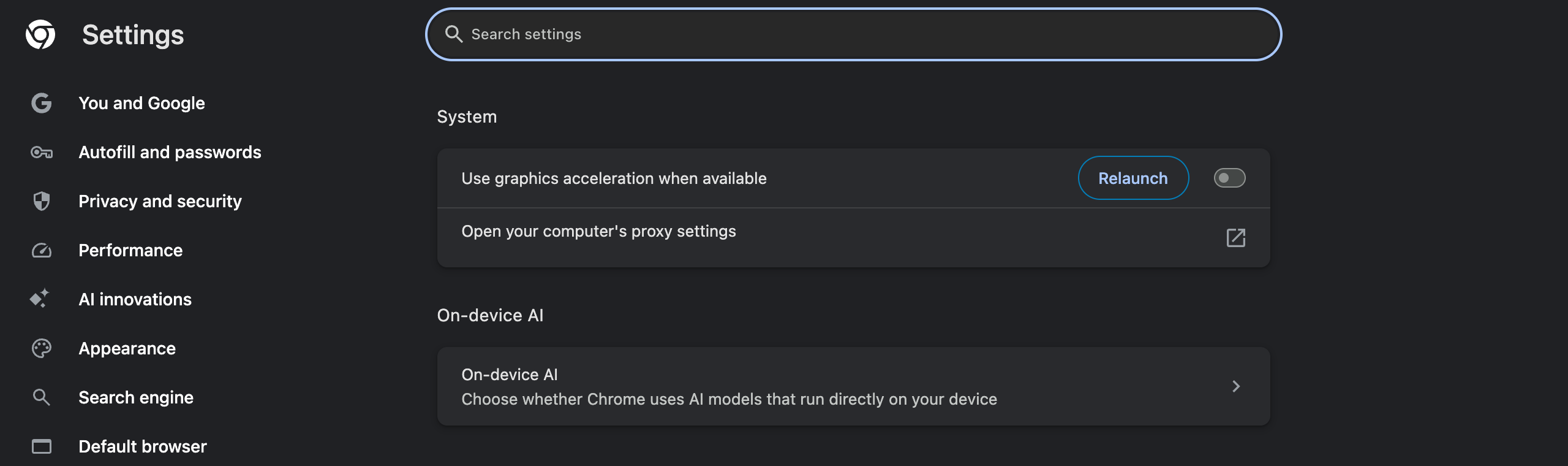
Two details most guides get wrong now:
- The label changed. Chrome 156 calls it "Use graphics acceleration when available". Older versions, and most articles still ranking for this query, say "Use hardware acceleration when available". It's the same setting.
- Nothing happens until you relaunch. Flipping the toggle only shows a Relaunch button next to it. Chrome writes the choice to its
Local Statefile ("hardware_acceleration_mode": {"enabled": false}— I checked the file after clicking it) and applies it on the next start. Pages you already have open keep rendering the old way.
If your organization manages Chrome, the toggle may be locked with a building icon next to it; that comes from the HardwareAccelerationModeEnabled enterprise policy, and only your admin can change it.
How I Tested Hardware Acceleration On vs Off
Most articles about this setting describe what the GPU "should" do. I wanted numbers, so I built four local test pages and measured each one with acceleration on and off:
| Test page | What it stresses |
|---|---|
| CSS animation | 400 rotating, scaling cards with gradients and shadows; every fourth one has filter: blur() |
| Canvas 2D | 3,000 particles drawn as radial gradients on a 2560×1600 canvas, every frame |
| Scrolling | 600 cards with shadows and backdrop-filter, auto-scrolled 40 px per frame |
| Video | A 1080p, 30 fps H.264 file, muted, looping |
Setup: Chrome 156.0.8078.49 on a MacBook Pro with an M1 Pro, macOS 26.5. Each run used a fresh profile and three configurations: default (acceleration on), the settings toggle switched off, and the --disable-gpu command-line switch. After a 4-second warm-up I counted frames with requestAnimationFrame for 10 seconds and summed the CPU time of every Chrome process from ps.
Caveats: the browser ran headless, driven over the DevTools protocol, and the machine had other work running at the same time. Each cell is the range of two or three interleaved runs, and the numbers are approximate. The direction of every result was the same in every run, which is what matters for an on/off decision.
The Results: What Turning It Off Actually Costs
CPU is shown the way Activity Monitor and top show it: 100% means one CPU core fully busy, so values above 100% mean Chrome kept more than one core busy.
| Test page | Acceleration ON | Acceleration OFF | Change |
|---|---|---|---|
| CSS animation | 60 fps, CPU ~48–59% | 21–24 fps, CPU ~107–123% | ~⅓ of the frames for ~2× the CPU |
| Canvas 2D | 60 fps, CPU ~62–64% | 26–33 fps, CPU ~91–115% | ~half the frames, ~1.7× the CPU |
| Scrolling | 60 fps, CPU ~24–32% | 47–53 fps, CPU ~100–114% | visibly choppier, ~4× the CPU |
| 1080p H.264 video | 0 dropped frames, CPU ~8–16% | 0 dropped frames, CPU ~29–36% | same playback, ~2–3× the CPU |
The pattern is consistent: with Chrome hardware acceleration off, Chrome renders fewer frames and burns more CPU doing it. There was no page where off was faster or lighter.
A few things the per-process numbers showed:
- Animation and scrolling moved onto one core. With acceleration off, the process Chrome labels the GPU process kept running and spent ~93–102% CPU compositing frames in software — one core flat out. That ceiling is exactly why the animation stalled at ~22 fps.
- Canvas work moved into the tab. For the canvas test, the page's own renderer process went from ~35% to ~100% CPU, because the drawing it used to hand to the GPU now happens on the CPU.
- Video switched decoders. Chrome's media log (the same data
chrome://media-internalsshows) reportedVideoToolboxVideoDecoderwith acceleration on, macOS's hardware decoder, andFFmpegVideoDecoderwith it off. An M1 Pro can decode 1080p in software without dropping frames, but it costs two to three times the CPU. On a low-end laptop, or with 4K or AV1 video, that's where stutter starts. - The toggle and
--disable-gpubehaved the same. Both produced the samechrome://gpureport and landed in the same ranges in every test, so you can use either one to diagnose.
On battery life: I didn't measure power draw directly. But the work doesn't disappear when you turn acceleration off; it moves to the CPU, which had to do two to four times more for the same page. If battery matters, look at the Energy Saver and battery flags I measured separately instead.
How to Check Chrome Hardware Acceleration in chrome://gpu
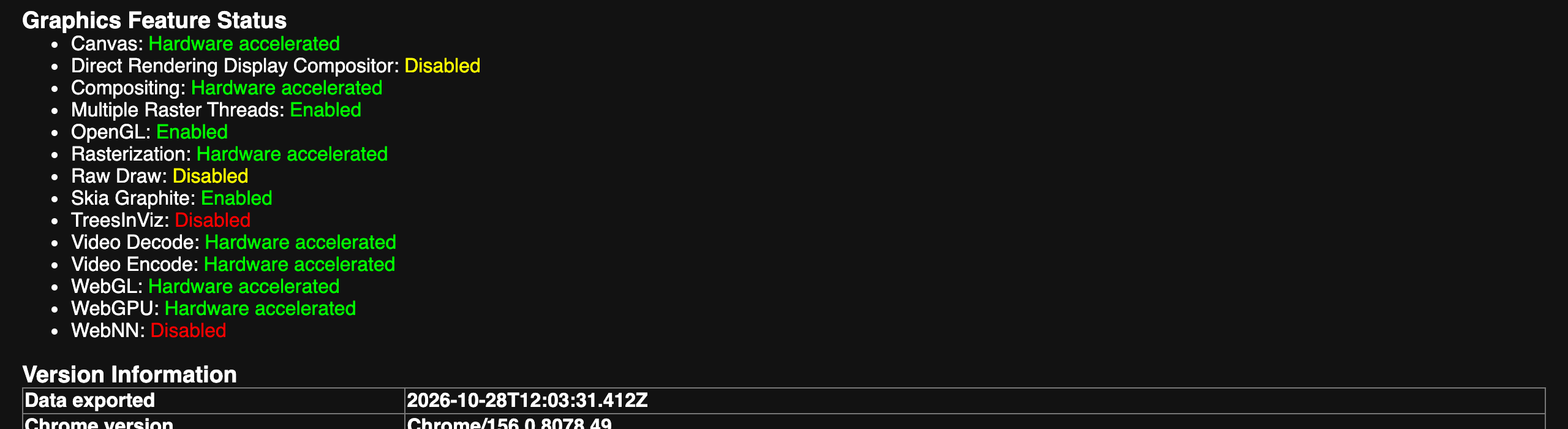
chrome://gpu is the ground truth. It shows what Chrome is actually using right now, which can differ from what the toggle says if Chrome fell back after a GPU crash or your GPU is on Chrome's blocklist. Here is a healthy Chrome 156 on Apple Silicon:
And here is the same machine after switching the toggle off and relaunching:
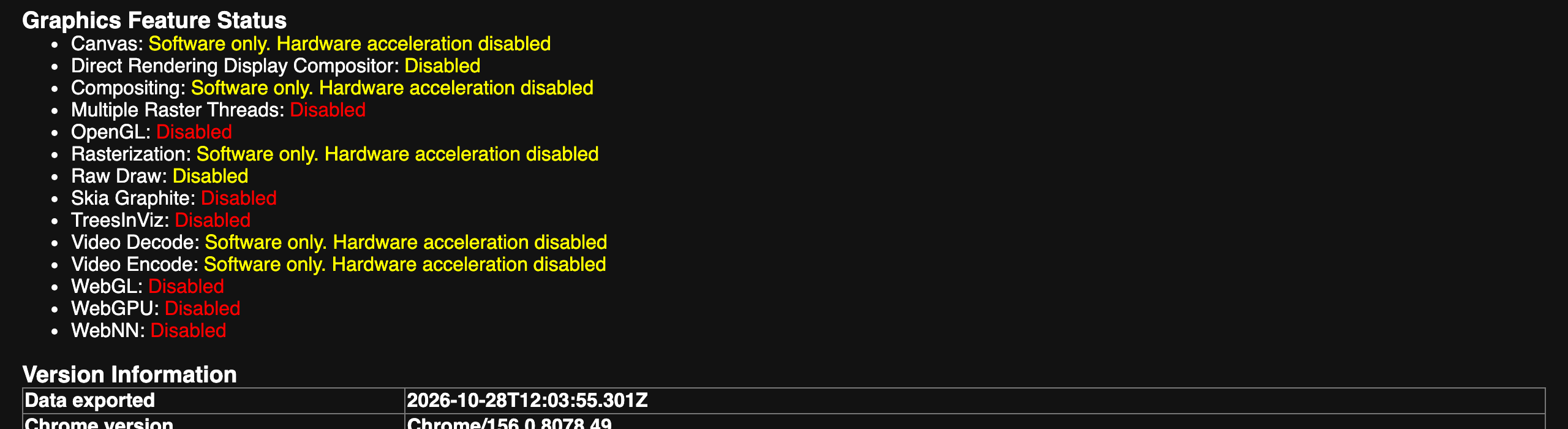
How to read it:
| Status | Meaning | What to do |
|---|---|---|
| Hardware accelerated (green) | The GPU handles this feature | Nothing, this is what you want |
| Software only. Hardware acceleration disabled (yellow) | The toggle is off, or Chrome launched with --disable-gpu | Turn the toggle back on unless you're diagnosing |
| Software only with any other wording | Chrome chose the CPU path itself, for example because of the GPU blocklist or a GPU crash | Check Problems Detected and Log Messages lower on the page |
| Disabled (red) | Feature unavailable; WebGL and WebGPU go red when acceleration is off | Expect 3D sites, maps and web games to fail or fall back |
Two lines on chrome://gpu are worth knowing. Problems Detected lists the driver bugs and blocklist entries Chrome applied to your hardware. Log Messages at the bottom records GPU process crashes, so if Chrome has silently fallen back to software, the reason is usually there. It's one of the chrome:// internal pages worth bookmarking.
When to Turn Chrome Hardware Acceleration Off
Turning it off is a diagnostic, not a speed fix. These are the symptoms where it earns a try:
| Symptom | Why the GPU path is a suspect | What to do |
|---|---|---|
| Black or flickering rectangles, menus that draw as blank boxes | Compositing goes through the GPU driver | Turn it off and relaunch. If the problem disappears, update the GPU driver and OS, then turn it back on |
| Video shows green frames, artifacts or freezes while audio continues | The platform hardware decoder is in use | Turn it off to force the software decoder; a fix confirms a decoder or driver bug |
| Chrome or a tab shows a black window right after launch | The GPU process fails to start | Launch once with --disable-gpu to reach chrome://settings/system and flip the toggle |
chrome://gpu Log Messages show repeated GPU process crashes | Driver or hardware instability | Turn it off until the driver is updated |
| Glitches only on one external monitor or after a dock or driver change | A display path or driver problem | Turn it off as a test, then retest after updating |
| "Chrome is slow" with no visual glitches | Unlikely to be the GPU | Leave it on. See the Chrome speed checklist and the Task Manager guide |
The last row is the common case, and the advice in a lot of older posts ("turn off hardware acceleration to make Chrome faster") gets it backwards on current hardware. On every page I tested, off was slower.
If the toggle fixes your glitch, don't leave it off for good. Update the graphics driver (on Windows, from the GPU vendor, not only Windows Update) and macOS or Windows itself, then switch Chrome hardware acceleration back on and check whether the glitch returns. On Windows, the per-app GPU preference (Settings › System › Display › Graphics) is also worth a look on laptops with two GPUs. I didn't test the Windows-specific steps on a Windows machine.
Chrome Hardware Acceleration vs GPU Flags
The toggle is the master switch. The GPU flags in chrome://flags only fine-tune individual parts of the GPU pipeline, and on current hardware they mostly force on things that are already on:
| Control | What it does | Worth touching? |
|---|---|---|
| Use graphics acceleration when available | Master on/off for all GPU use | Keep on; off only to diagnose |
--disable-gpu switch | Same effect for a single launch | Rescue tool when Chrome shows a black window |
#enable-gpu-rasterization | Forces GPU rasterization | No. chrome://gpu already shows it hardware accelerated |
#ignore-gpu-blocklist | Uses the GPU even if Chrome blocklisted it | Only if chrome://gpu shows Software only and you accept glitch risk |
I benchmarked those flags in Chrome flags for performance: none of them measurably sped up a healthy machine. The flags worth enabling are in the useful Chrome flags list, and how safe Chrome flags are covers the blocklist trade-off in more detail.
FAQ
Should hardware acceleration be on or off in Chrome? On, for almost everyone. In my Chrome 156 tests on an M1 Pro MacBook, turning it off dropped a CSS animation from 60 fps to about 22 fps and roughly doubled Chrome CPU use on every test page. Turn it off only as a diagnostic when you see flicker, black boxes or video glitches.
Where is the hardware acceleration setting in Chrome? Open chrome://settings/system. In current Chrome the toggle is called Use graphics acceleration when available; older versions called it Use hardware acceleration when available. Chrome shows a Relaunch button after you flip it, and the change only applies after the relaunch.
Does turning off hardware acceleration save battery? Not on modern hardware. With acceleration off, the work moves from the GPU to the CPU, and in my tests Chrome used two to four times more CPU for the same page while rendering fewer frames. More CPU time generally means more power, not less.
How do I check if Chrome hardware acceleration is working? Open chrome://gpu and read the Graphics Feature Status list. Hardware accelerated in green for Canvas, Compositing, Rasterization and Video Decode means it is working. Software only, hardware acceleration disabled means the toggle is off or Chrome has fallen back to the CPU.
Is the settings toggle the same as launching Chrome with --disable-gpu? In my Chrome 156 testing, yes in effect. Both produced the identical chrome://gpu report with every feature set to Software only, and the same frame rates and CPU usage within run-to-run noise. The toggle is stored in Local State as hardware_acceleration_mode, so it persists; the switch only lasts for that launch.
Does hardware acceleration affect YouTube and video playback? Yes. With it on, Chrome 156 decoded my 1080p H.264 test video with the platform decoder (VideoToolbox on macOS). With it off, Chrome switched to its software FFmpeg decoder and used roughly two to three times more CPU. Neither setting dropped frames for 1080p on an M1 Pro, but slower machines will feel the difference.
Chrome shows a black or flickering screen, what should I do? Turn off Use graphics acceleration when available and relaunch. If the problem disappears, the cause is the GPU path, usually a driver issue. Update the graphics driver and the operating system, then turn acceleration back on, because running without it costs a lot of CPU.
A Faster Chrome, One Shortcut at a Time
Leave the GPU doing the heavy lifting and cut the small, repeated work instead. Ctrl+Shift+C copies the current tab's URL with one shortcut, without clicking into the address bar, and collects no data.
Try Ctrl+Shift+C
Copy any URL with one keyboard shortcut. Free forever, no data collected.