Chrome Flags: Useful Settings Worth Enabling (2026)
Chrome ships with hundreds of experimental features that most users never find. They live at chrome://flags, a settings page that Chrome does not advertise, does not link from its normal settings UI, and labels with a warning about experimental behavior. Most of them are boring UI experiments. A handful quietly improve how Chrome handles downloads, tabs, reading, rendering, and appearance.
This is a curated list of chrome flags useful settings for 2026 — the ones actually worth your time. Every flag below was verified against Chrome 151 stable (August 2026), with screenshots taken from a live browser: 568 experiments are listed on the flags page in this build, and only a fraction of them earn a spot here. Each entry gives you the flag's direct address (paste it into the address bar and Chrome jumps straight to it), what it does, and how much real-world difference it makes. Remember to relaunch Chrome after enabling a flag — changes do not take effect until the browser restarts.
Quick Reference: The Flags Worth Enabling
| Flag | Address | What you get |
|---|---|---|
| Parallel Downloading | chrome://flags/#enable-parallel-downloading | Faster large-file downloads |
| Vertical Tabs | chrome://flags/#vertical-tabs | Tab list down the side, readable at any count |
| Tab Strip Declutter | chrome://flags/#tab-strip-declutter | Auto-collects inactive tabs |
| Auto Dark Mode | chrome://flags/#enable-force-dark | Dark mode forced on every site |
| Smooth Scrolling | chrome://flags/#smooth-scrolling | Less choppy scrolling (Windows/Linux) |
| GPU Rasterization | chrome://flags/#enable-gpu-rasterization | Rendering moved to the GPU |
| QUIC Protocol | chrome://flags/#enable-quic | Faster connection setup |
The rest of this post walks through each one, plus a few developer-only flags and the settings pages where several famous ex-flags now live.
How chrome://flags Works
Type chrome://flags in the address bar and press Enter. You see a searchable list of experimental features, each with a dropdown to enable, disable, or leave at default. At the top there is a search box and a Reset all button.
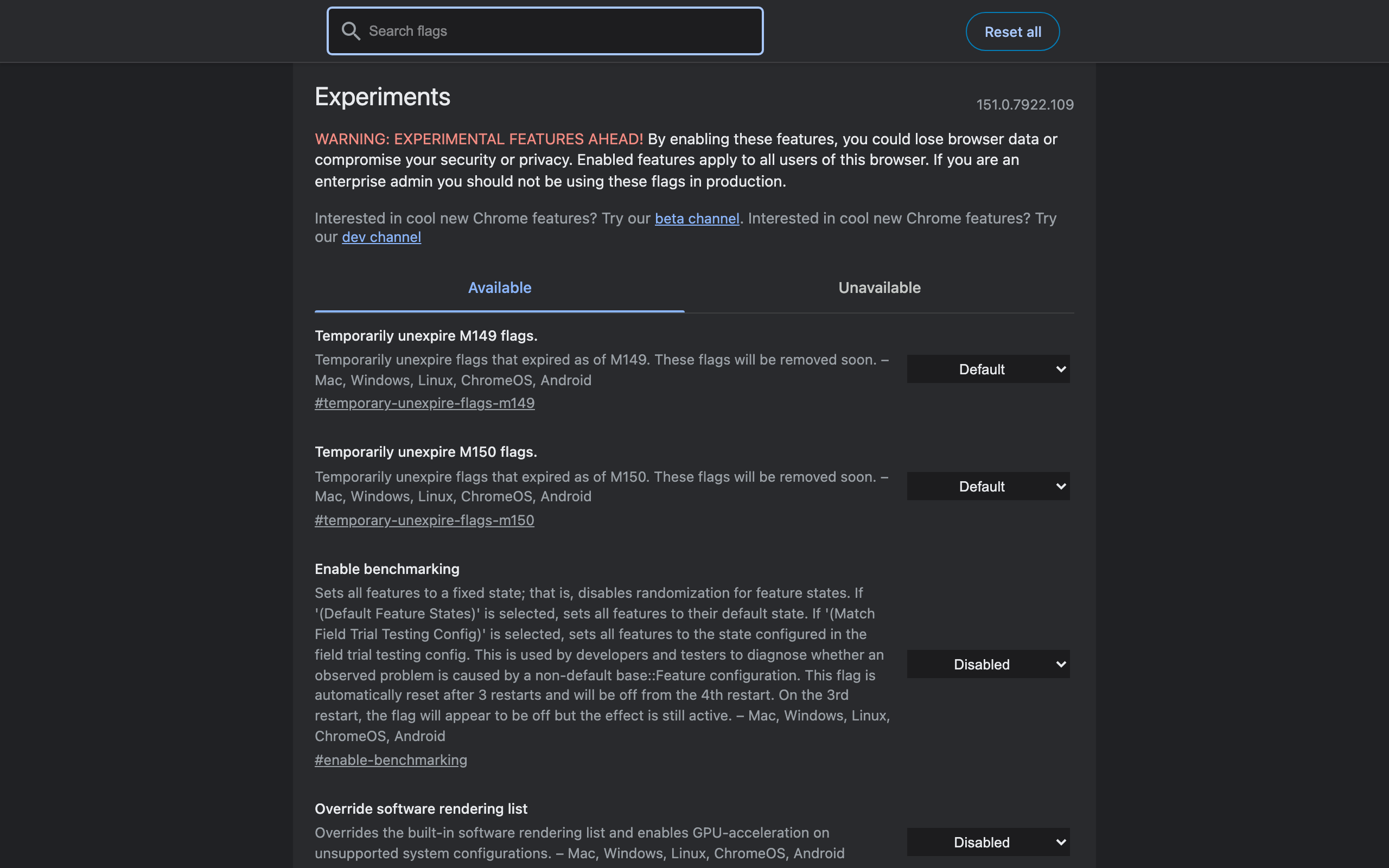
A few rules:
- Flags are experimental and can break. Enable one at a time and watch for issues.
- Flags are not synced across devices. Each machine needs its own configuration.
- Flags can be removed at any time. A flag you rely on today may be gone in a future version — usually because it has been promoted to a permanent feature.
- Every flag has a permalink like
chrome://flags/#enable-parallel-downloading. Paste it into the address bar and Chrome opens the list scrolled to that flag with its name highlighted. All the addresses in this post work that way. - The Available tab shows flags that apply to your OS; Unavailable collects the ones that do not. If a flag from this list is missing on your machine, check the Unavailable tab before assuming it is gone.
- If Chrome starts misbehaving after you enable something, disable the most recent flag first. If nothing obvious helps, use Reset all.
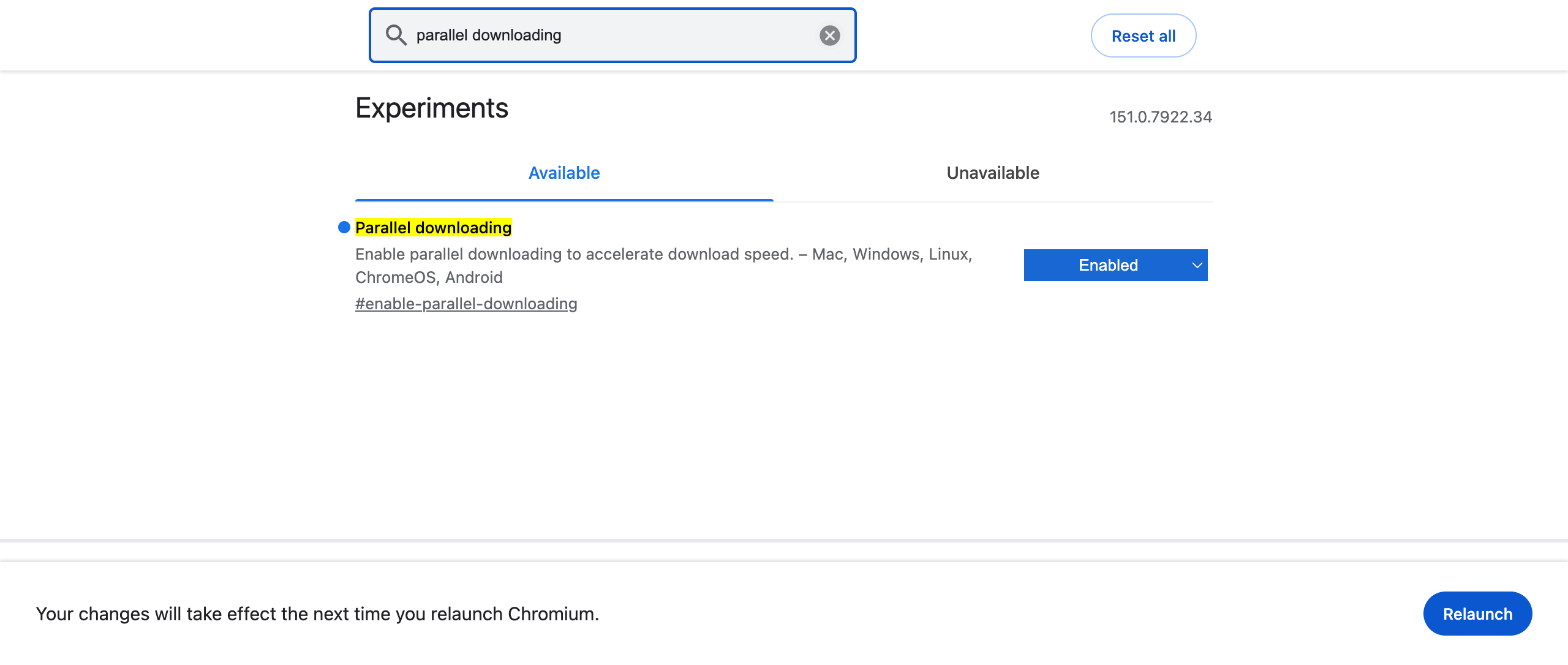
Enabling a flag looks like this: switch its dropdown to Enabled, and a Relaunch bar appears at the bottom of the page. Nothing changes until you click it — Chrome applies flags only on restart:
With those caveats out of the way, the useful ones.
1. Parallel Downloading — Faster Large Files
Address: chrome://flags/#enable-parallel-downloading
One of the most consistently useful chrome flags useful settings. Parallel Downloading splits a single file download into multiple parallel streams, which can meaningfully speed up large files (over 50MB) on decent connections. For multi-gigabyte files the difference is often dramatic.
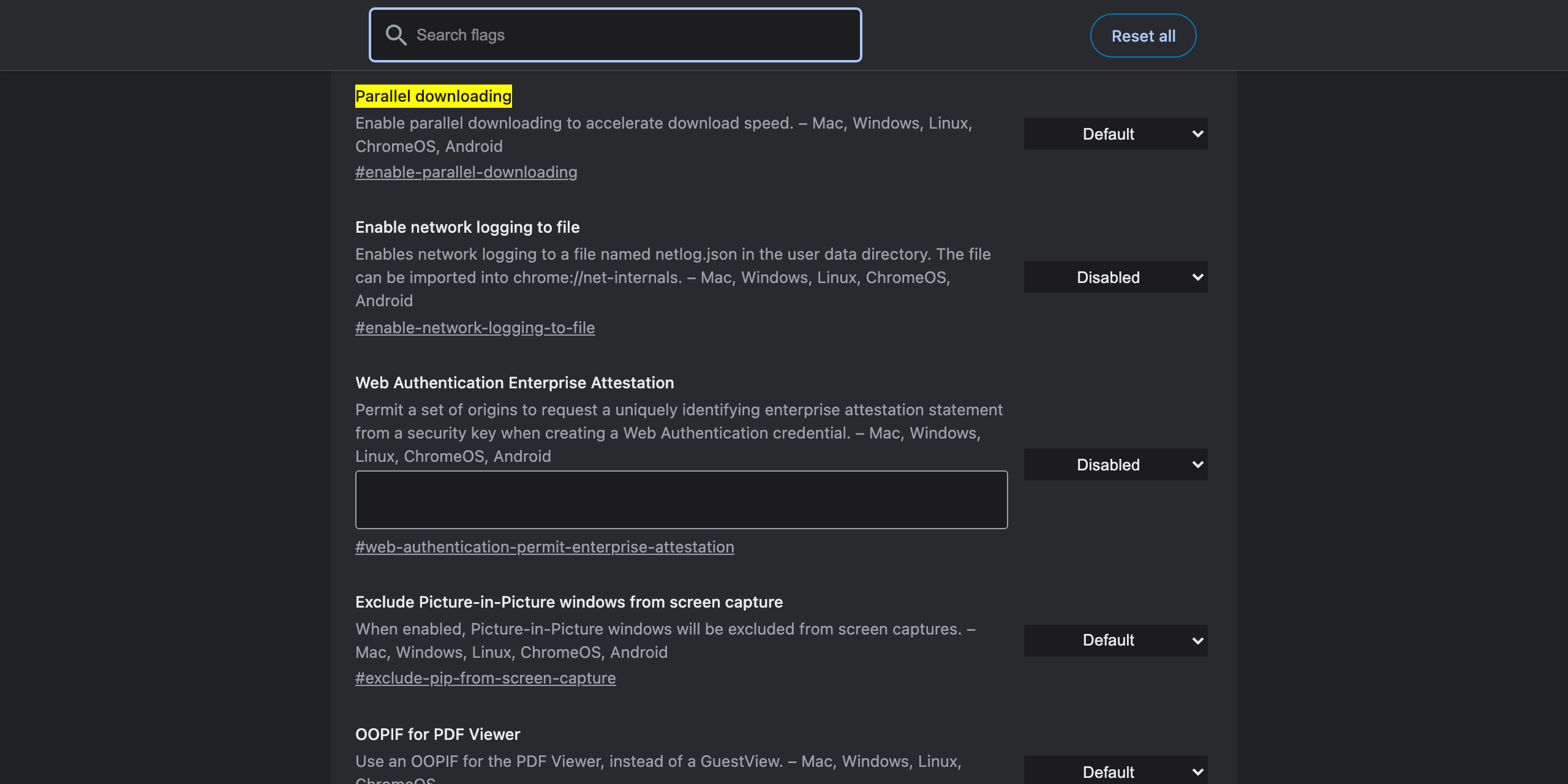
It has been experimental for years and has been stable for all that time. Enable it, restart Chrome, download a big file, and you should see higher throughput. If it causes issues with any specific downloader or site, disable it and move on — but most people leave it on permanently.
I measured this one properly: on a 100MB file served with a per-connection cap, Chrome went from 26.5 seconds to 9.0 seconds with the flag on, using exactly three connections — plus one server requirement that silently disables the whole thing. The full test is in parallel downloading in Chrome.
2. Vertical Tabs — The Tab Strip, Sideways
Address: chrome://flags/#vertical-tabs
The biggest tab-management change Chrome has shipped in years. Vertical Tabs moves the tab strip from the top of the window to a collapsible panel on the side, where tab titles stay readable no matter how many you have open. Edge and Arc users have sworn by this layout for years; now it is in Chrome without an extension.
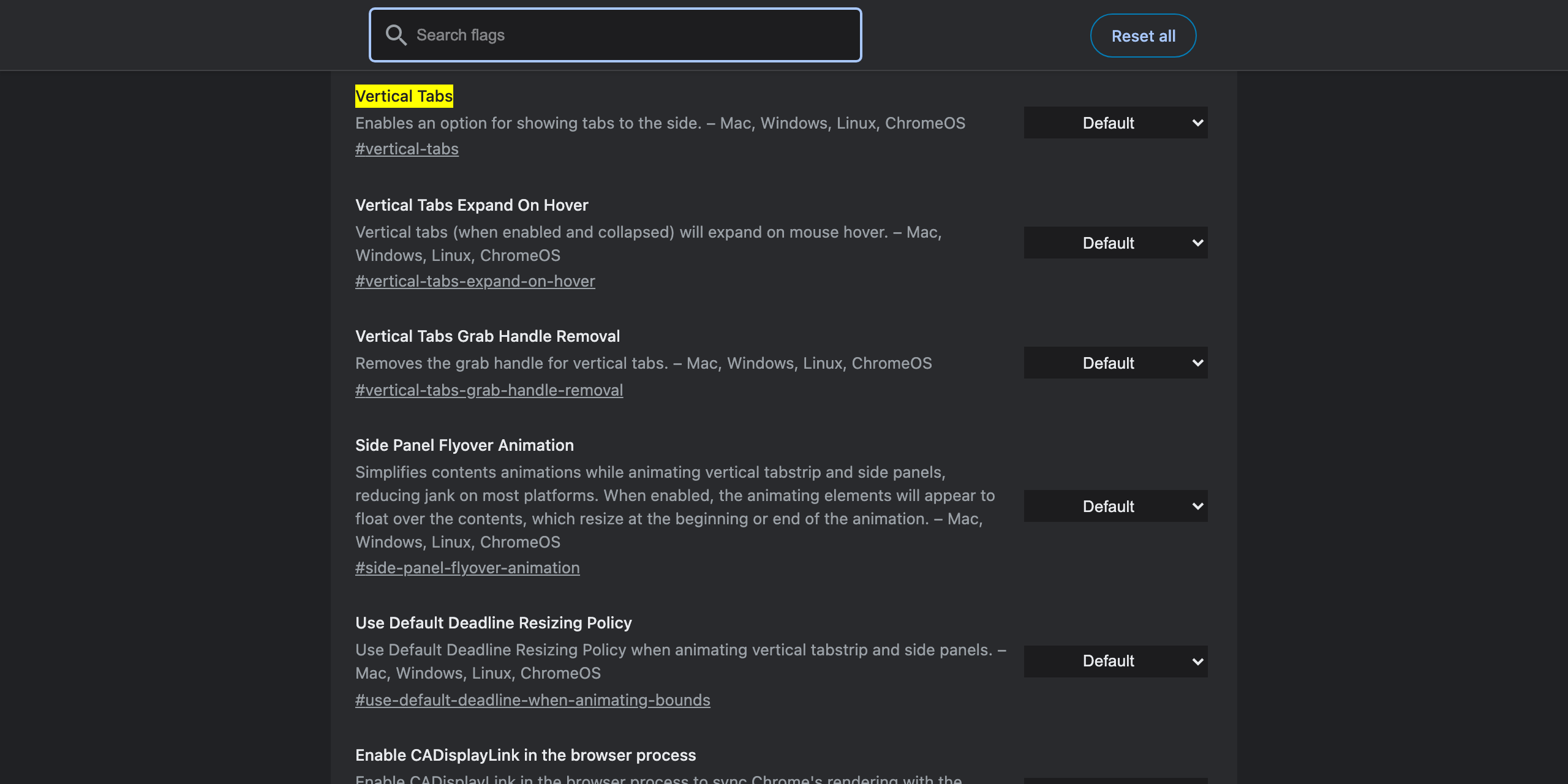
If you do not see the option in your tab strip's right-click menu, this flag turns it on. Pair it with chrome://flags/#vertical-tabs-expand-on-hover, which keeps the panel collapsed to icons and expands it when your cursor reaches the edge — the space saving of a hidden panel with the readability of a full one.
If you routinely run 20+ tabs, this flag plus a cleanup habit beats any horizontal-tab workaround. For the extension side of that fight, see chrome extensions for tab management.
3. Tab Strip Declutter — Chrome Archives Your Idle Tabs
Address: chrome://flags/#tab-strip-declutter
Tab Strip Declutter makes Chrome watch for tabs you have not touched in a while and offer to sweep them into a collapsed list, shrinking the visible strip back to the tabs you actually use. It is the browser equivalent of someone quietly clearing dishes off your desk.
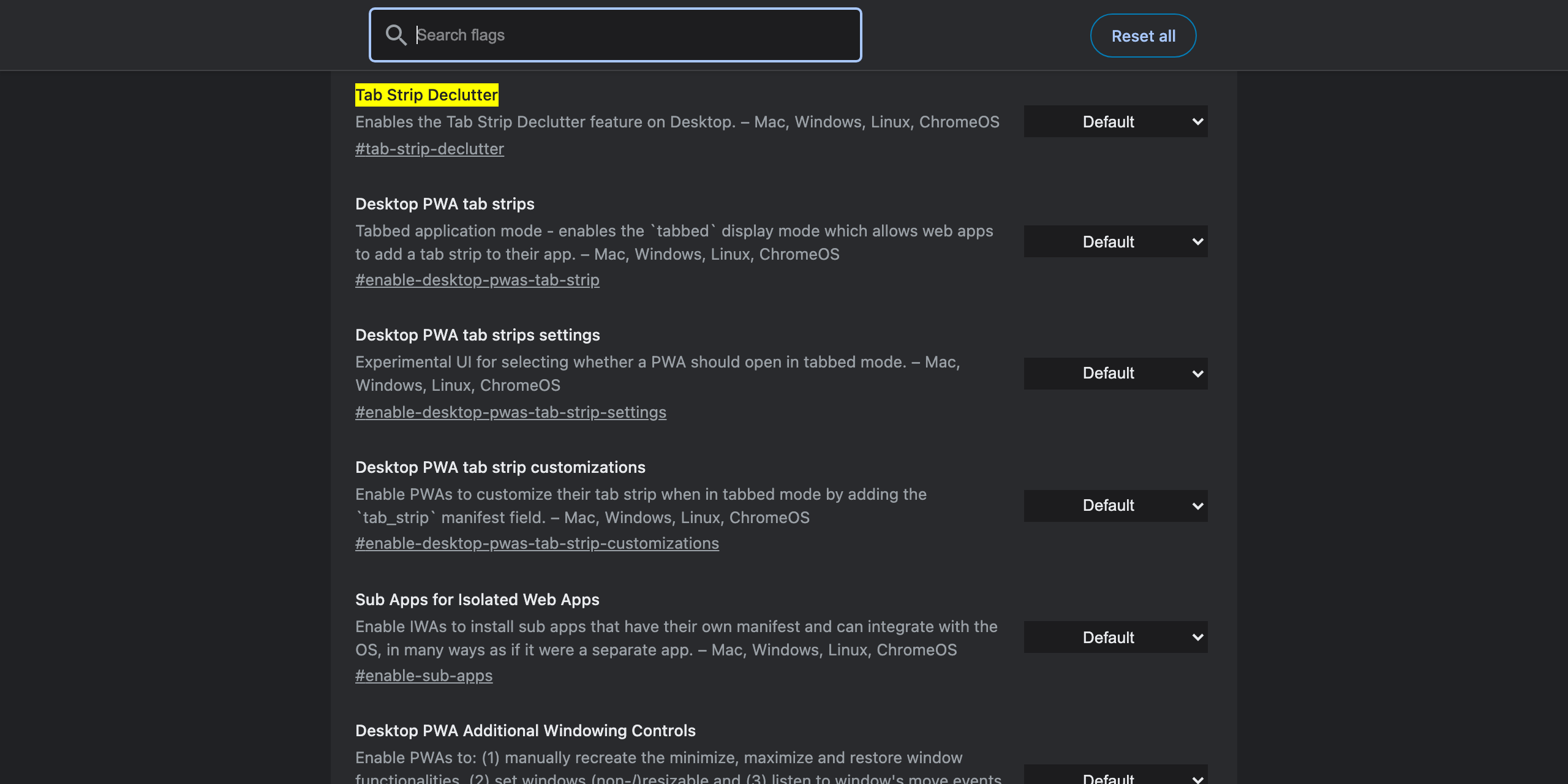
This replaced the old approach for taming tab overload: the venerable Tab Scrolling flag (#scrollable-tabstrip) has been removed from current Chrome builds — you will not find it in 151. Declutter attacks the cause (dead tabs accumulating) rather than the symptom (tabs too small to read), which is the right trade.
4. Smooth Scrolling — Better Feel (Windows & Linux)
Address: chrome://flags/#smooth-scrolling
Smooth Scrolling makes page scrolling feel less choppy. Some users love it, some find it distracting. One platform note from testing: on macOS this flag sits in the Unavailable tab — the system already provides its own scroll smoothing, so the flag applies to Windows, Linux, and ChromeOS.
Turn it on, scroll a long page, and see if you prefer it. There is no right answer — it is a preference flag. Most people prefer it on, especially on high-refresh-rate displays where the extra interpolation actually shows.
5. Auto Dark Mode for Web Contents — Dark Mode Everywhere
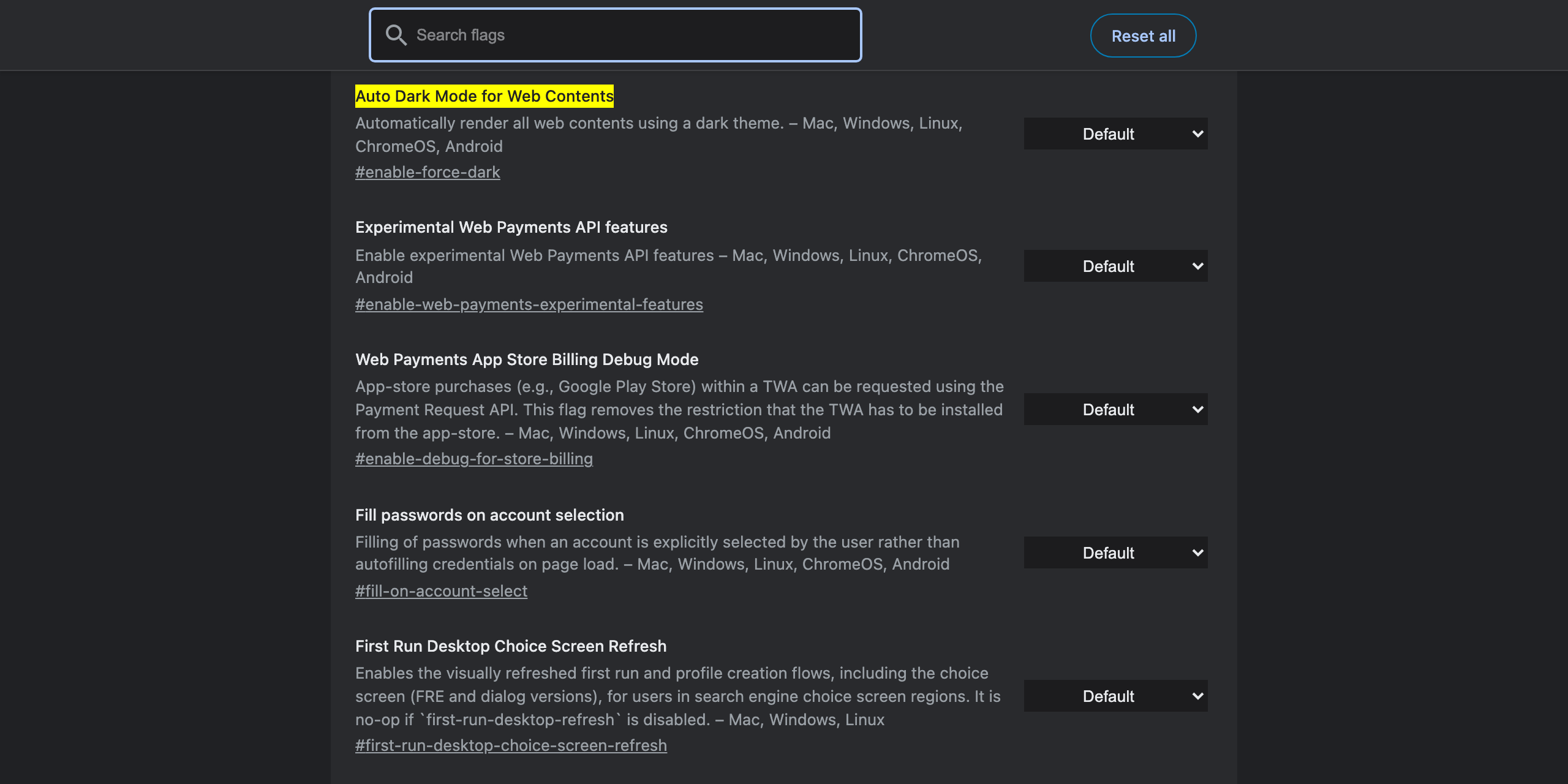
Address: chrome://flags/#enable-force-dark
Applies a forced dark mode to any website, whether or not the site supports dark mode natively. The results are hit or miss — sites with thoughtful design often end up with inverted images or unreadable color combinations — but for text-heavy sites without their own dark mode, it works well.
Here is what it actually does — the same Wikipedia article with the flag off and on. Note that the page has Wikipedia's own light theme selected in both shots; the dark version is entirely Chrome's doing:
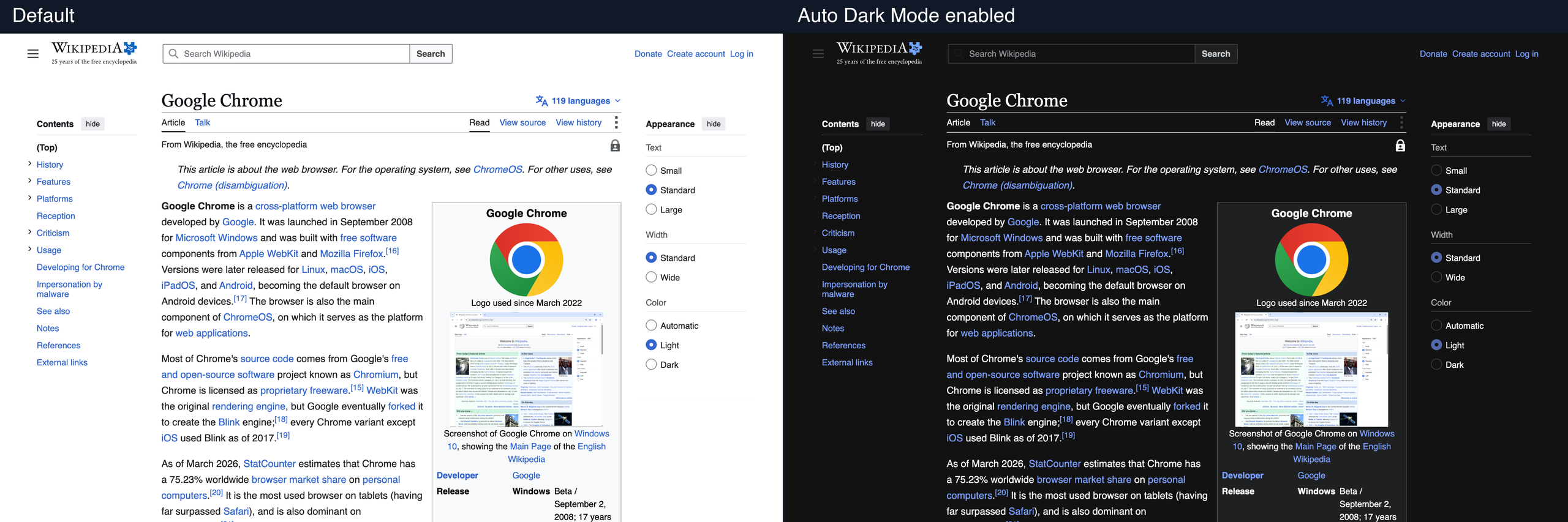
A dedicated extension like Dark Reader does this better because it has per-site overrides. But for a no-install approach, the flag is decent.
6. GPU Rasterization — Check, Then Force
Address: chrome://flags/#enable-gpu-rasterization
GPU rasterization moves rendering work from CPU to GPU. Enabled by default on machines Chrome considers capable, blacklisted on machines it does not. If you know your GPU is capable but Chrome is not using it, forcing GPU rasterization on can help.
Check chrome://gpu first. A healthy machine looks like this — Canvas, Compositing, Rasterization, Video Decode all reporting "Hardware accelerated" in green:
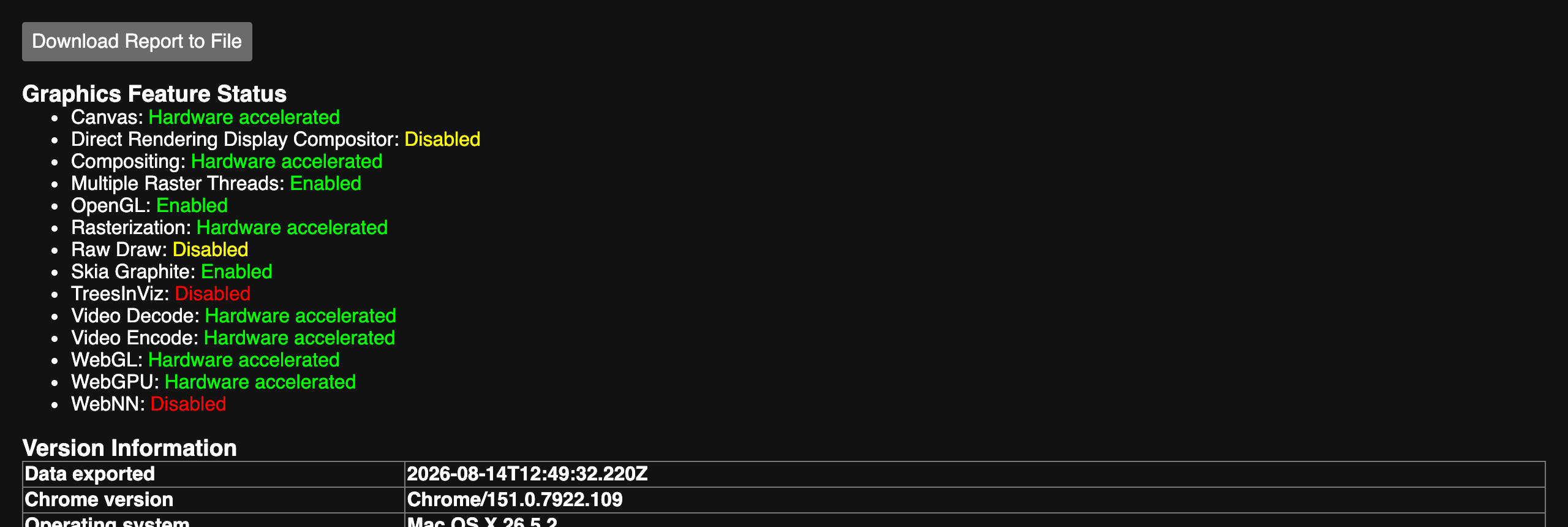
If your list shows "Software only" instead, try enabling the flag and see if the report changes. Do not override the blacklist if you do not know why Chrome blacklisted your GPU — the blacklist usually exists because specific drivers or hardware combinations crash under GPU rasterization.
7. Experimental QUIC Protocol — Faster HTTP
Address: chrome://flags/#enable-quic
QUIC is a modern transport protocol that Google has been pushing toward broader adoption. On by default in most recent Chrome builds, but worth verifying it is set to Enabled. On sites and CDNs that support it (Google, Cloudflare, and an increasing share of the web), QUIC reduces connection setup time and handles unreliable networks better than traditional TCP+TLS.
Zero visible UI change, marginal-but-real performance improvement in the background.
8. Reading Mode Extras — Line Focus and the Omnibox Chip
Reading Mode itself graduated from a flag into a stock feature: open the side panel and pick Reading Mode for a clean, ad-free view of any article. What remains in chrome://flags are the refinements:
chrome://flags/#read-anything-omnibox-chip— puts a Reading Mode chip right in the address bar on article pages, one click instead of a trip through the side-panel menu.chrome://flags/#read-anything-line-focus— highlights the current line while Reading Mode reads aloud, a genuine accessibility win for focus and dyslexia.
If you read long-form content in the browser daily, the omnibox chip is the one to enable.
9. Show Autofill Predictions — Developer Utility
Address: chrome://flags/#show-autofill-type-predictions
A niche one for developers. When enabled, Chrome overlays form fields with autofill prediction labels, showing what Chrome thinks each field is (email, name, credit-card-number, etc.). Useful for debugging autofill behavior on your own forms.
Leave it off if you are not actively debugging forms — it adds visual clutter to every page.
10. Insecure Origins Treated As Secure — Developer Only
Address: chrome://flags/#unsafely-treat-insecure-origin-as-secure
Strictly developer. Lets you specify HTTP origins to treat as if they were HTTPS. Needed for testing service workers or PWA features on non-HTTPS local development servers.
Do not enable this unless you are actively doing that kind of local development. It is a security-weakening flag.
11. Experimental WebAssembly — Developer Utility
Address: chrome://flags/#enable-experimental-webassembly-features
For developers working with WebAssembly, this and its sibling flags enable newer extensions like stack switching and shared-everything threads. Most non-developers will never need them. If you work with wasm-heavy apps (some design tools, in-browser compilers), these can improve performance.
Famous Flags That Graduated — Where They Live Now
A big part of keeping a flags list honest is admitting which entries no longer exist. If you read an older "best Chrome flags" roundup, several of its stars have moved:
| Former flag | Where it is now |
|---|---|
| Memory Saver aggressive mode | chrome://settings/performance — Memory Saver with selectable aggressiveness |
| Tab Scrolling | Removed; Vertical Tabs and Tab Strip Declutter are the successors |
| Reading Mode | Side panel, on by default; only the extras remain as flags |
| Global Media Controls | Toolbar media button, on by default |
| Privacy Sandbox flags | Gone — and so is chrome://settings/adPrivacy in Chrome 151; third-party cookie controls now live at chrome://settings/cookies |
| Chrome Refresh UI tweaks | Removed after the redesign shipped |
The pattern is worth internalizing: a genuinely good flag does not stay a flag. It ships. The list above is your reminder to configure those features in settings rather than hunting for flags that no longer exist. For memory specifically, see how to speed up Chrome browser; for the ad-privacy settings, see privacy-focused Chrome extensions.
I checked 22 well-known flags from older roundups against every experiment in Chrome 151 and listed each one's replacement in removed Chrome flags in 2026 — including the two "temporarily unexpire" entries that reveal how Chrome's retirement schedule works.
Two Settings That Belong on Any Flags List
Neither of these is a flag, but both are unknown to most users and deliver more than half the flags above.
Secure DNS — chrome://settings/security. Turn on Use secure DNS and pick a provider (Cloudflare at 1.1.1.1 is a good default). Your DNS queries are encrypted, harder to intercept or modify in transit, and often faster than ISP DNS. Do not assume secure DNS alone gives you privacy — your queries are still visible to the provider you choose, so pick one with a clear privacy policy (Cloudflare, Quad9, Google).
Password Check — chrome://settings/passwords/check. Scans your saved passwords against known breach databases and warns about compromised, reused, or weak ones. Run it once a quarter and change anything it flags. Third-party managers (Bitwarden, 1Password) are still more capable, but the built-in check is free and takes a minute.
A Sensible Starter Set
If you want a curated set of chrome flags useful settings to enable today:
- Parallel Downloading — faster large files
- Vertical Tabs — readable tabs at any count
- Tab Strip Declutter — idle tabs swept automatically
- Auto Dark Mode — dark theme on every site (if you want it)
- Secure DNS (via settings) — encrypted DNS queries
- Smooth Scrolling — better scroll feel on Windows/Linux
Six changes, all stable, all low-risk, all daily beneficial. That is the core. Add others only when you have a specific reason.
How to Manage Flags Over Time
Chrome flags change across versions — this post's own history proves it: three of the flags in the original version of this list no longer exist a few months later. A few practices help:
- Keep a note of which flags you have enabled and why. A plain text file works.
- Revisit after major Chrome updates — check that your flags are still present and still set how you want.
- Prefer settings over flags when a feature graduates. Once something is in
chrome://settings, that is the more stable way to configure it. - Use flags cautiously on work machines — a broken flag can disrupt a workday. Disable anything that misbehaves quickly.
- Audit what is actually active via
chrome://version— flags you set appear there as real switches between--flag-switches-beginand--flag-switches-end. For the risk tiers, the handful of genuinely dangerous entries, and how to start Chrome ignoring every flag if one breaks startup, see are Chrome flags safe.
For the broader story of how to optimize Chrome beyond just flags, see chrome tips for power users.
What to Skip
A large portion of chrome://flags is not worth your time. In Chrome 151 the page lists 568 experiments; maybe a dozen matter to a normal user. Typical categories to ignore:
- UI experiments with no functional difference
- Platform-specific flags that do not apply to your OS (the Unavailable tab exists for a reason)
- Feature flags for features you do not use (enterprise management, kiosk mode, Android-only features)
- Flags marked deprecated or expiring — the "Temporarily unexpire" entries at the top of the list are flags already on their way out
Available flags are the only ones that will do anything on your system. Of those, only a fraction are genuinely useful. Be selective.
Flags vs. Extensions — When Each Is Right
Some things you can accomplish with either a flag or an extension:
- Dark mode on all sites — Auto Dark Mode flag vs. Dark Reader extension
- Ad blocking — no flag exists; extension (uBlock Origin) is the way
- URL copying — no flag exists; extension like Ctrl+Shift+C is the way
- Tab management at scale — Vertical Tabs and Declutter flags help a lot; extensions still win for session saving and heavy tab work
Flags are built-in and maintenance-free. Extensions are more powerful and more flexible. Prefer flags for simple toggles and extensions for features that require configuration or customization.
Extensions are also where the highest-leverage chrome daily optimizations tend to live. The Ctrl+Shift+C extension, for example, fills a feature gap Chrome has never filled — one keyboard shortcut, current URL on clipboard. No flag does that. An extension is the right tool for that job.
Frequently Asked Questions
What is chrome://flags? Chrome flags are experimental settings that Google is testing before shipping to everyone. You access them by typing chrome://flags in the address bar. They let you opt into features early, but they can change or disappear without warning.
Are Chrome flags safe to enable? Most are safe, but they are experimental. Features can break, change behavior between Chrome updates, or be removed entirely. Enable flags one at a time, note what you changed, and disable anything that causes issues.
Which Chrome flags are actually useful in 2026? Parallel Downloading, Vertical Tabs, Tab Strip Declutter, Auto Dark Mode for Web Contents, and GPU rasterization are the most consistently useful in current Chrome builds. Most other flags are UI experiments with negligible real-world impact.
Can Chrome flags speed up my browser? A few can. Parallel Downloading speeds up large file downloads significantly. GPU rasterization and QUIC reduce rendering and network overhead. Most flags are not performance-related, but the handful that are can meaningfully help.
How do I open a specific Chrome flag directly? Every flag has a permalink. Paste the flag address, such as chrome://flags/#enable-parallel-downloading, into the address bar and Chrome opens the flags page scrolled to that flag with its name highlighted.
How do I reset all Chrome flags? At the top of chrome://flags there is a "Reset all" button that reverts every flag to its default state. After reset, relaunch Chrome for changes to take effect.
Do Chrome flags sync across devices? No. Chrome flags are local to each installation. If you want the same flags across multiple machines, you need to set them individually on each one.
What happens when an experimental flag becomes a permanent feature? Once a flag graduates, it moves into Chrome settings or becomes on by default. The flag listing either stays as a legacy toggle or disappears. Memory Saver, Reading Mode, Tab Scrolling, and Global Media Controls all went through exactly this path.
Enable What Helps, Ignore the Rest
Chrome flags useful settings are not a checklist to max out. They are a menu to pick from. The six or seven flags that matter for your workflow are worth enabling. The five hundred that do not apply to you should stay at default.
Start small: Parallel Downloading, Vertical Tabs, Tab Strip Declutter, Auto Dark Mode. Four flags, ten seconds to enable, a single Chrome restart. Live with the changes for a week. Add or remove based on experience.
Then think about which everyday actions still feel inefficient, and fix those with focused tools. If URL copying is one of them — and for anyone sharing links all day, it is — install Ctrl+Shift+C. Clipboard permission only, zero data collection, one keypress to copy the current tab URL. That pairing — a handful of smart flags plus one or two focused extensions — is what actually makes Chrome feel polished. The chrome flags useful settings part is necessary, but the extensions complete the picture.
Try Ctrl+Shift+C
Copy any URL with one keyboard shortcut. Free forever, no data collected.