Chrome Flags for Performance: 8 Tested on Chrome 154
Chrome flags for performance are the most-searched kind of flag, and the honest answer for 2026 is short: on Chrome 154, none of the eight popular "speed" flags I tested made Chrome measurably faster. Speedometer scores, page load times and memory use all stayed inside normal run-to-run noise, because current Chrome already turns the important rendering optimizations on by default.
That is not the answer most "best Chrome flags" lists give, so this post shows the work: what I tested, how, the approximate numbers, and the two cases where a flag can still help.
How I Tested Chrome Flags for Speed
All tests ran on Chrome 154.0.8037.93 on an Apple-silicon Mac, in a fresh throwaway profile, with each configuration launched from scratch. For every configuration I recorded:
- Speedometer 3.1 — the standard browser responsiveness benchmark (higher is better)
- Frame rate on a simple page, measured with
requestAnimationFrame - Page load of six real sites (Wikipedia, GitHub, MDN, BBC News, YouTube, The Verge), warm cache
- Memory footprint of the whole browser with those six sites open
Each configuration was run in several rounds, alternating configurations inside each round so that a background hiccup could not favor one flag. One caveat matters: the machine was also doing other work during part of the testing, so absolute scores moved between rounds. Compare the configurations with each other, not with Speedometer numbers you see elsewhere, and treat everything below as approximate.
To confirm each flag actually took effect, I checked the --flag-switches-begin block on chrome://version for every run — the same audit trick described in are Chrome flags safe.
The Results: Chrome Flags vs Default
| Configuration | Flag | Speedometer 3.1 (approx.) | Frame rate | Memory, 6 sites | Worth it? |
|---|---|---|---|---|---|
| Default Chrome | — | ~38–41 | 60 fps | ~2.5–2.6 GB | Baseline |
| GPU rasterization | #enable-gpu-rasterization | ~38–41 | 60 fps | ~2.5–2.6 GB | No — already on |
| Zero-copy rasterizer | #enable-zero-copy | ~37–41 | 60 fps | ~2.5–2.6 GB | No measurable effect |
| Override GPU blocklist | #ignore-gpu-blocklist | ~35–41 | 60 fps | ~2.5–2.6 GB | Only on blocklisted GPUs |
| Graphite disabled | #skia-graphite → Disabled | ~36–40 | 60 fps | ~2.6–2.7 GB | No — slightly worse |
| Background resource fetch | #background-resource-fetch | ~35–42 | 60 fps | ~2.5–2.6 GB | No measurable effect |
| 60 Hz main thread | #throttle-main-thread-to-60hz | ~38–40 | 60 fps | ~2.5–2.6 GB | No (for 60 Hz screens) |
| TreesInViz | #trees-in-viz | ~36–41 | 60 fps | ~2.5–2.6 GB | No measurable effect |
| "Speed stack" (6 flags combined) | GPU raster + zero-copy + blocklist + QUIC + parallel downloads + background fetch | ~38–40 | 60 fps | ~2.5–2.6 GB | No |
Run-to-run spread for the same configuration was about ±3 points, which is wider than any difference between configurations. In plain terms: within the precision of the test, every column is a tie. Page loads told the same story — the six sites loaded in roughly 2.0 to 2.4 seconds combined for every configuration, with the order shuffling from round to round.
The only configuration that trended in one direction was turning Graphite off: it sat at or near the bottom on Speedometer and used roughly 80 MB more memory in most rounds. Small, inside the noise on its own, but consistent — and it points the same way as the conclusion below. Chrome's default rendering path is the fast one.
Why These Flags Don't Make Chrome Faster Anymore
Open chrome://gpu on a current Mac and the Graphics Feature Status block explains most of the table:
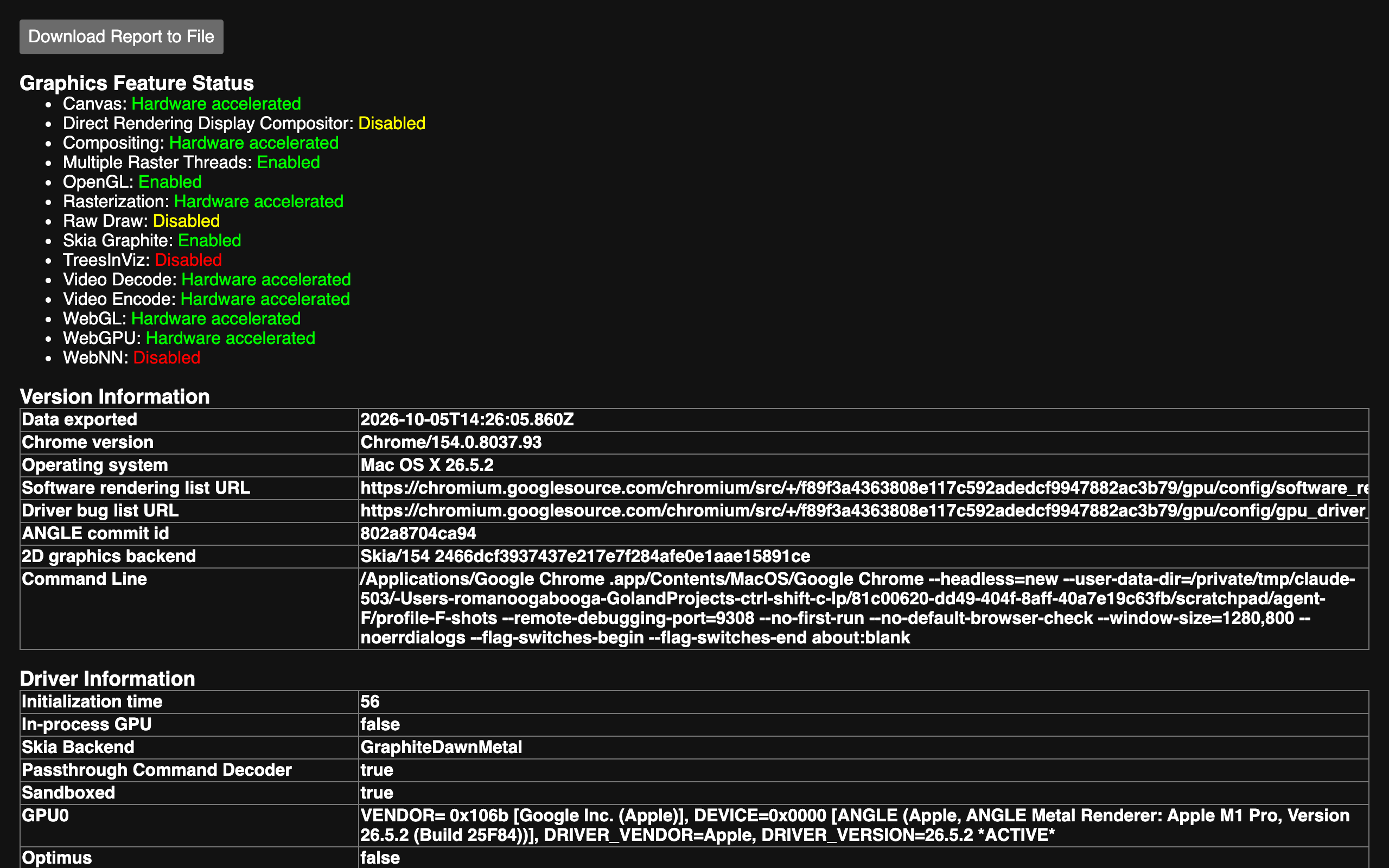
On Chrome 154 it reports:
- Rasterization: Hardware accelerated — so
#enable-gpu-rasterizationforces on something already on - Multiple Raster Threads: Enabled
- Skia Graphite: Enabled — Chrome's newer GPU rendering backend, which is why disabling it was the one change that trended worse
- Compositing, Canvas, WebGL, WebGPU, Video Decode: Hardware accelerated
- TreesInViz: Disabled — still an experiment, and enabling it changed nothing I could measure
Most speed-flag lists were written years ago, when GPU rasterization was off by default on many machines and flipping it genuinely helped. Those defaults changed; the lists did not. The flags page itself shows the default state for the rest:
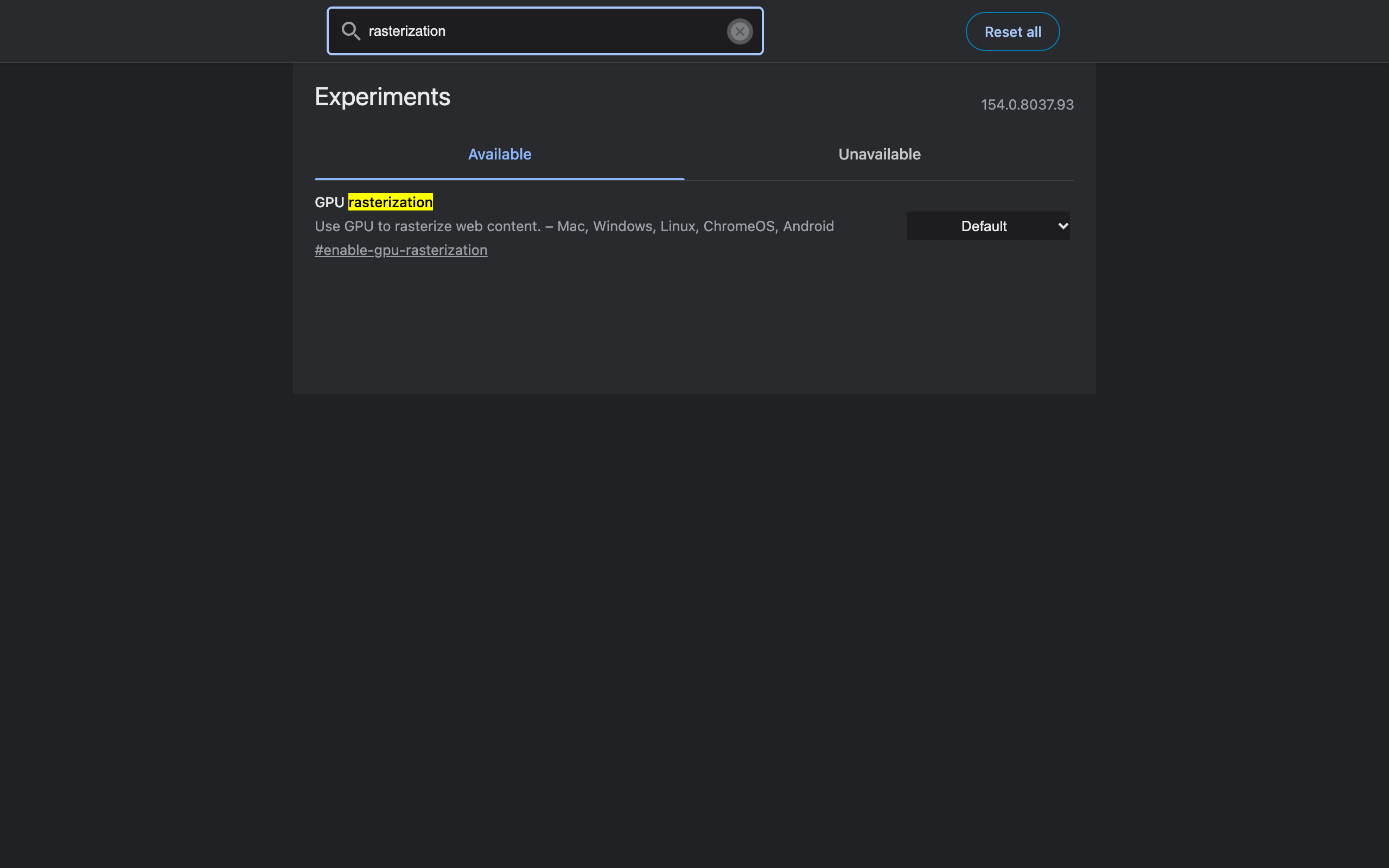
"Default" here does not mean "off". It means "whatever Chrome decided for your hardware" — and on supported hardware, that is already the accelerated path.
The Cold-Start Trap Behind "30% Faster" Claims
My very first run of the whole test — default Chrome, nothing enabled — scored 31 on Speedometer. Every later default run scored around 38 to 41. If I had stopped after one round, the table above would show every flag roughly 30% faster than stock Chrome, and this would be a very different (and wrong) article.
The cause is mundane: the first launch of a fresh profile pays one-time costs — building caches, compiling shaders, warming the disk cache — that later launches do not. Any single before/after comparison with the "before" run first will flatter the flag.
How to avoid fooling yourself if you test flags at home:
- Run the benchmark at least three times per configuration
- Alternate configurations (A, B, A, B) instead of all A runs then all B runs
- Throw away the first run of a fresh profile
- Close other heavy apps — a busy machine moved my absolute scores by more than any flag did
Two Cases Where a Speed Flag Still Helps
Large downloads. #enable-parallel-downloading is the one performance flag with a large, measurable effect — on a 100 MB file it cut download time roughly threefold in my parallel downloading test. It does nothing for browsing speed, only for big files from servers that support range requests.
Machines with a blocklisted GPU. If chrome://gpu on your machine shows rasterization or compositing as "Software only" or "Disabled", the GPU blocklist has kicked in. #ignore-gpu-blocklist can bring acceleration back — or bring back the crashes the blocklist was protecting you from. It is a test-and-revert experiment, not a set-and-forget tweak. On my machine nothing was blocklisted, so the flag had nothing to change.
What Actually Speeds Up Chrome
If the goal is a faster browser rather than a flags page full of "Enabled", these are the changes that show up in real measurements:
| Change | Why it works |
|---|---|
| Close or discard heavy background tabs | A single news site can add 400–500 MB and keep a CPU core busy |
| Turn on Memory Saver | Discarded tabs release almost all their memory |
| Remove unused extensions | Each one is a process and runs on every page it matches |
| Find the culprit in Task Manager | One runaway tab usually explains "Chrome is slow" |
| Keep Chrome updated | Real performance work ships in stable releases, then the flag disappears |
The broader checklist is in how to speed up Chrome, the Chrome Task Manager guide shows how to find the tab that is actually slowing you down, and the Memory Saver deep dive measures what discarding tabs gives back.
Flags That Are Worth Enabling (Just Not for Speed)
None of this makes the flags page useless — it makes it the wrong place to look for speed. The flags worth turning on in 2026 change how you work: vertical tabs, tab strip declutter, Reading Mode extras, auto dark mode. Those are covered, tested on current Chrome, in the useful Chrome flags list. And because flags come and go every release, it is worth checking which Chrome flags were removed in 2026 before following any older guide.
FAQ
Which Chrome flags make Chrome faster? On Chrome 154 none of the eight popular speed flags I tested moved Speedometer 3.1 beyond run-to-run noise. Scores stayed around 38 to 41 for the default browser and for every flag. The one flag with a real, measurable speed effect is parallel downloading, and it only speeds up large downloads.
Should I enable GPU rasterization in chrome://flags? Usually there is no point. chrome://gpu on Chrome 154 already reports Rasterization as Hardware accelerated by default on supported hardware, so forcing the flag on changes nothing measurable. It only matters on a machine where chrome://gpu shows rasterization as software only.
Is it safe to enable ignore-gpu-blocklist? It is not dangerous to your data, but the blocklist exists because specific GPU and driver combinations crash or render incorrectly. On hardware that is not blocklisted it does nothing; on hardware that is, it can cause glitches. Only try it if chrome://gpu shows features disabled by the blocklist.
Do Chrome performance flags reduce memory usage? Not in my testing. With six real sites open, Chrome used roughly 2.5 to 2.6 GB of memory with the default settings and with each speed flag. Memory Saver and closing heavy tabs make a far bigger difference than any flag.
Why do some guides report big speed gains from Chrome flags? Most measure once, often on a cold first launch. My very first baseline run scored 31 on Speedometer while later baseline runs scored about 38 to 41, so a single cold run can make any flag look 30 percent faster. Repeating runs and alternating configurations removes that illusion.
What actually makes Chrome faster if flags do not? Fewer heavy tabs, Memory Saver for background tabs, removing extensions you do not use, keeping Chrome updated, and checking the Task Manager for the tab or extension that is eating CPU. Those changes show up in real measurements; most speed flags do not.
The Fastest Thing You Can Add
The biggest time savings in a browser are rarely in rendering — they are in the small actions you repeat all day. Copying the current page's URL is one of them: right-click, select, copy, or one shortcut. Ctrl+Shift+C puts the tab URL on your clipboard with a single keystroke, with no data collected and nothing to configure.
Try Ctrl+Shift+C
Copy any URL with one keyboard shortcut. Free forever, no data collected.