Full Page Screenshot in Chrome Without an Extension (2026)
To take a full page screenshot in Chrome without an extension, open DevTools (F12, or Cmd+Option+I on Mac), press Cmd+Shift+P (Mac) or Ctrl+Shift+P (Windows, Linux), type screenshot and choose Capture full size screenshot. Chrome renders the entire scrollable page in a single pass and saves it as a PNG. No stitching, no install, no account.
That is the five-second answer, and it works most of the time. The other times it quietly hands you a file with blank images, a header in the wrong place, or — on long pages — content that repeats itself halfway down. I tested all of that on Chrome 156.0.8078.49 (October 2026) with a purpose-built test page, measured the output, and read the DevTools source to see exactly what the command does. Everything below is either measured or quoted from Chrome itself.
How to Take a Full Page Screenshot in Chrome Without an Extension
- Open the page and scroll to the very top (this matters — see the sticky header section below).
- Open DevTools:
F12,Cmd+Option+Ion Mac orCtrl+Shift+Ion Windows and Linux. - With DevTools focused, open the command menu:
Cmd+Shift+Pon Mac,Ctrl+Shift+Pon Windows and Linux. - Type
screenshot. - Choose Capture full size screenshot and press Enter.
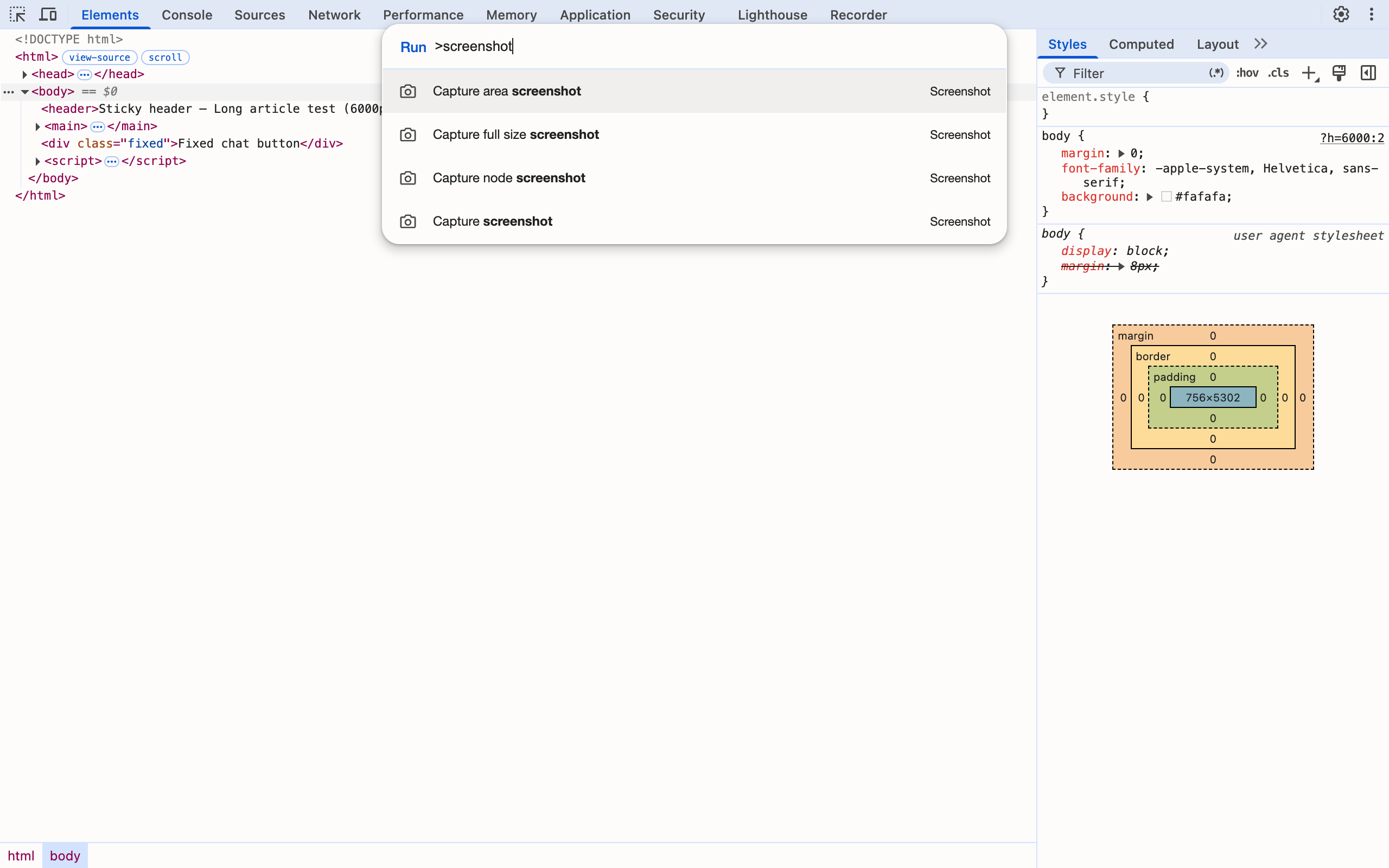
Chrome saves a PNG named after the page address. There is no JPEG or quality option — the DevTools source requests png at quality 100 every time. If the command menu is new to you, DevTools command menu tricks covers the prefixes and fuzzy search that make it fast, and the keys for opening DevTools on a Mac are in the Chrome shortcuts for Mac list.
Under the hood this is one Chrome DevTools Protocol call: Page.captureScreenshot with captureBeyondViewport: true and fromSurface: true. Chrome temporarily lays the page out at its full height, paints it once and returns the image. That is why there are no seams and why a sticky header is not repeated on every screen the way it is with scroll-and-stitch extensions.
The Four DevTools Screenshot Commands
Typing screenshot in Chrome 156 lists four commands, all in the Screenshot category. I confirmed the names both in the live command menu and in the DevTools frontend source that ships with 156.
| Command | What it captures | Output on a 1280×800 window at 2x | Best for |
|---|---|---|---|
| Capture screenshot | The visible viewport only | 2560 × 1600 | Quick "what I see now" |
| Capture full size screenshot | The entire scrollable page | 2560 × (page height × 2) | Landing pages, articles, bug reports |
| Capture node screenshot | The selected element, cropped to its box | Element size × 2 | Components, cards, a single chart |
| Capture area screenshot | A rectangle you drag on the page | Your selection × 2 | Ad-hoc crops without an image editor |
Capture node screenshot is also on the right-click menu of any element in the Elements panel, which is usually the faster route:
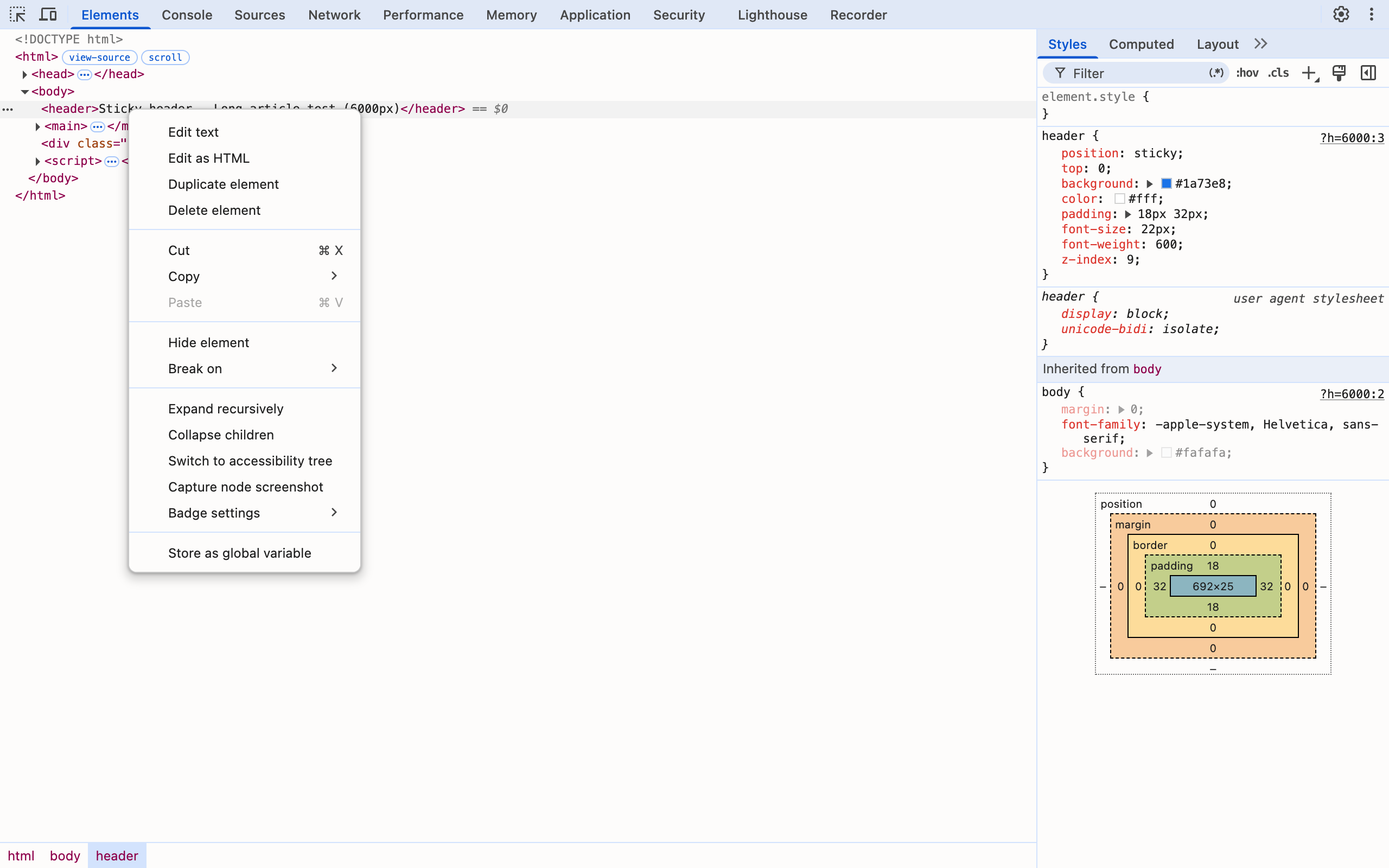
Two details that are easy to miss:
- Device Mode has the same capture. Toggle the device toolbar (
Cmd+Shift+M/Ctrl+Shift+M), open its three-dot menu, and you get Capture screenshot and Capture full size screenshot. The capture uses the emulated device's size and pixel ratio, and the file name gets the device name appended in brackets. - The commands need docked DevTools. In the DevTools source, all four are registered with a "can dock" condition. In normal Chrome that is always true. When DevTools is connected remotely — I hit this while testing over a remote debugging port — typing
screenshotreturns "No commands found" until the frontend is allowed to dock.
What I Measured: Size, Speed and Resolution
I built a test article with a sticky header, a fixed "chat" button and alternating native (loading="lazy") and JavaScript (IntersectionObserver) lazy images, then ran the exact call DevTools makes at different page heights. The window was 1280×800, at a 2x pixel ratio like a Retina Mac unless noted.
| Page height (CSS px) | Pixel ratio | PNG dimensions | File size | Capture time | Correct? |
|---|---|---|---|---|---|
| 2,417 | 2x | 2560 × 4,834 | 177 KB | 0.37 s | Yes |
| 5,302 | 2x | 2560 × 10,604 | 332 KB | 0.47 s | Yes |
| 5,302 | 1x | 1280 × 5,302 | 144 KB | 0.50 s | Yes |
| 19,150 | 2x | 2560 × 38,300 | 1.2 MB | 1.4 s | No — repeats after 16,384 px |
| 48,000 | 2x | 2560 × 96,000 | 2.9 MB | 4.9 s | No |
| 95,891 | 2x | 2560 × 191,782 | 5.7 MB | 9.9 s | No |
| 95,891 | 1x | 1280 × 95,891 | 2.4 MB | 1.6 s | No — repeats after 16,384 px |
File sizes are for a simple test page, so a photo-heavy real site will be several times larger. Two things stand out. Capture time grows with the pixel count, so a long page at 2x takes about six times longer than at 1x. And Chrome never refused a capture or showed an error — even the ones that came out wrong.
Three Things That Break a Full-Page Capture
1. Lazy-loaded images come out blank
Captured right after the page loaded, my 9-image article had only the first three images. The rest were empty boxes — the JavaScript-lazy ones showed their grey placeholder and the native loading="lazy" ones showed nothing at all. Counting in the page confirmed it: 2 of 5 native lazy images and 1 of 4 JavaScript lazy images had loaded, before and after the capture. Chrome lays the page out at full height for the screenshot, but it does not wait for images that were never requested.
Fix: scroll through the page once before capturing. In my test, scrolling to the bottom in viewport-sized steps (about 1.4 seconds for a 5,300 px page) and back to the top loaded all 9 images, and the next capture was complete. On pages with infinite scroll, stop at the point you want in the image.
2. Sticky headers and fixed buttons land where you scrolled
The capture renders sticky and fixed elements where they are at your current scroll position. Scrolled to the top, my sticky header appeared once at the top and the fixed chat button sat near the bottom of the first screen. Scrolled 2,500 px down, the header was painted across the middle of section 5 and the chat button about a screen below it.
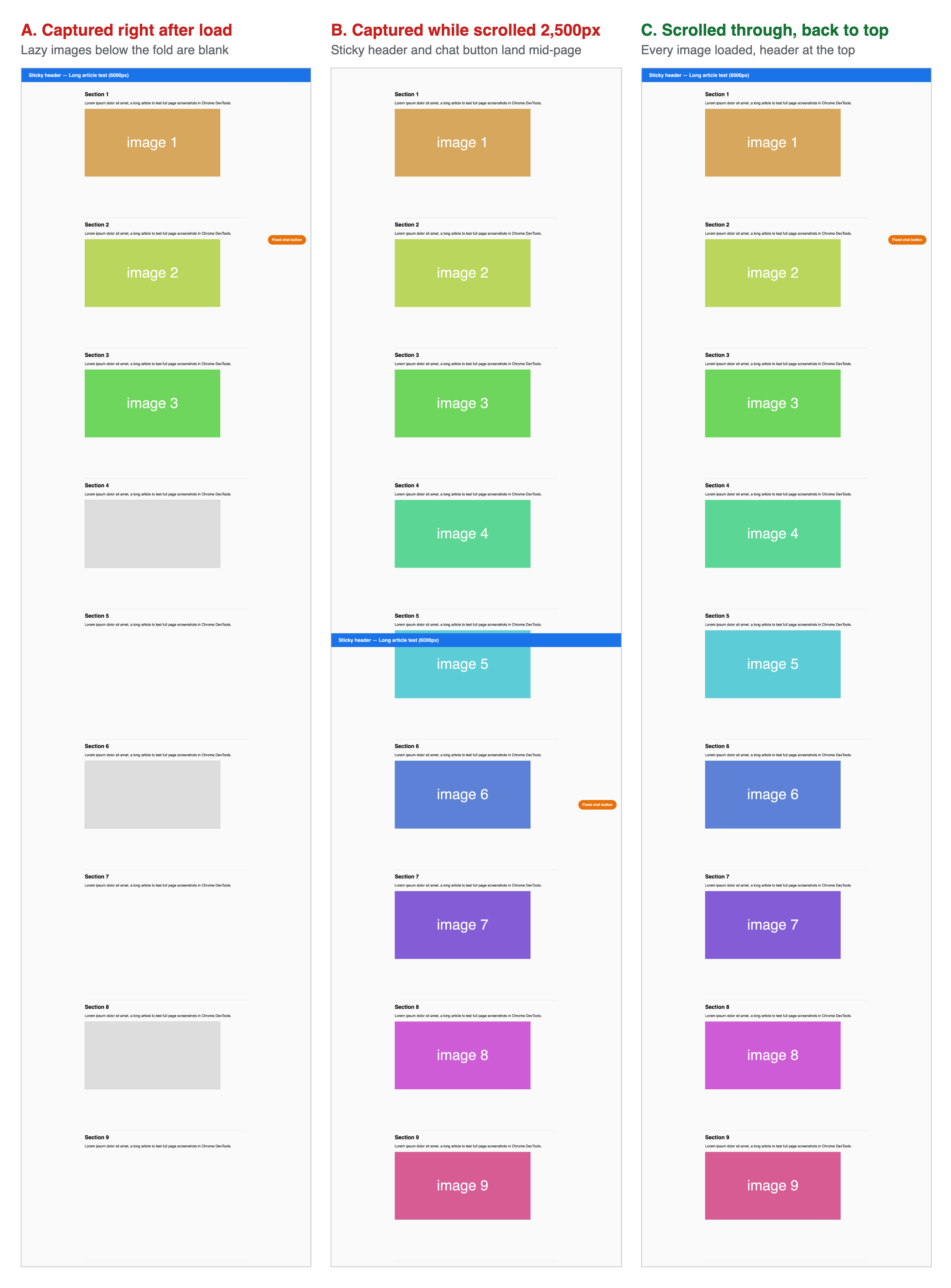
Fix: scroll to the very top before capturing. If a fixed cookie banner or chat widget gets in the way, select it in the Elements panel and press H to hide it for the shot (Hide element on the right-click menu does the same).
3. Past 16,384 device pixels, the page repeats
This is the failure nobody warns about. On my machine (Apple M1 Pro, GPU rasterization on), every capture taller than 16,384 device pixels came back at the right size but with the wrong content. At pixel row 16,384 the image starts again from the top of the page. Row 16,383 of my colour-coded test page showed block 9; row 16,384 showed block 1. The 191,782 px capture in the table is mostly repeats.
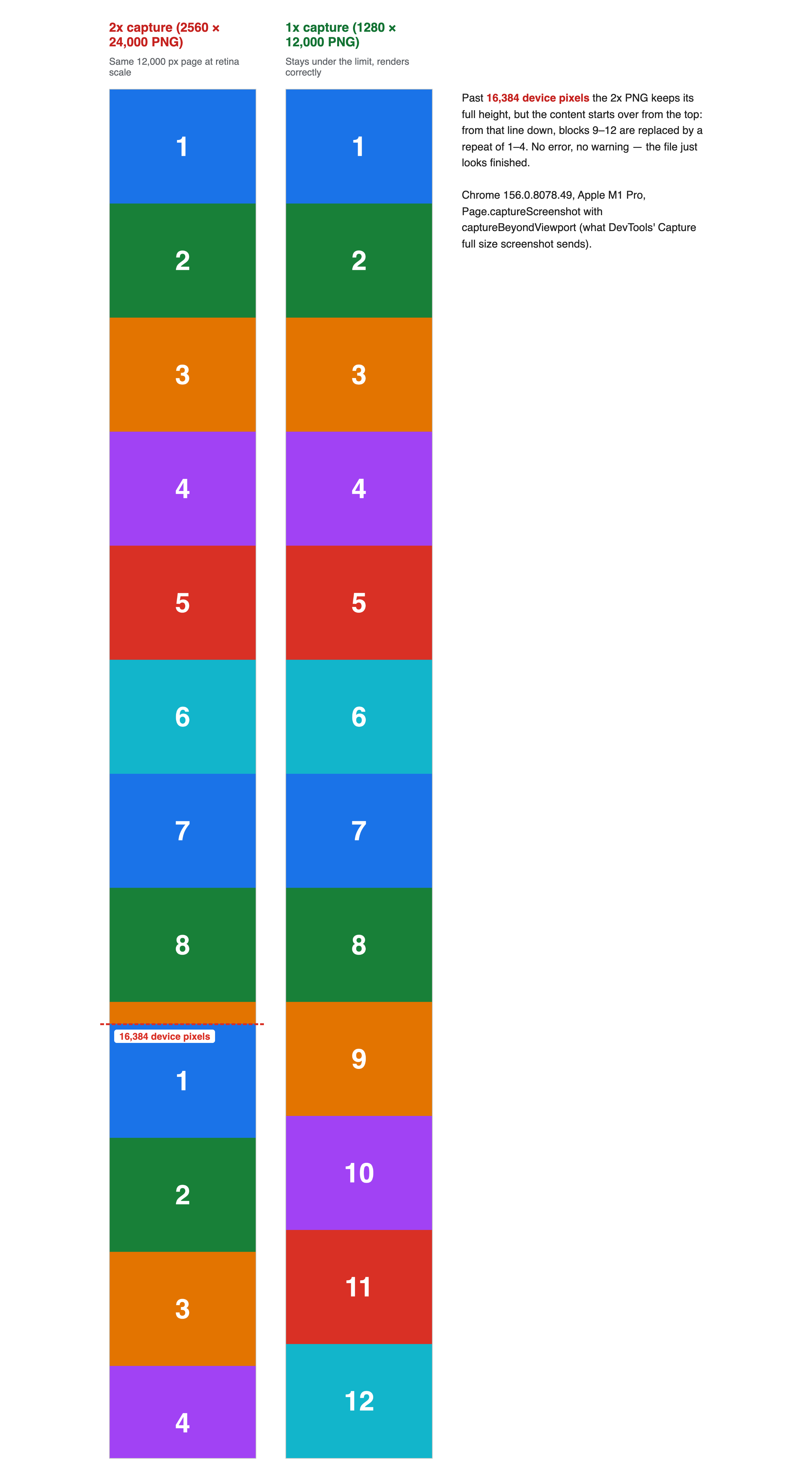
Because the limit is in device pixels, the safe page height depends on your pixel ratio:
| Pixel ratio | Typical setup | Longest page that captures correctly |
|---|---|---|
| 1x | Windows at 100% scaling, many external 1080p monitors | 16,384 CSS px |
| 2x | Retina Mac, Windows at 200% | 8,192 CSS px |
| 3x | Device Mode emulating a modern phone | ≈5,461 CSS px |
I confirmed the 3x case with a 390-pixel-wide mobile emulation: the content broke exactly at row 16,384 again. 16,384 is a common maximum texture size for GPUs, so a different graphics chip may give a different number — but the symptom to look for is the same: scroll your PNG and check that the bottom actually matches the page.
Fix: for long pages, open Device Mode, set the pixel ratio to 1, and capture from its menu. That gives you twice the height on a Retina Mac. For anything longer, capture in sections with Capture area screenshot, or use an extension that scrolls and stitches.
Full Page Screenshot From the Command Line
If you need the same capture repeatedly — a nightly snapshot of a landing page, screenshots for docs — skip the clicking. Chrome's headless mode has a built-in flag:
# macOS path; on Windows use chrome.exe, on Linux google-chrome
"/Applications/Google Chrome.app/Contents/MacOS/Google Chrome" \
  --headless --screenshot=page.png \
  --window-size=1280,5302 --hide-scrollbars \
  https://example.com
What I found when testing it on 156:
--screenshotcaptures the window, not the page. With--window-size=1280,800I got exactly 1280 × 800. To get the full page you set the window height to the page height yourself. A 1280 × 5,302 window gave a complete 1280 × 5,302 PNG.- Because the whole page is the viewport, lazy images all load and the fixed button sits at the very bottom — closer to what you see when scrolling than the DevTools capture.
--force-device-scale-factor=2doubles the resolution (2560 × 1600 from a 1280 × 800 window).- Chrome picks the image format from the file extension. When it can't parse one, it fails with "Unsupported screenshot image file type" instead of guessing — keep the
=page.pngform exactly as above. - Tall windows have a ceiling too. A 16,000 px window worked; 16,384 px and 20,000 px windows never produced a file — I stopped them after 30 seconds and 2.5 minutes.
For anything smarter (wait for a selector, scroll first, capture a single element), drive Chrome through the DevTools Protocol and call Page.captureScreenshot with captureBeyondViewport: true — the exact call the DevTools command makes. Puppeteer's and Playwright's fullPage: true options drive the same protocol, so check their output against the same pixel limit (I did not test them here).
DevTools vs OS Screenshot vs Extension vs Headless
| Method | Scrolls past the screen? | Lazy images | Max height | Annotation | Setup |
|---|---|---|---|---|---|
| DevTools Capture full size screenshot | Yes, one pass | Blank unless you scroll first | 16,384 device px (my test) | No | None |
OS tool (Cmd+Shift+4 on Mac, Snipping Tool on Windows — tested on Mac only) | No, visible screen only | Whatever is on screen | Your screen | Basic markup | None |
| Scroll-and-stitch extension | Yes, many frames | Usually loads them as it scrolls | Varies by extension | Often | Install + page access permission |
Headless --screenshot | Yes, if you size the window | Loaded | Under 16,384 px in my test | No | Terminal |
The extension column is the trade-off: you get annotation and a one-click button, and in exchange you grant an extension the right to read every page you capture. The Chrome extensions for screenshots roundup covers which ones are worth that permission. For occasional full-page captures, the built-in route is enough and nothing new gets access to your browsing.
What About Chrome's Built-In Screenshot Menu?
Older guides describe a Screenshot item in Chrome's Share menu, switched on with a flag. In Chrome 156 I could not find that flag: none of the 621 experiments in chrome://flags is a desktop screenshot option. Chrome 156 still ships a "Screenshot" string next to the Cast, save, and share strings, but I could not confirm that the item shows up for regular users, so I would not plan around it. Google Lens ("Search this screenshot") is a different feature: it sends a capture to Google to search, not to save.
For developers who live in DevTools, the screenshot commands sit alongside dozens of other time-savers in Chrome DevTools tips and tricks.
Pair the Screenshot With the URL
A full-page capture answers "what did it look like?". The reviewer's next question is "which page, exactly?" — and a PNG doesn't say, because the address bar isn't in it. For bug reports, put the URL right next to the screenshot; the copy URL for bug reports checklist covers the rest. Ctrl+Shift+C copies the current tab's URL with one shortcut and asks only for clipboard access, so the link goes into your ticket in the same few seconds as the image.
Frequently Asked Questions
How do I take a full page screenshot in Chrome without an extension? Open DevTools with F12 or Cmd+Option+I, press Cmd+Shift+P on Mac or Ctrl+Shift+P on Windows and Linux, type screenshot and choose Capture full size screenshot. Chrome renders the whole page in one pass and saves it as a PNG.
Why are images missing from my Chrome full page screenshot? The page lazy-loads them. Images below the fold are only requested when they get near the viewport, and the capture does not wait for them. Scroll to the bottom of the page once, scroll back to the top, then run Capture full size screenshot again.
Is there a maximum height for a full page screenshot in Chrome? In my Chrome 156 tests on an Apple M1 Pro, content stopped being correct after 16,384 device pixels: the PNG kept its full height but repeated the top of the page. On a 2x display that is only 8,192 CSS pixels of page. Capture at 1x or in sections to stay under it.
Why does the sticky header appear in the middle of my screenshot? Sticky and fixed elements are drawn where they sit at your current scroll position. If you are scrolled down when you capture, the header lands mid-image. Scroll to the very top before running the command and it appears once, at the top.
Can I screenshot just one element in Chrome? Yes. In the Elements panel, right-click the node and choose Capture node screenshot, or select it and run Capture node screenshot from the command menu. The PNG is cropped exactly to that element, even if part of it is off screen.
Does Chrome have a built-in screenshot button outside DevTools? Not one I could confirm in Chrome 156. The old Share menu screenshot experiment is no longer listed in chrome://flags, so DevTools, your operating system tool or the headless command line are the reliable no-extension options.
Capture It Right the First Time
A full page screenshot in Chrome without an extension takes four keystrokes once you know them: open DevTools, Cmd/Ctrl+Shift+P, screenshot, Enter. Make it reliable with three habits: scroll through the page first so lazy images load, start from the very top so sticky elements stay put, and check the bottom of long captures for the 16,384-pixel repeat. And when that screenshot goes into a ticket or a chat, send the link with it — install Ctrl+Shift+C and copying the URL takes one shortcut.
Try Ctrl+Shift+C
Copy any URL with one keyboard shortcut. Free forever, no data collected.