Are Chrome Flags Safe? What Actually Happens (Tested)
Are Chrome flags safe? For the overwhelming majority, yes — the worst realistic outcome is a rendering glitch or a feature that behaves oddly until you switch it back. But five or six flags in Chrome 151 genuinely weaken your browser's security model, and Chrome's own descriptions say so in plain language. The risk is not "flags" as a category. It is a specific short list, and knowing which entries are on it is the whole skill.
I went through all 569 experiments on the flags page in Chrome 151.0.7922.138 (August 2026) — 542 of them available on macOS — to sort what can actually hurt you from what cannot, and tested two recovery paths for when something does go wrong.
What Chrome's Warning Actually Says
Open chrome://flags and the page opens with this, in red:
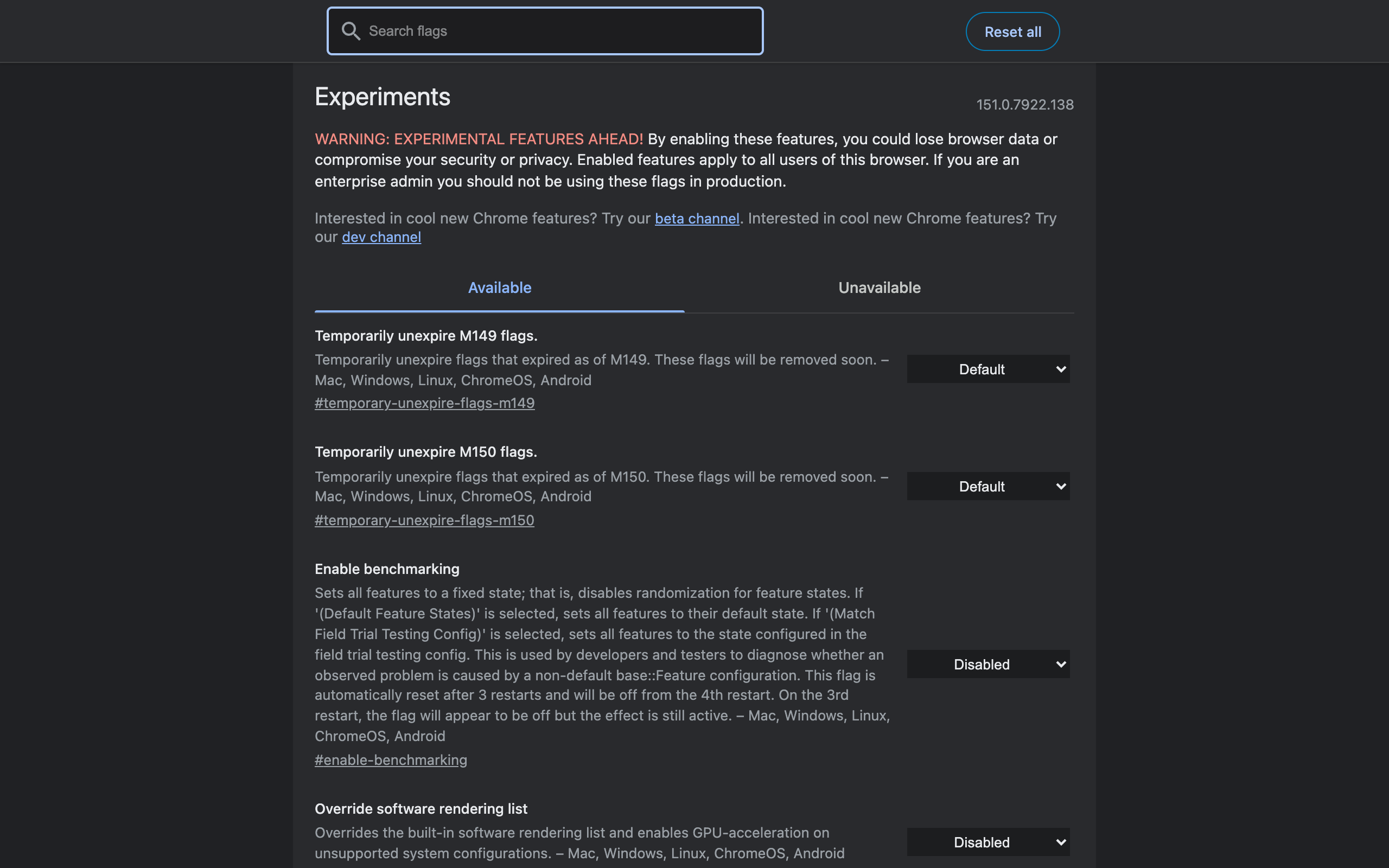
WARNING: EXPERIMENTAL FEATURES AHEAD! By enabling these features, you could lose browser data or compromise your security or privacy. Enabled features apply to all users of this browser. If you are an enterprise admin you should not be using these flags in production.
Four separate claims, worth decoding one at a time:
- "Lose browser data" — not your files. Chrome means its own data: history, saved sessions, preferences, sync state. An experiment that changes how Chrome writes data can corrupt or discard it.
- "Compromise your security or privacy" — true of a handful of flags, and dramatically so. Those are listed below.
- "Apply to all users of this browser" — flags are not per profile. Set one in your personal profile and your work profile in the same Chrome installation gets it too.
- "Enterprise admins should not use these in production" — because flags are unsupported, unversioned, and can vanish in the next release.
The Four Risk Tiers
Every flag I looked at falls into one of these. The tier, not the flag, is what determines how careful you need to be.
| Tier | What it changes | Worst realistic outcome | Examples |
|---|---|---|---|
| 1. Cosmetic / UI | Layout, animations, menus | Something looks wrong until you turn it back | #vertical-tabs, #tab-strip-declutter, #enable-force-dark |
| 2. Performance & networking | Rendering, downloads, transport | A slowdown or a stalled download | #enable-parallel-downloading, #enable-gpu-rasterization, #enable-quic |
| 3. Developer-only | Web platform behavior, diagnostics | Sites break in ways only you see; noisy pages | #enable-experimental-web-platform-features, #show-autofill-type-predictions, #enable-javascript-harmony |
| 4. Security-weakening | Chrome's protection boundaries | Real exposure to attack while enabled | #site-isolation-trial-opt-out, #test-root-store, #unsafely-treat-insecure-origin-as-secure |
Tiers 1 and 2 are where the useful flags live, and they are safe to experiment with freely — enable, relaunch, judge, revert. Tier 3 is safe for your security but will make the web behave unusually, so leave those off unless you are actively developing. Tier 4 is the tier the warning banner was written for.
The Flags I Would Never Leave Enabled
These are quoted from Chrome's own descriptions in 151, because Chrome is refreshingly blunt about them.
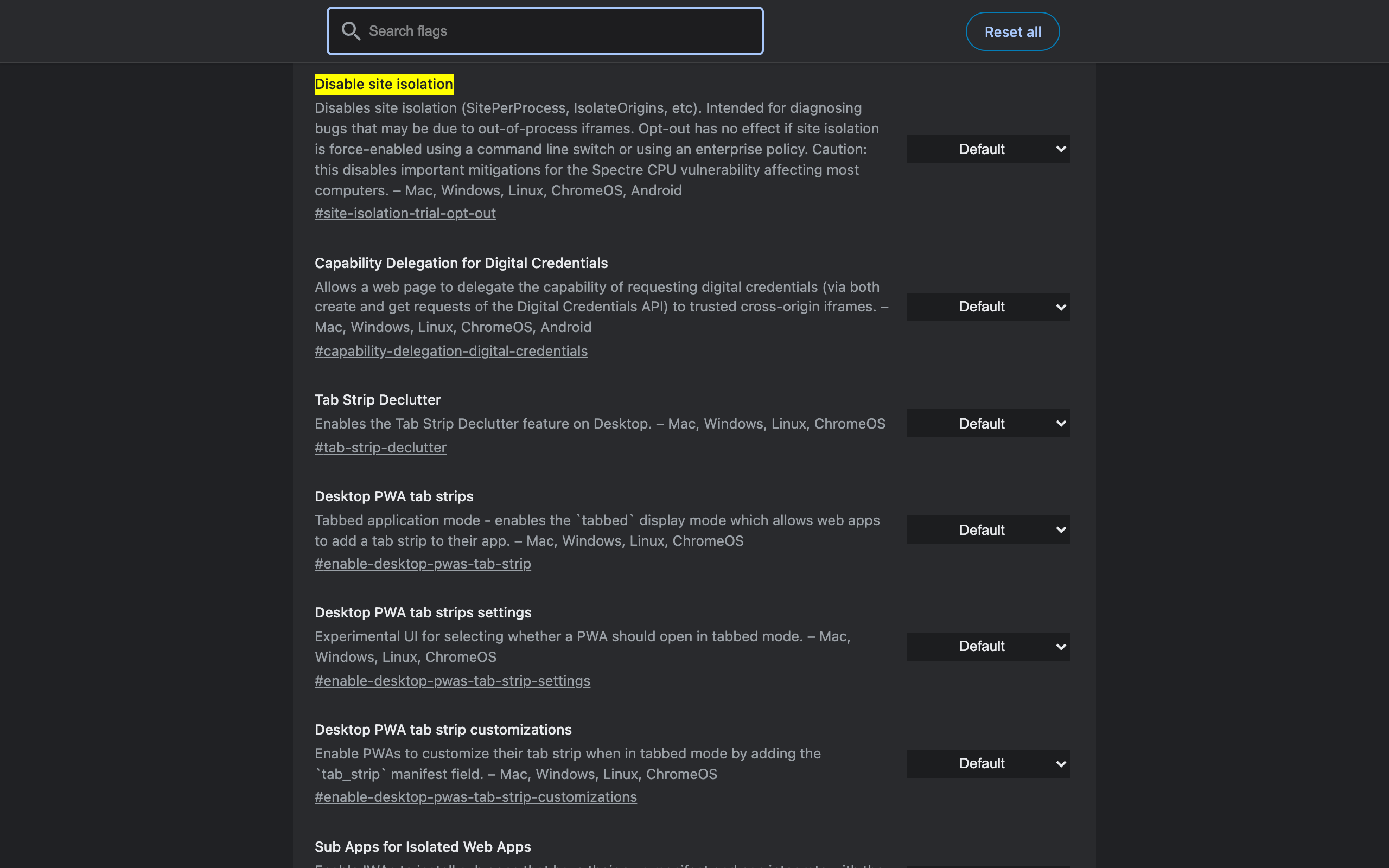
#site-isolation-trial-opt-out — Disable site isolation. Chrome's description: "Caution: this disables important mitigations for the Spectre CPU vulnerability affecting most computers." Site isolation puts every site in its own process; turning it off means a malicious page has a materially better chance of reading data from another site you have open. Note that its dropdown has no "Enabled" option at all — only Default and "Disabled (not recommended)", which tells you how Chrome feels about it.
#test-root-store — Enable Test-only MTC Root Store (UNSAFE). Chrome's words: "This is unsafe and may permit an attacker to intercept or modify your HTTPS connections. Do not use this flag on an instance containing personal data." That is a padlock that no longer means anything.
#unsafely-treat-insecure-origin-as-secure. Lets you list HTTP origins that Chrome will treat as secure contexts. Genuinely useful for local development against a non-HTTPS dev server, and genuinely bad if you leave a real domain in that list — the browser stops enforcing HTTPS guarantees for it.
#enable-unsafe-webgpu. "Note that this flag could expose security issues to websites so only use it for your own development." Enabling best-effort GPU support on unsupported configurations is a graphics-driver bug hunt with every site you visit as a participant.
#extensions-on-chrome-urls. Allows extensions to run on chrome:// pages when they request it. That is a boundary that exists so an extension cannot manipulate your settings, flags, or history pages directly. Any extension you trust that much should not need it.
None of these will do anything the moment you enable them. That is precisely why they are risky: the exposure is silent, and it lasts until you notice you left it on. Which brings us to the audit trick.
How to See What You Actually Enabled
Open chrome://version and look at the Command Line row. Flags you set appear as real switches between two markers. On a test profile where I had enabled parallel downloading and auto dark mode, that row read:
--flag-switches-begin --enable-features=ParallelDownloading,WebContentsForceDark --flag-switches-end
Everything between those markers came from your flags page. It is the fastest audit available: one page, one line, no scrolling through 542 experiments. If that section is empty, no flags are active in this Chrome, whatever the flags page shows as pending.
This also catches the case where you changed a flag but never relaunched — the flags page will show "Enabled" while the command line shows nothing, because Chrome applies flags only at startup.
The Flag That Lies About Its State
One entry deserves a specific warning, from its own description: #enable-benchmarking "is automatically reset after 3 restarts and will be off from the 4th restart. On the 3rd restart, the flag will appear to be off but the effect is still active."
So there exists a flag that displays one state while doing another. It is a diagnostics tool for developers chasing feature-configuration bugs, and unless that is your day job, its only relevance is as proof that the flags page is a developer surface with developer manners. Do not assume every dropdown reflects reality without checking chrome://version.
What Can Actually Go Wrong (And What Cannot)
Realistic failure modes, in rough order of likelihood:
- A visual bug. By far the most common. Something renders wrong, a menu misbehaves, a panel refuses to open.
- A performance regression. Forcing GPU features on hardware Chrome blocklisted can make everything slower or crash tabs.
- Sites breaking in ways only you see. Experimental web platform features change how pages behave; you end up debugging a site that works for everyone else.
- Chrome failing to start. Rare, but the reason the recovery section below exists.
- Data loss. Rarest, and it requires enabling an experiment that touches storage or sync. Never observed it in my own testing, but it is the reason Chrome words the warning that way.
What flags cannot do: damage hardware, touch files outside Chrome, install anything, or persist to your Google account. They are a list of feature switches read at startup, stored locally, and thrown away when you reset them.
How to Recover When a Flag Breaks Something
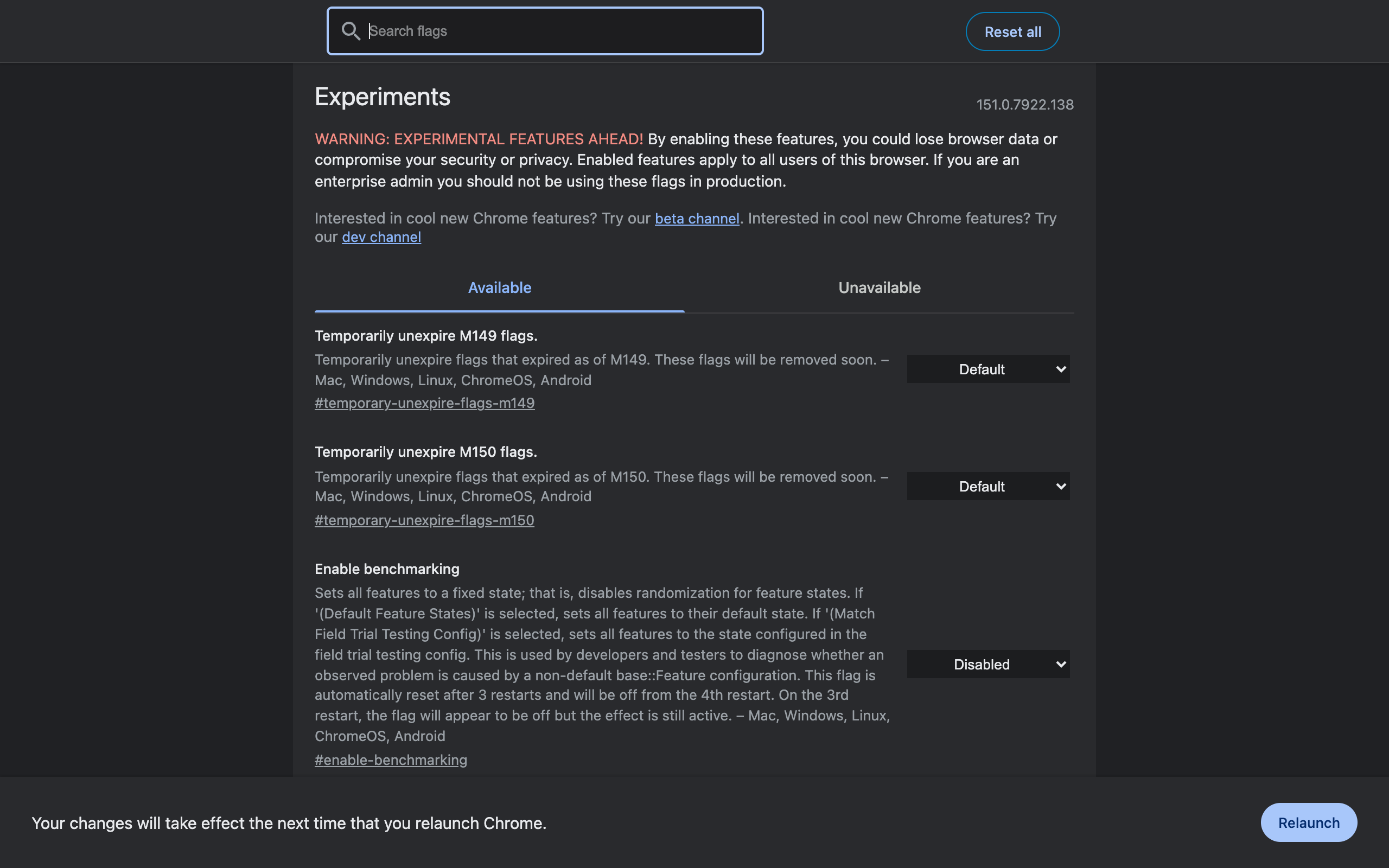
If Chrome runs: open chrome://flags, click Reset all at the top right, then use the relaunch bar. Every flag returns to Default:
If Chrome will not start: launch it once with the --no-experiments switch. I tested this on a profile with two flags enabled: with --no-experiments, the --flag-switches-begin block was completely absent from chrome://version, meaning Chrome started while ignoring every flag stored in that profile. Same profile, no switch, and the flags were applied again — so it suppresses flags for that launch without erasing your configuration.
On macOS that is:
open -a "Google Chrome" --args --no-experiments
On Windows, add --no-experiments to the end of the Chrome shortcut's Target field, or run it from the Run dialog. Once Chrome is up, use Reset all so you do not need the switch again.
Rules for Experimenting Safely
The habits that keep flag experiments cheap:
- One flag at a time, then relaunch. Two changes at once and you cannot attribute the breakage.
- Write down the flag ID, not the display name — IDs are stable, names get reworded, and the ID is what the permalink uses.
- Note the Chrome version you tested on. Flags expire on a milestone schedule, so "worked in 151" is the useful form of that note.
- Keep tier 4 off unless you are actively debugging, and turn it back off the same day.
- Use a separate channel as a sandbox. Chrome Beta or Canary installs alongside stable with its own flag state, so risky experiments never touch the browser you work in.
- Audit periodically with
chrome://version. Flags you set months ago do not remind you they exist. - Prefer settings over flags whenever a feature has graduated — settings are supported and survive updates, and plenty of famous flags have already moved. The verified list is in removed Chrome flags in 2026.
Are Chrome Flags Safe for Privacy?
The flags mechanism itself collects nothing — it is local configuration. Two nuances are worth knowing.
First, some flags turn on features that do talk to Google. Chrome 151's AI settings page (chrome://settings/ai, "AI innovations") states outright that "Data sent to Google may be seen by human reviewers to improve Chrome AI's technology". Enabling built-in AI API flags opts you into functionality with that data flow, so read the settings page before flipping them.
Second, the security-weakening flags in tier 4 are privacy risks by proxy: disabling site isolation or trusting a test root store makes it easier for someone else to see data you did not intend to share. Privacy here is downstream of the security boundaries you keep intact.
For the extension side of the privacy question, privacy-focused Chrome extensions covers what to look for in a permissions list — a similar exercise in reading what a tool tells you about itself.
The Honest Summary
Chrome flags are safe in the way a workshop is safe: almost everything on the bench is harmless, a few things will hurt you, and the difference is written on the labels. Chrome labels them well. Read the description, check whether the dropdown even offers a recommended option, and keep a note of what you turned on.
Practically: enable freely from tiers 1 and 2, stay out of tier 4, audit with chrome://version every few months, and remember --no-experiments exists. For the flags that are actually worth this trouble — the ones with a measurable payoff rather than a novelty — start with Chrome flags useful settings, and see parallel downloading in Chrome for what a genuinely good flag looks like when you measure it.
Frequently Asked Questions
Are Chrome flags safe to enable? Most are. The majority of the 569 experiments in Chrome 151 are UI or platform toggles whose worst outcome is a visual glitch. A small number genuinely weaken security — disabling site isolation, treating insecure origins as secure, or trusting test-only certificate roots — and those should stay off unless you are debugging something specific.
Can Chrome flags damage my computer or delete my data? They cannot damage hardware. Chrome warns that you "could lose browser data" because an experiment can change how Chrome stores or syncs data, so a broken storage or sync feature could cost you history, saved sessions or preferences. Your files outside Chrome are unaffected.
Which Chrome flags are actually dangerous? Disable site isolation removes Spectre mitigations. Insecure origins treated as secure lets HTTP sites act as if encrypted. The test-only root store lets a test certificate authority intercept HTTPS. Unsafe WebGPU exposes GPU issues to any site. Extensions on chrome:// URLs lets extensions reach Chrome internal pages.
How do I undo Chrome flags if something breaks? Open chrome://flags and click Reset all at the top right, then relaunch. If Chrome will not start at all, launch it once with the --no-experiments command-line switch, which starts Chrome while ignoring every flag you set.
Do Chrome flags sync between my devices? No. Flags are stored per installation, not in your Google account, so every machine needs its own configuration. Chrome also warns that enabled flags apply to all profiles in that browser, not just the one you set them from.
How can I see which Chrome flags are currently active? Open chrome://version and read the Command Line row. Anything between --flag-switches-begin and --flag-switches-end came from your flags page, which makes it the fastest way to audit what you actually turned on.
Can a Chrome flag reset itself? One does. Enable benchmarking resets automatically after three restarts, and Chrome warns that on the third restart the flag will appear to be off while its effect is still active. Most other flags stay set until you change them or Chrome removes the experiment.
Flags are Chrome's unfinished business, exposed. Extensions are for the business Chrome never started — like copying the current tab's URL with one keystroke, which no flag has ever offered. That is what Ctrl+Shift+C does: one shortcut, URL on the clipboard, no permissions to weigh and no data collected.
Try Ctrl+Shift+C
Copy any URL with one keyboard shortcut. Free forever, no data collected.