Chrome Flags for Battery Life: What Saves Power (2026)
The best Chrome flags for battery life in 2026 are mostly not flags at all. On Chrome 154, the single biggest saving I measured came from Energy Saver, a normal setting in chrome://settings/performance — it cut CPU use on an animated page by roughly 40% by halving its frame rate. The battery-related flags either duplicate what Chrome already does by default or, when you flip them the "wrong" way, make battery drain worse.
Below is what I measured, how, and which few switches are worth knowing.
How I Measured Battery Impact (and What That Means)
I could not run a laptop down to 0% a dozen times, so I measured the next best thing: CPU time. Battery drain on a laptop tracks closely with how long the CPU and GPU stay busy, so a setting that halves CPU time is a setting that saves real power. It is a proxy, not a battery-minutes figure, and the numbers below should be read that way.
Setup: Chrome 154.0.8037.93, headless, on an Apple-silicon Mac, fresh profile per configuration. For each configuration I measured 30 seconds of CPU time across all Chrome processes (browser, GPU, renderers, utilities) in four scenarios:
- Animation — a page running a continuous
requestAnimationFrameanimation - Video — a page playing a looping test video
- Background — one visible idle tab plus three hidden tabs running a busy 10 ms timer
- Idle — a single static page
Each scenario ran twice per configuration. The machine was not otherwise idle during testing, so the figures are approximate — what matters is the comparison within each scenario.
The Results: Default vs Energy Saver vs No Throttling
CPU is shown as a percentage of one core, averaged over 30 seconds (lower is better for battery):
| Scenario | Default Chrome | Energy Saver on | Throttling disabled | Energy Saver effect |
|---|---|---|---|---|
| Animated page | ~18–28%, 60 fps | ~11–16%, 30 fps | ~20–25%, 60 fps | About 40% less CPU |
| Looping video | ~13–17%, ~46–53 fps | ~11–15%, 30 fps | ~14–20% | About 15–20% less CPU |
| 3 busy background tabs | ~1.5–3% | ~1–2.5% | ~4% | Small — tabs already throttled |
| Idle static page | ~0–4% | ~0–2% | ~0–1.5% | Noise |
"Throttling disabled" is Chrome launched with --disable-background-timer-throttling, --disable-renderer-backgrounding and --disable-backgrounding-occluded-windows — the switches automation tools use so hidden tabs keep running at full speed. They are the opposite of a battery tweak, and they are why some "performance" guides quietly cost you battery.
Energy Saver: The Setting That Beats Every Flag
Energy Saver lives in Settings, not flags:
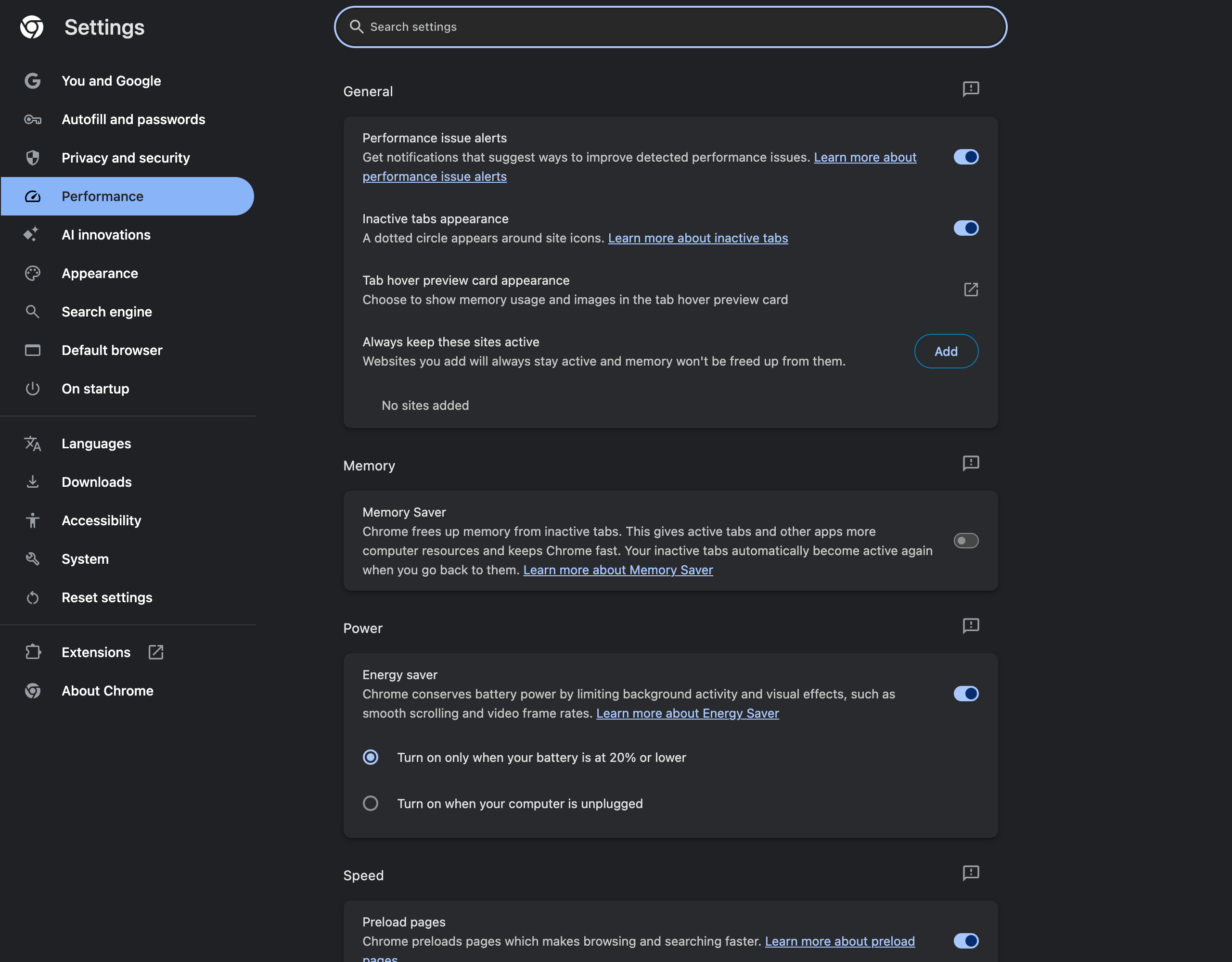
Chrome's own description: it "conserves battery power by limiting background activity and visual effects, such as smooth scrolling and video frame rates." In my runs the effect was concrete and visible:
- The animated page dropped from 60 fps to 30 fps, and its CPU use fell by roughly 40%
- The test video dropped to 30 frames per second
- Background tabs were nudged slightly further down
You get two modes: turn on only when the battery is at 20% or lower, or turn on whenever the computer is unplugged. If battery life matters more to you than buttery scrolling, the unplugged mode is the single most effective change in this article. The trade-off is real but small — 30 fps scrolling and video are noticeable side by side, rarely in normal reading.
Background Tab Throttling Is Already On
The most effective battery feature in Chrome is one you never see. I loaded a page whose script schedules a tiny task every 10 milliseconds — about 100 wake-ups per second if nothing stops it — and hid it behind another tab.
| Hidden tab, 10 ms timer | Wake-ups observed |
|---|---|
| Default Chrome, first minute hidden | ~1 per second |
| Default Chrome, after the first minute | ~1 per minute |
| Background throttling disabled | ~60 per second |
Intensive throttling disabled (--disable-features=IntensiveWakeUpThrottling) | ~1 per second, indefinitely |
Two layers are visible here. Regular background throttling limits a hidden tab's timers to about once per second. Then intensive wake-up throttling kicks in and, in my test, cut the same tab to one wake-up per minute from the second minute onward. A dozen forgotten tabs that each want to poll a server or animate something cost almost nothing as a result.
There is no flag on the flags page to turn intensive throttling on — it is already the default. The flags and switches that exist go the other direction, and you should leave them alone.
Battery-Related Flags on Chrome 154
Searching chrome://flags for throttling returns only a handful of entries:
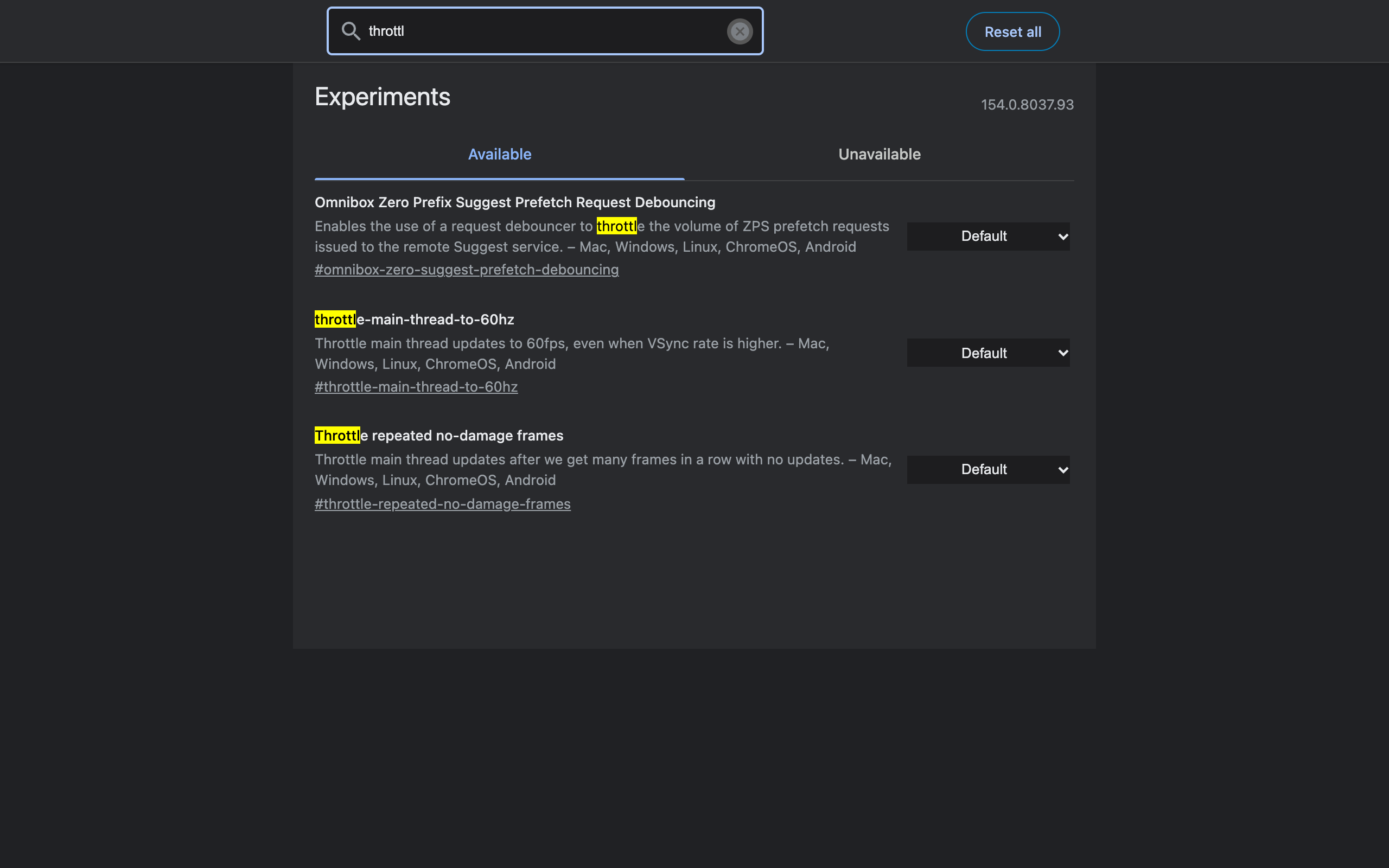
| Flag | What it does | Battery verdict |
|---|---|---|
#throttle-main-thread-to-60hz | Caps main-thread updates at 60 fps even when the screen refreshes faster | Helps only on 120 Hz+ displays; no change on a 60 Hz screen |
#throttle-repeated-no-damage-frames | Slows updates after many frames in a row that changed nothing | Plausible small win; I could not measure a difference |
#enable-parallel-downloading | Splits big downloads into parallel connections | Neutral — finishes downloads sooner, see parallel downloading tested |
#ignore-gpu-blocklist | Forces GPU features on blocklisted hardware | Risky; can increase power use and glitches |
The 60 Hz cap is the only one with a clear mechanism. On a MacBook Pro with a 120 Hz ProMotion display, a page that animates continuously can render twice as many frames as on a 60 Hz screen; capping it halves that work. On my test configuration the page already ran at 60 fps, so the flag had nothing to cut — consistent with what I found for every other speed flag in Chrome flags for performance.
What Drains Battery More Than Any Flag
CPU time in my tests depended far more on what was open than on any setting:
- Animated and video content in the visible tab. The animated page cost several times more CPU than a static one.
- Heavy news and media sites. Ad-heavy pages keep extra processes alive and their scripts busy even while you read.
- Extensions that run on every page. Each one adds work to every page load.
- Too many loaded tabs. Hidden tabs are throttled, but they still hold memory; Memory Saver discards them entirely.
The fastest way to find the actual battery hog is the Chrome Task Manager sorted by CPU — the method is in the Chrome Task Manager guide. On a Mac, Activity Monitor's Energy tab gives the same answer per process.
My Battery Setup for Chrome
- Energy Saver: on when unplugged
- Memory Saver: on, balanced mode
- Flags: none for battery;
#throttle-main-thread-to-60hzonly on a 120 Hz laptop - Never launch with
--disable-background-timer-throttlingoutside of testing - Audit extensions every few months and remove what I no longer use
For the flags that are worth changing — layout and workflow rather than power — see the tested list of useful Chrome flags.
FAQ
Which Chrome flag saves the most battery? None of the flags beat a regular setting. Energy Saver in chrome://settings/performance cut CPU time by roughly 40 percent on an animated page in my Chrome 154 tests by capping it at 30 frames per second. Background-tab throttling, which saves the most on idle tabs, is already on by default.
Does Chrome throttle background tabs to save battery? Yes, by default. A hidden tab running a 10 millisecond timer was limited to about one wake-up per second, and after the first minute hidden it dropped to about one wake-up per minute. Disabling that throttling let the same timer fire about 60 times per second.
What does Chrome Energy Saver actually change? In my tests it halved animation and video frame rates to about 30 per second and reduced background activity. Chrome describes it as limiting background activity and visual effects such as smooth scrolling and video frame rates. You can set it to turn on only below 20 percent battery or whenever the laptop is unplugged.
Should I disable background timer throttling in Chrome? Not for battery life. Switches like --disable-background-timer-throttling exist for testing and automation, and they let hidden tabs wake the CPU dozens of times per second. Leave them off unless a web app you rely on genuinely breaks in the background.
Is throttle-main-thread-to-60hz useful for battery? Only on high refresh rate screens. The flag caps main-thread updates at 60 frames per second even when the display runs faster. On a 60 Hz display it changes nothing because the page already runs at 60.
How can I measure Chrome battery use myself? Use CPU time as a proxy. The Chrome Task Manager shows CPU per tab, and macOS Activity Monitor shows Energy Impact per process. Compare the same page with a setting on and off, several times, because a single reading is noisy.
Save Clicks, Not Just Watts
Battery tweaks save minutes per charge; good shortcuts save minutes per day. Ctrl+Shift+C copies the current tab's URL with one keystroke — no background activity, no data collected, nothing running until you press it.
Try Ctrl+Shift+C
Copy any URL with one keyboard shortcut. Free forever, no data collected.