Chrome Reading Mode Guide: Shortcut, Read Aloud, Themes
Chrome reading mode turns any article into clean, adjustable text — in the side panel next to the page or across the whole window — and can read it aloud with sentence highlighting. The fastest way in on a Mac is ⌥⌘R (Option+Command+R), which toggles it on and off. Inside, a gear menu controls theme, font, spacing, voice, line focus and layout.
That is the summary. The details are where reading mode becomes genuinely useful, and most guides are stuck on an older version where it lived only in the side panel. Everything below was tested on Chrome 154.0.8037.93 on macOS, with each menu opened and each option read out of the live interface.
How to Open Chrome Reading Mode
Three entry points work in Chrome 154:
- Keyboard shortcut (Mac): ⌥⌘R. I pressed it on a Wikipedia article and reading mode opened immediately; the close button's tooltip reads "Close reading mode (⌥⌘R)", confirming the shortcut is a toggle. I did not test a Windows equivalent, so I will not guess one.
- Right-click → Open in Reading Mode. That is the context-menu label in Chrome 154's Mac build, next to a "Listen to This Page" entry that jumps straight to read aloud.
- Three-dot menu → More tools → Reading mode.
While reading mode is open, a reading mode button appears in the toolbar. To keep that button permanently, use Pin reading mode in the settings menu (or the pin icon in the side panel header).
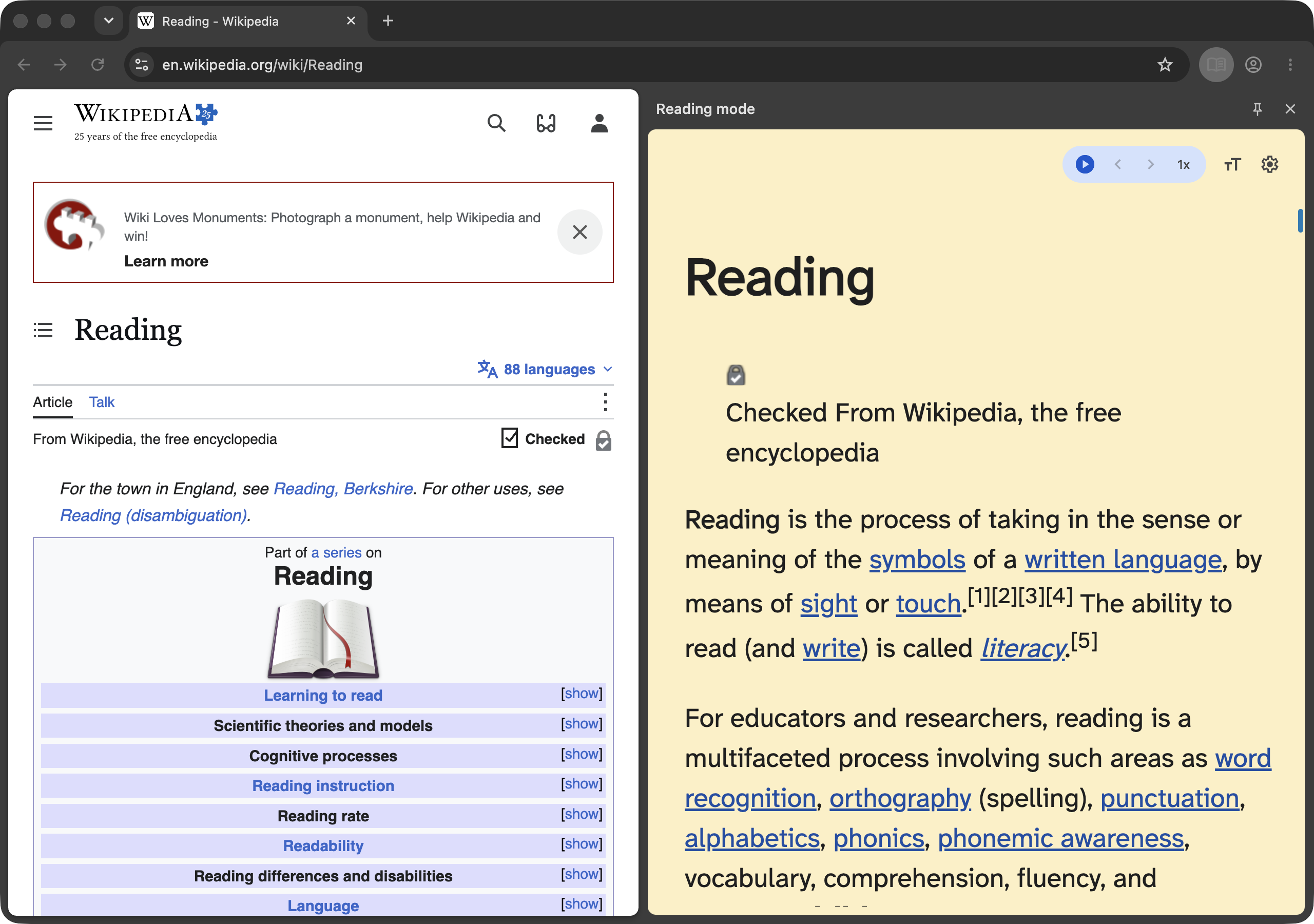
Side Panel vs Full Page
Chrome 154 offers two views under Settings (gear) → View: Side panel and Full page. Full page replaces the tab content with the reading view, which is the closest Chrome has come to Safari's Reader.
| Side panel | Full page | |
|---|---|---|
| Original page visible | Yes, squeezed to the left | No |
| Best for | Checking figures, comments or code against the original | Long reads, distraction-free |
| Width of text column | Narrow (panel width) | Comfortable centered column |
| Shortcut opens it | If it was your last view | If it was your last view |
Two behaviors I confirmed by testing:
- The view sticks. After switching to Side panel and restarting Chrome, ⌥⌘R opened reading mode in the side panel. Pick once, and the shortcut remembers.
- It follows navigation. With full-page reading mode open, I navigated the same tab from one article to another; reading mode stayed open and re-rendered the new page. You do not need to reopen it on every click.
Every Setting in the Reading Mode Menu
The gear icon opens one menu with everything. These are the exact options in Chrome 154 (UK-English builds spell the first one "Colour theme"):
| Setting | Options in Chrome 154 |
|---|---|
| Color theme | Default, Light, Dark, Yellow, Blue, High contrast, Low-contrast light, Low-contrast dark |
| Font | Poppins, Sans-serif, Serif, Comic Neue, Lexend Deca, EB Garamond, STIX Two Text, Andika, Atkinson Hyperlegible Next |
| Line height | Standard, Loose, Very loose |
| Letter spacing | Standard, Wide, Very wide |
| Voice selection | System and Google voices per language, plus "Languages…" |
| Voice highlight | Adaptive highlighting, Word, Sentence, Off |
| Line focus (⌥L) | Off / On; style: Underline, Small, Medium, Large focus; movement: Static, Follow cursor |
| View | Side panel, Full page |
| Links | On / Off toggle |
| Images | On / Off toggle |
| Pin reading mode | Keeps the toolbar button |
Font size has its own tT button with decrease, increase and Reset.
The Dark theme here only applies inside reading mode. To darken the original pages too, including sites with no dark theme of their own, you can force dark mode in Chrome with the Auto Dark Mode flag.
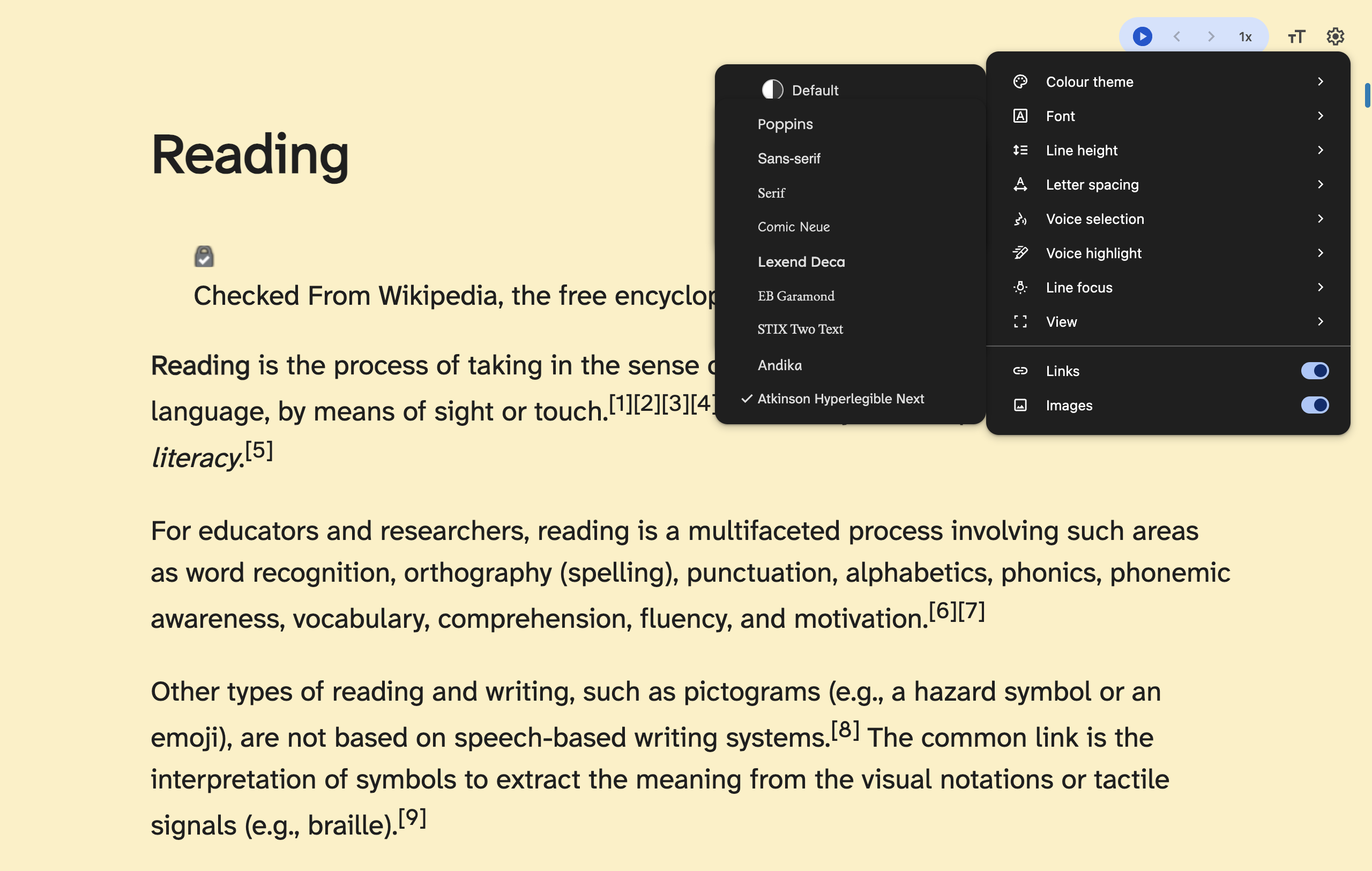
A few of these deserve more than a table row:
- The fonts are chosen for readability, not decoration. Atkinson Hyperlegible Next comes from the Braille Institute and targets low-vision readers, Lexend was designed around reading fluency, and Andika was built for beginning readers. Try two or three with Loose line height before settling.
- Links off turns the article into plain prose — no underlines pulling your eye. It is the single best focus setting.
- Images off is useful on image-heavy pages where the reader still pulls in decorative pictures.
- Line focus marks the line you are on — as an underline or as a small, medium or large focus band, either fixed in place or following your cursor. It has its own shortcut, ⌥L. It still exists as an experiment flag (
#read-anything-line-focus), but in Chrome 154 it already sits in the default menu.
Settings persist: after a full restart my Yellow theme and Atkinson font were still applied.
Read Aloud: Chrome's Built-In Text-to-Speech
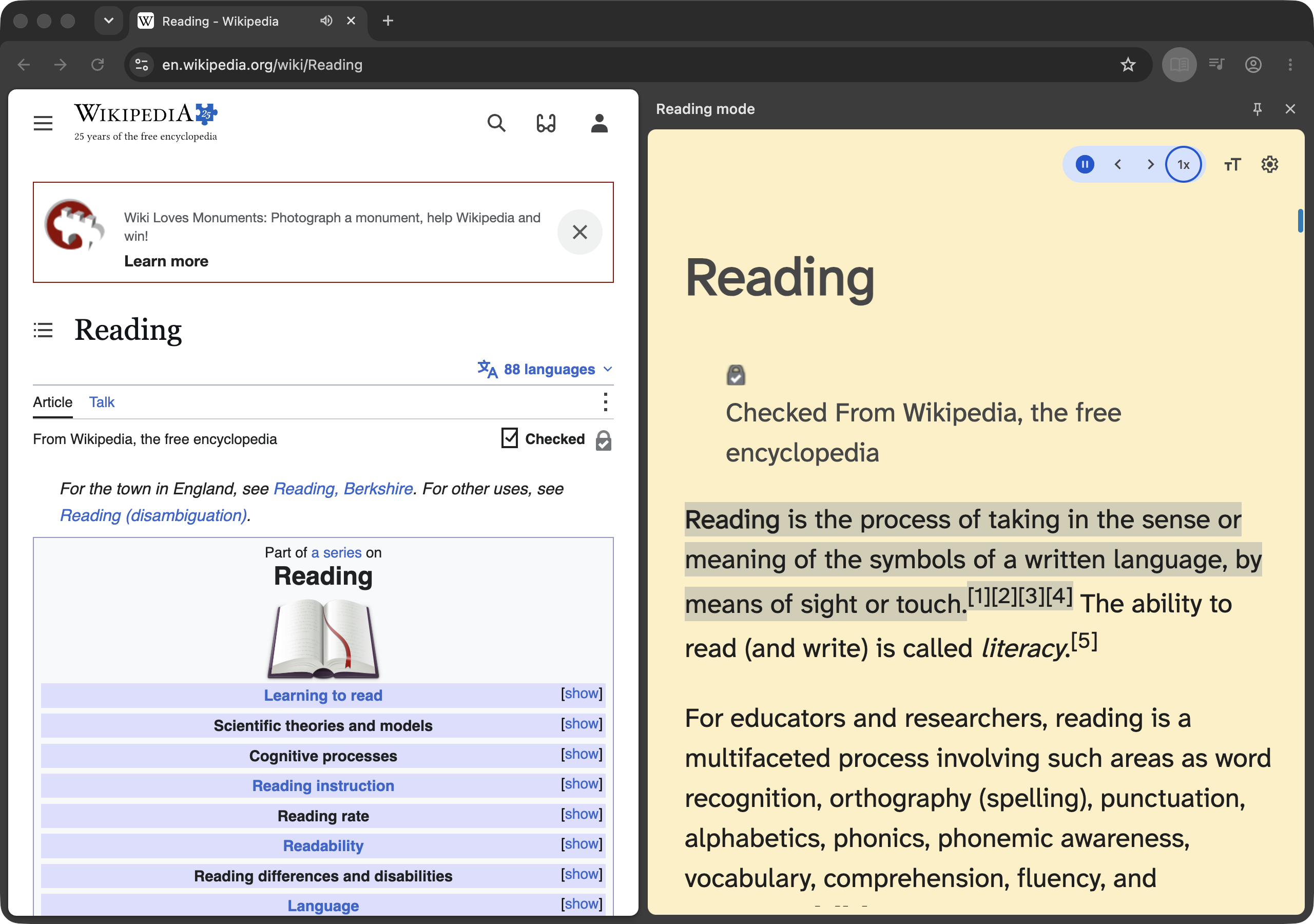
The pill at the top of reading mode is a full audio player: play/pause (K), previous and next sentence, and a speed button with 0.5x, 0.8x, 1x, 1.2x, 1.5x and 2x.
When I pressed play on the Wikipedia article "Reading":
- Chrome highlighted the current sentence and greyed out what it had already read.
- Link underlines disappeared during playback, so highlighting is the only markup on the page.
- The tab showed the speaker icon, and Chrome's media control button appeared in the toolbar, so you can pause from anywhere.
- The first time, Voice selection showed "Downloading English (United States) voices…" — Chrome fetches higher-quality voices on demand.
The engine behind it is a component called WasmTtsEngine. In my fresh test profile it took 22 MB on disk (version 20260917.1); my everyday Chrome has the same 22 MB folder. That makes it one of the smallest pieces of Chrome's on-device machinery — for comparison, the on-device AI model is 4 GB, covered in disabling Gemini Nano in Chrome.
What Reading Mode Removes (Measured)
On the Wikipedia article "Reading", the normal page body contained 6,313 words, 1,610 links and 44 images. Reading mode's text column contained 5,759 words — 91% of the page — and none of the site's menus, sidebars or banners. On a page this clean the gain is mostly visual calm rather than a dramatic cut.
That is a well-structured page. Reading mode's quality depends heavily on how the site is built.
Where Reading Mode Struggles
Testing across a few page types showed the limits clearly:
- Table-based or image-based layouts. On Paul Graham's essay "How to Do Great Work" — a classic table layout — reading mode pulled in the column of image navigation buttons and the title image before the essay text. Usable, but not clean.
- Images that fail to load. On Wikipedia's "Web browser" article, the first render showed broken image placeholders in the reading view. Toggling Images off is the fix if they distract.
- Pages without an obvious article. Chrome's own messages are "Reading mode isn't available on this page" and "Reading mode can't find the main content on this page". The suggested workaround is in the next string: "Highlight the text you want to open in reading mode" — select the passage first.
- Google Docs. Support exists behind the
#read-anything-docs-integrationflag, which means it is not on by default.
For pages reading mode cannot handle, a dedicated reader extension is still the better tool; the trade-offs are in Chrome extensions for reading.
Reading Mode Flags in Chrome 154
Ten reading mode experiments exist on the flags page, all named read-anything-*. The ones worth knowing:
| Flag | What it does | Worth it? |
|---|---|---|
#read-anything-omnibox-chip | Reading mode chip in the address bar on article pages | Yes, if you do not use the shortcut |
#read-anything-read-aloud-phrase-highlighting-v2 | Highlight by phrase while reading aloud | Try it for read-aloud |
#read-anything-docs-integration | Reading mode on Google Docs | Niche |
#read-anything-with-readability-enabled | Experimental readability.js text extraction | Only if pages extract badly |
#read-anything-line-focus | Line focus | Already in the menu in 154 |
The others (#read-anything-improved-ui, #read-anything-distiller-refactor, #read-anything-readability-select-text, #read-anything-docs-load-more-button, #read-anything-read-aloud-experimental-playback-ui) are refinements under test. The omnibox chip is also covered in the tested list of Chrome flags useful settings, and if you pair reading mode with a second page side by side, see Chrome split view.
A Reading Setup That Works
A combination that worked well in my testing: Full page view, Yellow theme, Atkinson Hyperlegible Next, Loose line height, Links off, with ⌥⌘R to enter and leave. For long articles, read aloud at 1.2x with sentence highlighting keeps your place without scrolling.
Low-vision and dyslexic readers should try the High contrast or Low-contrast themes, Very wide letter spacing and Line focus together; more accessibility tools are in Chrome extensions for accessibility.
One habit worth adding: before you close a good article, save the link. Reading mode hides the address bar's context, and a keystroke such as Ctrl+Shift+C copies the URL of the current tab without leaving the reading view.
Frequently Asked Questions
How do I open reading mode in Chrome? On a Mac, press Option+Command+R; in Chrome 154 the same shortcut closes it again. You can also right-click a page and choose Open in reading mode, or use the three-dot menu under More tools.
Can Chrome reading mode use the full window instead of the side panel? Yes. Open the reading mode settings (gear icon), choose View, and pick Full page or Side panel. Chrome remembers the choice, so the shortcut opens reading mode in whichever view you used last.
Does Chrome reading mode read pages aloud? Yes. Press the play button or the K key inside reading mode. Chrome highlights the sentence being read, lets you skip by sentence, and offers speeds of 0.5x, 0.8x, 1x, 1.2x, 1.5x and 2x.
What fonts does Chrome reading mode have? Chrome 154 offers nine: Poppins, Sans-serif, Serif, Comic Neue, Lexend Deca, EB Garamond, STIX Two Text, Andika and Atkinson Hyperlegible Next. Line height and letter spacing each have three levels.
Why does reading mode say it is not available on this page? Reading mode needs a page with an identifiable main article. On apps, dashboards and some table-based layouts it either refuses or pulls in navigation. Selecting the text you want first gives it a hint.
Do reading mode settings sync or persist? They persist. In my Chrome 154 test the Yellow theme, chosen font and side panel view all survived a full browser restart. I did not test whether they sync across devices.
Reading mode cleans up the page; it does nothing for the link. Ctrl+Shift+C copies the current tab's URL with one shortcut — clipboard permission only, no page access, no data collected — so the article you just read is one paste away from your notes.
Try Ctrl+Shift+C
Copy any URL with one keyboard shortcut. Free forever, no data collected.