Parallel Downloading Chrome Flag: Tested on Chrome 151
Parallel downloading in Chrome splits one file download across three connections instead of one. In my testing on Chrome 151, that turned a 26.5-second download into a 9.0-second download — a 2.9x speedup on a 100MB file. It is off by default on desktop, it takes about ten seconds to turn on, and it does nothing at all in two specific situations that no other article about this flag seems to mention.
This post is the measurement, not the marketing. I built a local HTTP server that serves a 100MB file with range support and logs every request Chrome makes, then downloaded that file with the flag Disabled, at Default, and Enabled, watching both the wall-clock time and the actual HTTP requests. Everything below comes from those runs on Chrome 151.0.7922.138 (macOS, August 2026).
The Short Version
| Question | Answer from testing |
|---|---|
| Does it speed up large downloads? | Yes — 26.5s → 9.0s on 100MB (2.9x) when per-connection bandwidth is the limit |
| Is it on by default? | No. Default behaved identically to Disabled on desktop |
| How many connections? | Exactly 3 — one normal request plus two range requests |
| When does it do nothing? | When the connection is not the bottleneck, or the server sends no ETag/Last-Modified |
| Smallest file that benefits? | Slices are never smaller than ~1.3MB, so 3MB files get 2 streams and a ~1.3x gain |
| Risk level | Low — every test file arrived complete and byte-for-byte the right size |
How to Enable Parallel Downloading in Chrome
Paste this into the address bar:
chrome://flags/#enable-parallel-downloading
Chrome opens the experiments page scrolled to the flag with its name highlighted in yellow:
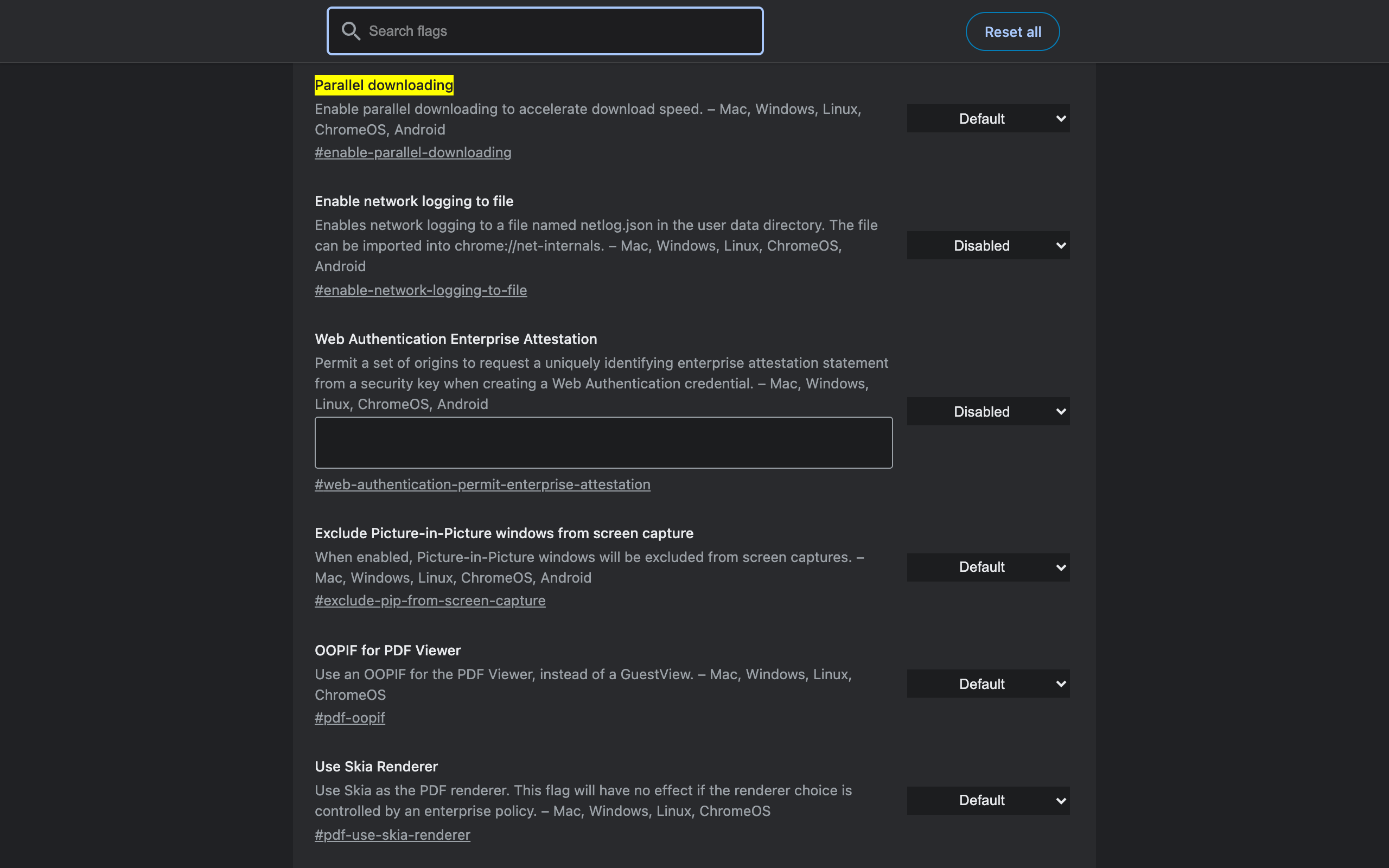
Switch the dropdown from Default to Enabled. A relaunch bar slides in at the bottom of the page — nothing changes until you use it, because Chrome only applies flags at startup:
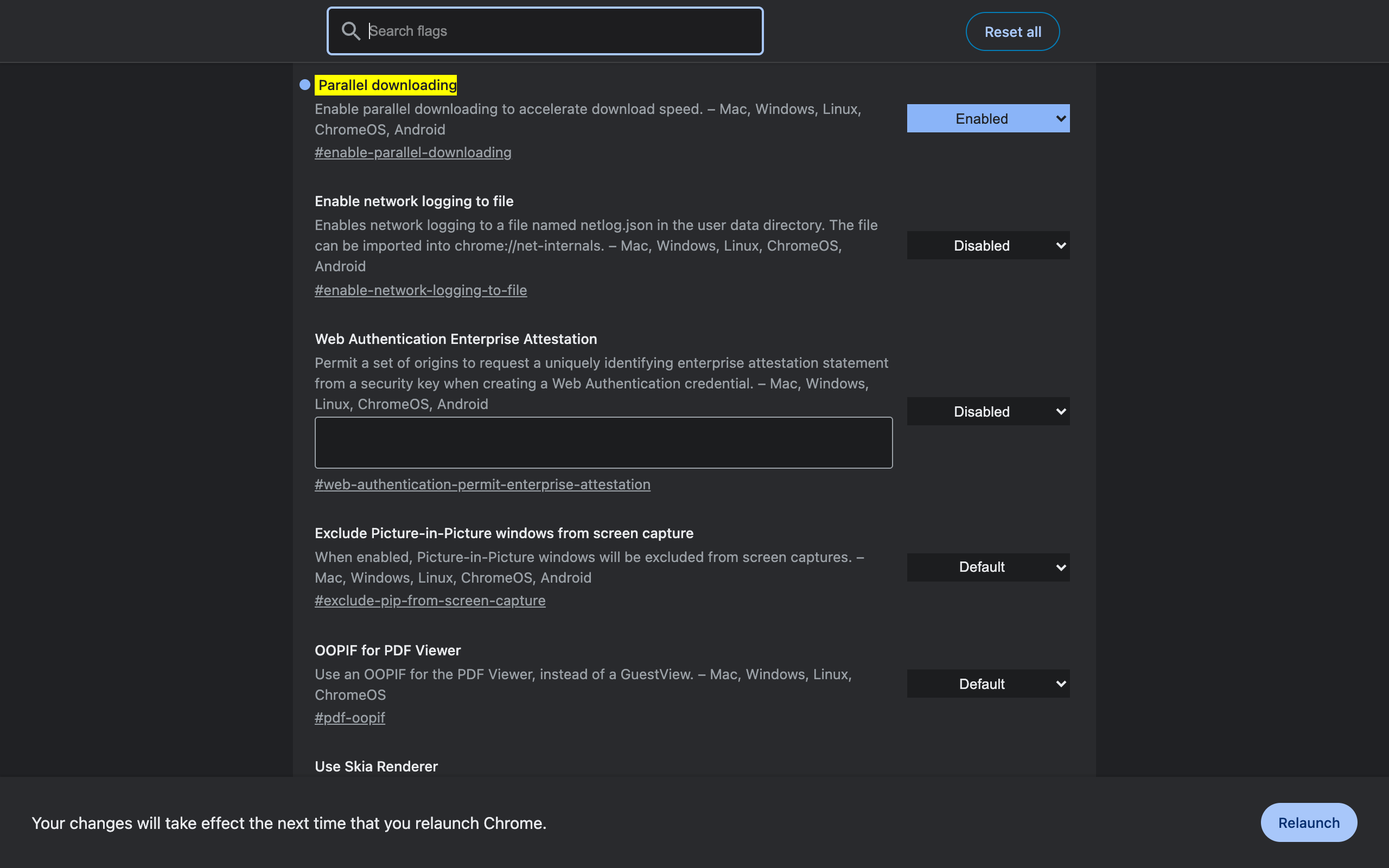
That is the whole setup. There is no configuration, no slider for the number of connections, and no per-site control. For the rest of the flags worth this kind of attention, see the full list of Chrome flags useful settings.
What Chrome Actually Does With Three Connections
Because my test server logs every request, I can show exactly what parallel downloading looks like on the wire. With the flag enabled and a 100MB file, Chrome made three requests:
GET /big.bin— the normal request, starting at byte 0GET /big.binwithRange: bytes=34952533-GET /big.binwithRange: bytes=69905066-
Those offsets are one-third and two-thirds of 104,857,600 bytes. Chrome starts downloading normally, decides the file is big enough and slow enough to be worth splitting, then opens two more connections that start at the thirds and race toward each other's starting points. The 20MB test showed the same pattern with offsets at 6,990,506 and 13,981,012 — again, precise thirds.
With the flag disabled, there was exactly one request and no Range header, every single run.
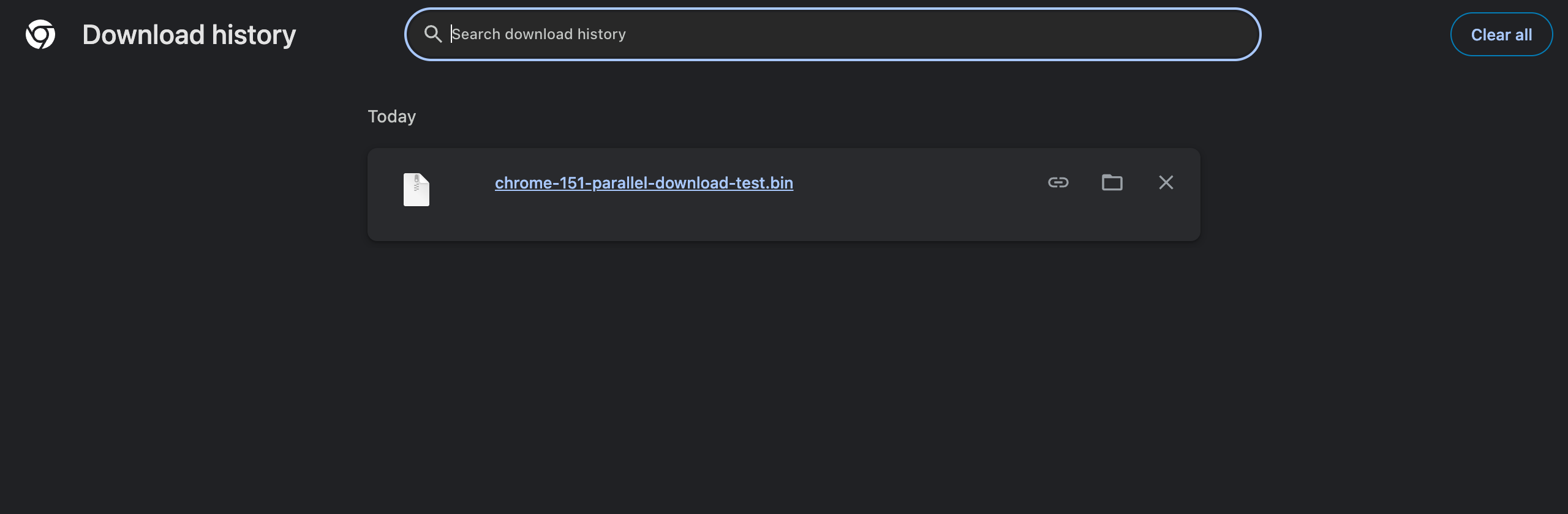
The Measurements
Test setup, so you can judge the numbers: local HTTP server, 100MB / 20MB / 3MB files, Accept-Ranges: bytes, ETag and Last-Modified present, each connection artificially capped at 4 MB/s with 60ms added before first byte. That cap is the point — it emulates the common real-world case where a single connection is slow but the pipe as a whole is not saturated. Chrome 151 headless, a fresh profile per run, flag state set through the same preference the flags page writes. The 100MB case ran twice per setting; results were within 0.5%.
| Download | Flag Disabled | Flag Default | Flag Enabled | Connections when enabled |
|---|---|---|---|---|
| 100MB | 26.9s / 26.5s | 26.6s / 26.5s | 9.0s / 8.9s | 3 |
| 20MB | 5.26s | 5.31s | 1.90s | 3 |
| 3MB | 0.77s | 0.77s | 0.58s | 2 |
| 100MB, no per-connection cap | 0.14s | 0.16s | 0.16s | 3 |
| 100MB, server sends no ETag/Last-Modified | 26.5s | 26.5s | 26.5s | 1 |
Three things fall out of that table.
The speedup is real and close to the theoretical maximum. 26.7s down to 9.0s is 2.97x on three connections. The 20MB file improved 2.8x. If per-connection bandwidth is what limits you — throttled file hosts, some CDNs, cheap mirrors, hotel and mobile networks — this flag gives you most of a 3x.
"Default" means off on desktop. This matters because plenty of advice says parallel downloading is already on and the flag is redundant. On my machine it was not: with the flag at Default, Chrome launched with no parallel-downloading switch on its command line, opened one connection, and took the full 26.5 seconds. Only the explicit Enabled setting changed behavior.
Nothing to gain when the connection is not the bottleneck. In the uncapped run Chrome still opened three connections, and the download still took 0.16s versus 0.14s single-stream — a rounding error, and if anything slightly slower. Splitting a download does not create bandwidth. It only helps when one connection cannot use all the bandwidth you have.
The Requirement Nobody Mentions: The Server Needs a Validator
This is the finding I did not expect. My first test run showed zero effect from the flag — same time, one connection, no range requests. The file was 100MB, the server advertised Accept-Ranges: bytes and returned correct 206 responses. The missing piece was a strong validator: an ETag or Last-Modified header.
Add either header and Chrome immediately started splitting downloads. Remove them and it went back to a single connection, even with the flag Enabled (the last row of the table above). That behavior is defensible — without a validator Chrome cannot be sure the three connections are fetching the same version of the file, so it refuses to stitch pieces together — but it means the flag's effect depends entirely on the server you are downloading from.
Practical consequence: if you enable parallel downloading and see no difference, the flag is probably not the problem. Test with a different host before concluding anything. Well-configured static hosts and CDNs send these headers; dynamically generated download endpoints often do not.
Small Files Get Two Connections, Not Three
The 3MB test revealed Chrome's floor. Instead of splitting at 1MB and 2MB, Chrome opened one extra connection starting at byte 1,365,333 — about 1.3MB in. That is the minimum slice size, and it means a 3MB file only has room for two slices. Below roughly 2.7MB you would expect no splitting at all.
So the flag is for large files. It gave a 1.3x improvement on 3MB, 2.8x on 20MB, 2.9x on 100MB. If your downloads are mostly PDFs and images, this flag will not change your life. If you pull down installers, datasets, game assets, or video, it will.
Is Parallel Downloading Safe?
Low risk, in my judgment. Concrete observations from the runs:
- Every downloaded file was exactly 104,857,600 bytes — the full, correct size. No truncation, no corruption across 15+ downloads.
- Chrome fell back to single-connection behavior cleanly whenever conditions were not met, rather than failing the download.
- The flag has been in
chrome://flagsfor years, which is unusual longevity for an experiment and a sign it is stable rather than abandoned.
Realistic downsides: a server that handles range requests badly can serve you a broken file (rare, but this is why the validator rule exists), and three connections per download instead of one is slightly rougher on small self-hosted servers. If you hit either, set the flag back to Disabled and relaunch. For the broader question of what experimental flags can and cannot break, see are Chrome flags safe.
Parallel Downloading vs a Download Manager
| Chrome parallel downloading | Dedicated download manager | |
|---|---|---|
| Connections per file | 3, fixed | Usually configurable, 4–16 |
| Setup | One flag, one relaunch | Install app or extension |
| Resume after disconnect | Chrome's normal resume | Usually more robust |
| Scheduling, queues, mirrors | No | Yes |
| Works on every download automatically | Yes | Only through the manager |
| Cost | Free, built in | Free to paid, plus an app to trust |
For most people the flag is the right answer: it is invisible, applies to everything, and captures the largest part of the available gain. A download manager earns its place if you routinely pull multi-gigabyte files on an unreliable connection, or need queues and scheduling.
What This Flag Does Not Do
Worth being explicit, since download speed advice attracts a lot of nonsense:
- It does not increase your internet connection's capacity. It uses what you already have more fully.
- It does not speed up page loads. This is the download pipeline only — different code path from page resource fetching.
- It does not affect streaming video or extension updates.
- It does not help when a server caps you by total bandwidth rather than per connection. Three connections sharing one cap is the same speed as one connection.
If page loading rather than file downloading is your actual complaint, the fixes live elsewhere — see how to speed up Chrome browser for the memory and rendering side.
Getting More From Chrome's Downloads
Two habits pair well with this flag. First, learn the download shortcuts — Ctrl+J (Cmd+Shift+J on macOS) opens the download history instantly, and the full set is in Chrome download shortcuts. Second, turn on "Ask where to save each file" in chrome://settings/downloads if you download a lot of large files; picking the destination beats moving a 4GB file afterwards.
And if a flag you read about elsewhere is not on your flags page at all, it may simply not exist any more — Chrome retires experiments on a schedule. The verified list is in removed Chrome flags in 2026.
Frequently Asked Questions
Does parallel downloading actually make Chrome downloads faster? Yes, when per-connection speed is the bottleneck. On a server capped at 4 MB/s per connection, a 100MB file took 26.5 seconds with the flag off and 9.0 seconds with it on. On a connection that was not the bottleneck, the same download showed no improvement at all.
Is parallel downloading enabled by default in Chrome? Not on desktop. With the flag left at Default, Chrome 151 on macOS opened a single connection and finished in exactly the same time as the explicitly Disabled setting. You have to set it to Enabled and relaunch.
How many connections does Chrome use for parallel downloading? Three. Chrome starts the normal request, then issues two additional range requests beginning at one-third and two-thirds of the file. On a 100MB file the extra requests started at bytes 34,952,533 and 69,905,066.
Why is parallel downloading not working for me? The server has to support range requests and send a strong validator such as ETag or Last-Modified. With those headers removed, Chrome downloaded on one connection even with the flag enabled, and the download took the full single-stream time.
Is the parallel downloading flag safe to enable? It has been in Chrome for years and every test download arrived complete and the correct size. The realistic downside is a server that handles range requests badly, in which case you disable the flag and relaunch.
Does parallel downloading help with small files? Barely. A 3MB file got only two connections instead of three because Chrome will not create a slice smaller than about 1.3MB, and it finished about 1.3x faster. The flag is for large files.
Where is the parallel downloading flag in Chrome? Paste chrome://flags/#enable-parallel-downloading into the address bar. Chrome opens the flags page with that flag highlighted. Switch the dropdown to Enabled and click Relaunch.
Verdict
Enable it. On the evidence above, parallel downloading in Chrome is one of the few flags that produces a measurable, repeatable improvement rather than a placebo: roughly 3x on large files whenever a single connection is the limiting factor, no downside when it is not, and a clean fallback when the server does not cooperate. Ten seconds of setup for a permanent improvement to every large download is a good trade.
The one honest caveat: if your downloads are already saturating your connection, expect nothing. Measure before and after with a large file from the same host, and you will know within a minute which case you are in.
Chrome's flags fix things Chrome forgot to build. So do extensions — that is the gap Ctrl+Shift+C fills: one keyboard shortcut, the current tab's URL on your clipboard, no flag and no menu. Free, no data collection, and it takes less time to install than this download test took to run.
Try Ctrl+Shift+C
Copy any URL with one keyboard shortcut. Free forever, no data collected.