Chrome Memory Saver: How Much RAM It Frees (Tested)
Chrome Memory Saver frees RAM by discarding tabs you have not used for a while: the tab stays in your tab strip, but its page is unloaded until you click back to it. In my Chrome 154 test, discarding seven of eight open tabs cut Chrome's total memory footprint from about 1.3 GB to about 0.55 GB — roughly 750 MB back, close to 60%.
That one number answers the main question. The rest of this guide covers the settings that decide which tabs get discarded and when, the internal page that shows what Chrome is doing, and what you can lose when a tab is unloaded.
Where Memory Saver Lives (and Its Three Modes)
Open chrome://settings/performance. The Memory section holds the toggle:
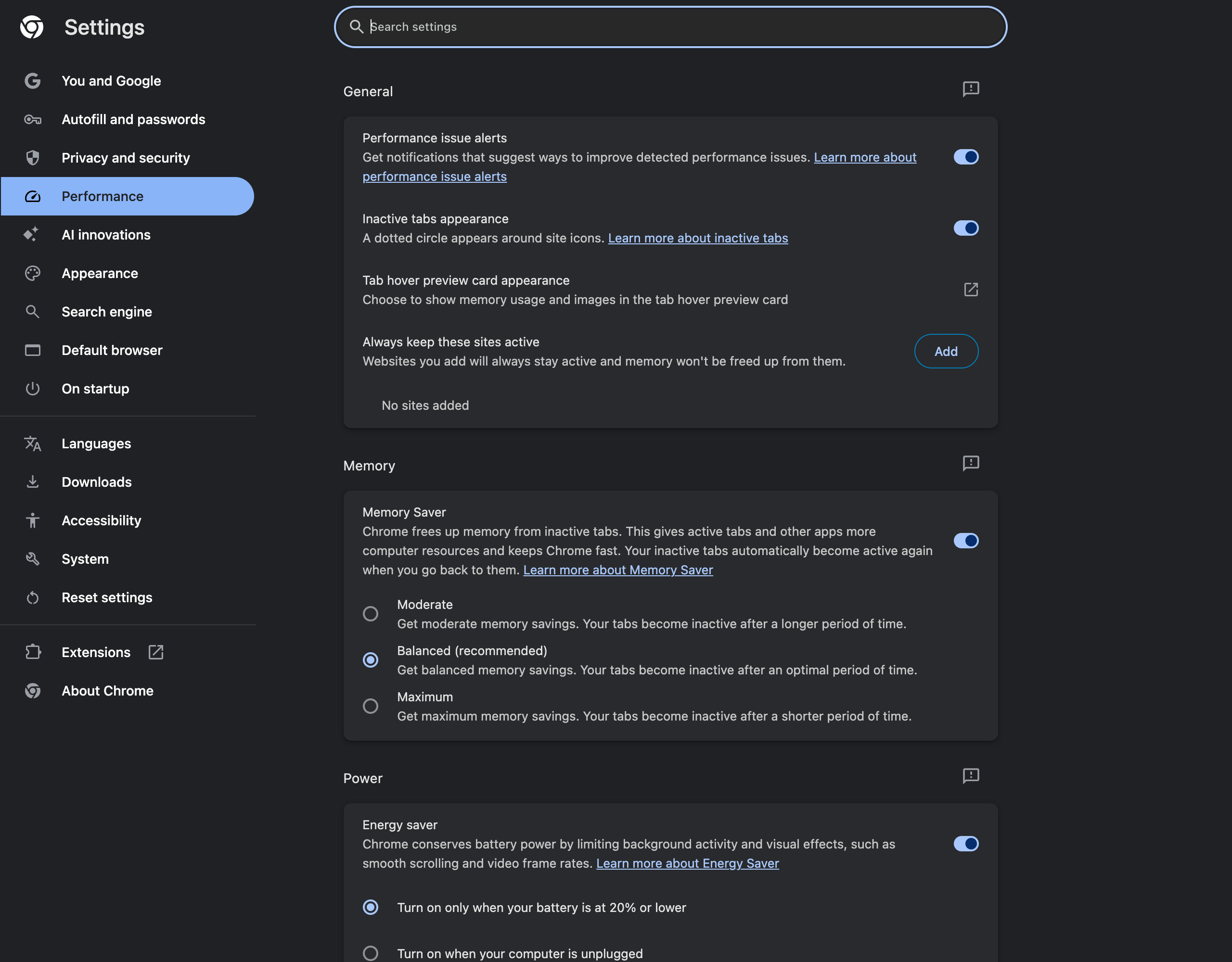
Chrome's description: "Chrome frees up memory from inactive tabs. This gives active tabs and other apps more computer resources and keeps Chrome fast. Your inactive tabs automatically become active again when you go back to them."
In a fresh profile on Chrome 154 for macOS the toggle was off. Turn it on and three modes appear:
| Mode | Chrome's description | Who it suits |
|---|---|---|
| Moderate | "Your tabs become inactive after a longer period of time" | Plenty of RAM; you hate reloads |
| Balanced (recommended) | "Your tabs become inactive after an optimal period of time" | Most people |
| Maximum | "Your tabs become inactive after a shorter period of time" | 8 GB machines, dozens of tabs |
Chrome does not publish fixed minute values for these modes, and the timing is not something I could pin down in a short test, so treat them as "later / sensible / sooner" rather than exact timers. Memory pressure also matters: when the system runs low, Chrome discards more aggressively regardless of mode.
How Much RAM Memory Saver Frees: My Test
Setup: Chrome 154.0.8037.93, headless, Apple-silicon Mac, fresh profile. I opened eight tabs — Wikipedia, GitHub, MDN, BBC News, The Verge, Stack Overflow, YouTube and a small local test page — let them settle, then measured the physical memory footprint of every Chrome process combined. Then I discarded the seven background tabs through chrome://discards and measured again.
| State | Chrome memory footprint (approx.) |
|---|---|
| 8 tabs loaded | ~1.27–1.29 GB |
| 7 background tabs discarded | ~0.52–0.56 GB |
| Freed | ~0.75 GB (≈ 58–60%) |
The remaining ~0.5 GB is the floor you cannot discard: the browser process, the GPU process, network and storage services, the active tab and the internal page used for the test. Every discarded tab gave back essentially all of its own renderer memory.
How much you save depends on what you discard. A static documentation page might cost 30–40 MB; a heavy news site can add 400–500 MB, as measured in the Chrome Task Manager guide. Discarding three news sites saves more than discarding thirty text pages.
chrome://discards: See Exactly What Chrome Discards
The settings page shows nothing about individual tabs. For that, there is chrome://discards — one of Chrome's internal debugging pages, which on Chrome 154 must first be enabled via chrome://chrome-urls (it redirects to a "debug pages disabled" notice otherwise; see the chrome:// internal pages list).
Here is the page right after my test, with seven tabs discarded:
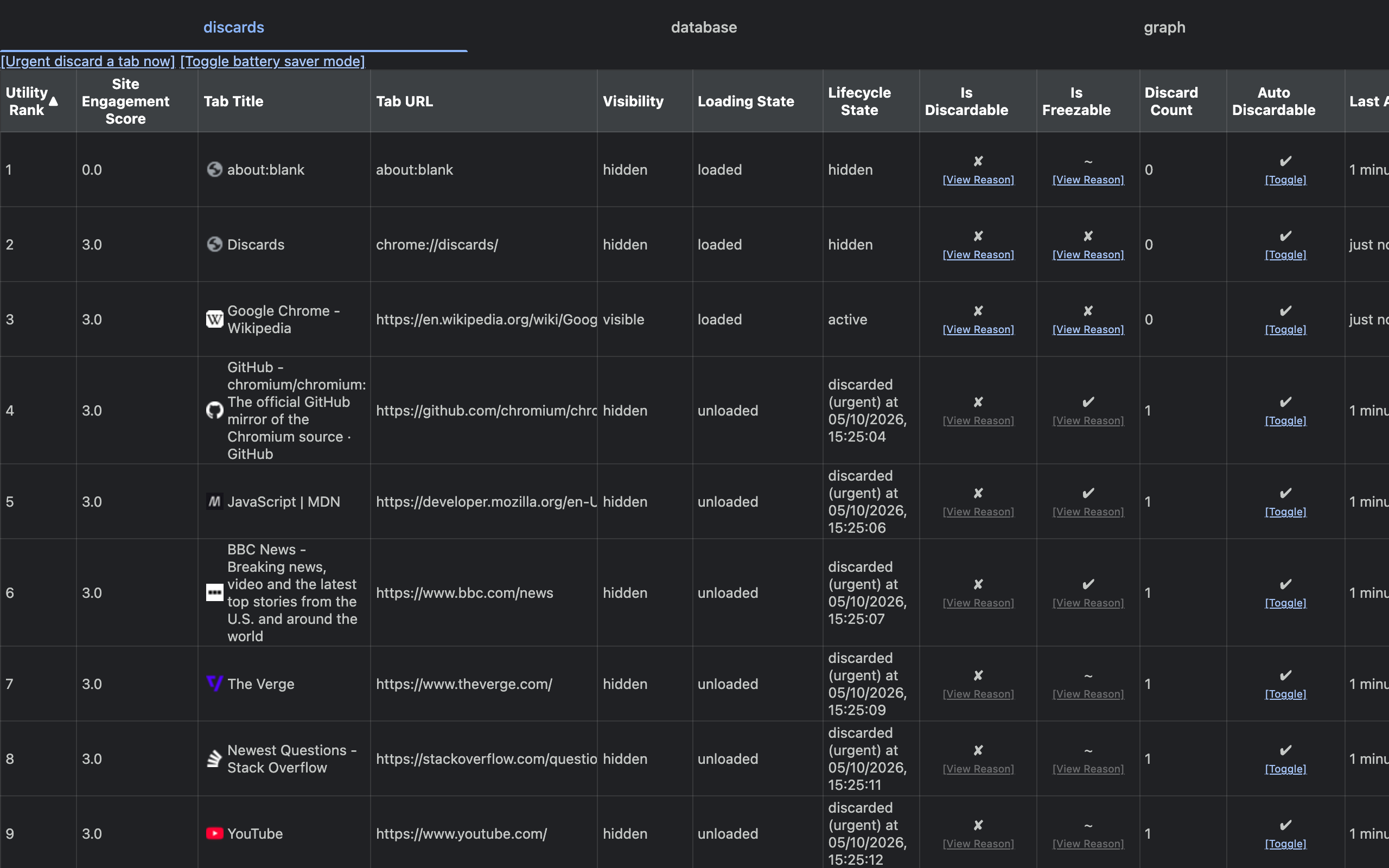
The columns that matter:
| Column | What it tells you |
|---|---|
| Utility Rank | Discard order — lowest-value tabs go first |
| Site Engagement Score | How much you use the site; higher scores are protected longer |
| Loading State | loaded or unloaded (discarded) |
| Lifecycle State | active, hidden, frozen or discarded (urgent) with a timestamp |
| Is Discardable | ✔ or ✘, with a View Reason link |
| Discard Count | How many times this tab has been discarded |
| Auto Discardable | Toggle to protect a single tab from automatic discarding |
The [Urgent discard a tab now] link at the top discards the lowest-ranked tab immediately — each click discards one. That is how I ran the test above, and it is the quickest way to see what Memory Saver would do to your own tabs.
Why Some Tabs Are Never Discarded
The View Reason links answer the "why is this tab still using memory" question. Reasons I saw on Chrome 154:
- "Tab is currently visible" / "Tab is currently active" — the tab you are looking at is never discarded
- "Tab is recently visible" — tabs you just left get a grace period
- "Tab is currently using DevTools" — a tab with DevTools or a debugger attached is protected. This one cost me a test run: while my test harness was attached to every tab, the discard clicks silently did nothing, and the discard count stayed at 0
- "URL scheme is not http, https, chrome or data" — blank and special pages are skipped
Chrome also protects tabs playing audio and tabs on sites you add to the exceptions list.
Exceptions: "Always Keep These Sites Active"
Right above the Memory section, Always keep these sites active takes a list of sites: "Websites you add will always stay active and memory won't be freed up from them."
Good candidates:
- Web chat and email (Slack, Gmail) — so notifications and unsent drafts survive
- Music and podcast players
- Dashboards and monitoring pages you glance at
- Anything with long-running state: a build log, an editor with unsaved work, a timer
Two related settings on the same page are worth turning on:
- Inactive tabs appearance — "A dotted circle appears around site icons" of discarded tabs, so you can see which ones will reload
- Tab hover preview card appearance — can show each tab's memory usage when you hover it, a quick way to spot the heavy ones
What You Lose When a Tab Is Discarded
A discarded tab shows unloaded and, in Chrome's own words in the discard reasons, the tab "doesn't have a main frame" — the page is gone from memory and is loaded again from scratch when you return. In practice:
| Kept | Can be lost |
|---|---|
| The tab itself, its position and group | Anything held only in JavaScript memory |
| The URL and back/forward history | Running timers, live counters, websocket connections |
| The page's title and icon | Media playback position in some players |
| Whatever the site saves itself (most modern apps) | Unsaved input in apps that do not persist drafts |
Well-built web apps save their state and come back cleanly. Older or quick-and-dirty pages do not. If a site has ever lost your work after a reload, put it on the always-active list.
Memory Saver vs Closing Tabs vs Other Fixes
| Approach | RAM saved | Cost |
|---|---|---|
| Memory Saver (Balanced) | Most memory of every idle tab, automatically | A reload when you return |
| Manually closing tabs | All of it | You lose the tab; reopen with Ctrl+Shift+T |
| Saving a tab group and closing it | All of it | Restore from the bookmarks bar later |
| Removing unused extensions | Each extension process | None, if you really did not use it |
| Speed flags | Nothing measurable in my tests | Experiments that can break things |
The last row is not a joke: in my benchmark of Chrome flags for performance, every popular speed flag left memory at the same ~2.5 GB with six sites open. Memory Saver is the only built-in switch that reliably frees RAM. For the full speed checklist, see how to speed up Chrome, and if battery matters more than memory, Energy Saver and the battery flags are measured separately.
FAQ
How much memory does Chrome Memory Saver actually save? In my Chrome 154 test, eight open tabs used about 1.3 GB in total. After discarding the seven background tabs, Chrome used about 0.52 to 0.56 GB, a saving of roughly 750 MB or close to 60 percent. The saving depends entirely on how heavy the discarded pages are.
Is Chrome Memory Saver on by default? Not in a fresh profile on Chrome 154 for macOS. The toggle in chrome://settings/performance was off until I turned it on. Chrome may suggest enabling it through performance issue alerts when memory gets tight.
What is the difference between Moderate, Balanced and Maximum? They change how long a tab must be inactive before Chrome discards it. Moderate waits longer, Balanced uses what Chrome calls an optimal period and is the recommended option, and Maximum discards tabs after a shorter period for the biggest savings.
Do I lose anything when Chrome discards a tab? The tab stays in the tab strip, but the page is unloaded and reloads when you return to it. Anything that lived only in the page memory, such as a running timer, an unsent chat draft in some web apps, or media playback position, can be lost. Add sites like that to the always keep active list.
How do I stop Chrome from discarding a specific site? Open chrome://settings/performance and use Always keep these sites active, then click Add and enter the site. Websites on that list stay active and their memory is never freed by Memory Saver.
How can I see which tabs Chrome discarded? Inactive tabs get a dotted circle around their site icon if Inactive tabs appearance is on. For full detail, chrome://discards lists every tab with its lifecycle state, discard count and whether it can be discarded, and lets you discard a tab manually.
Why does a tab refuse to be discarded? chrome://discards shows the reason. Common ones are that the tab is currently visible, was visible recently, is playing audio, or has DevTools attached. In my testing tabs attached to a debugger could not be discarded until it was detached.
Keep Tabs, Lose the Busywork
Memory Saver lets you keep dozens of tabs open without paying for them. When you need to share one of them, Ctrl+Shift+C copies the current tab's URL with a single shortcut — it works on discarded tabs the moment you switch to them, with no data collected.
Try Ctrl+Shift+C
Copy any URL with one keyboard shortcut. Free forever, no data collected.