Chrome Quiet Notifications: Stop Site Prompts (Chrome 156)
The fastest way to stop Chrome notification prompts is chrome://settings/content/notifications → Don't allow sites to send notifications. If you still want the occasional site to ask, keep "Sites can ask" and pick one of the quiet notification modes under How to show requests — Collapse all requests in the address bar is the old "Use quieter messaging" switch under a new name.
I tested every option on Chrome 156.0.8078.48 (macOS, fresh profile). With the default set to block, a test page saw its notification permission as denied before it asked anything, and Notification.requestPermission() returned denied in about 1 millisecond — no prompt, no chip, nothing to dismiss. Below is what each setting does, which Chrome quiet notifications mode to pick, and the cleanup features that work in the background.
Where Chrome Quiet Notifications Live in Chrome 156
Open chrome://settings/content/notifications (or Settings → Privacy and security → Site settings → Notifications). In a fresh Chrome 156 profile the page looks like this:
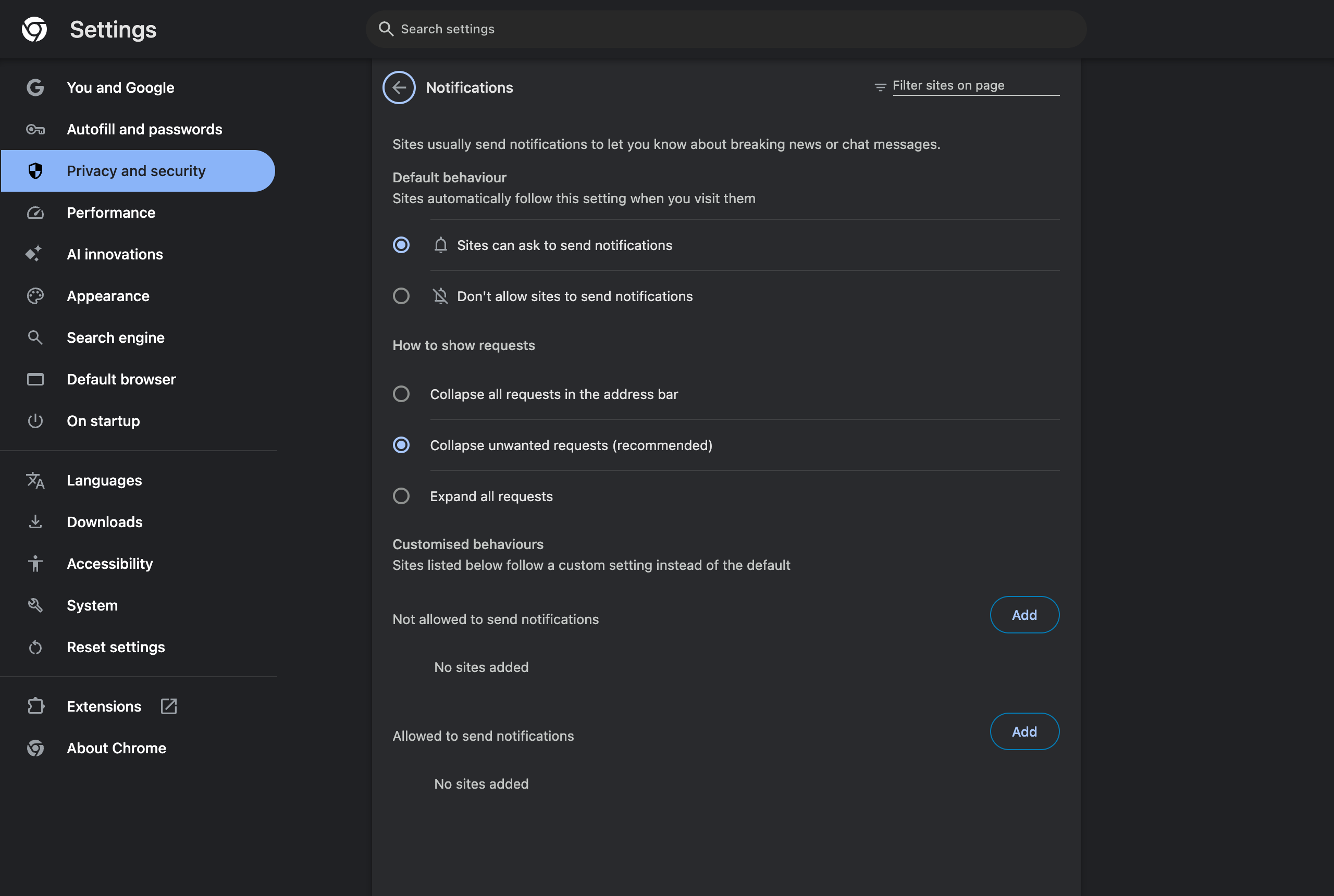
There are two separate decisions on this page:
- Default behaviour — whether sites may ask at all: "Sites can ask to send notifications" or "Don't allow sites to send notifications".
- How to show requests — only visible while sites can ask. This is where the quiet modes are.
Below them sit two Customised behaviours lists — "Not allowed to send notifications" and "Allowed to send notifications" — which override the default per site.
If you are looking for a toggle called "Use quieter messaging", it is no longer on the page. Chrome 156 still ships the old string ("Sites are blocked from interrupting you when they ask to send notifications") inside its settings resources, but the UI now offers the three-way choice instead.
The Three Quiet Notification Modes Compared
| Mode (Chrome 156 label) | What you see when a site asks | Default? | Best for |
|---|---|---|---|
| Collapse all requests in the address bar | A small indicator in the address bar; no pop-up for any site | No | You want quiet notifications everywhere but may still allow a site later |
| Collapse unwanted requests (recommended) | Full prompt for sites you are likely to accept; collapsed indicator for the rest | Yes | Most people |
| Expand all requests | The classic "Show notifications — Allow / Block" pop-up for every request | No | Testing your own site's permission flow |
Collapse all requests in the address bar is the true "quiet notifications" mode. Sites can still request the permission, but the request never covers the page — Chrome shrinks it to an icon at the end of the address bar that you can click if you actually want to allow it. Ignore it and nothing happens.
Collapse unwanted requests is the smart middle ground and the default in my fresh profile. Chrome decides per request: a chat app you use daily gets the normal prompt; a news site you opened once from search gets the collapsed version. The prediction is driven by the site's reputation and your own allow/block history. (My tests ran in headless Chrome, which has no address bar, so the collapsed indicator itself is described from Chrome's settings labels rather than captured.)
Expand all requests turns every request into a full prompt. There is little reason to pick it unless you build websites and need to see the real prompt every time.
The same three options also appear on the Location page (chrome://settings/content/location). Camera and microphone do not have them.
Stop Notification Prompts Completely: Block All
If you never want a site to ask, the quiet modes are a half measure. Select Don't allow sites to send notifications:
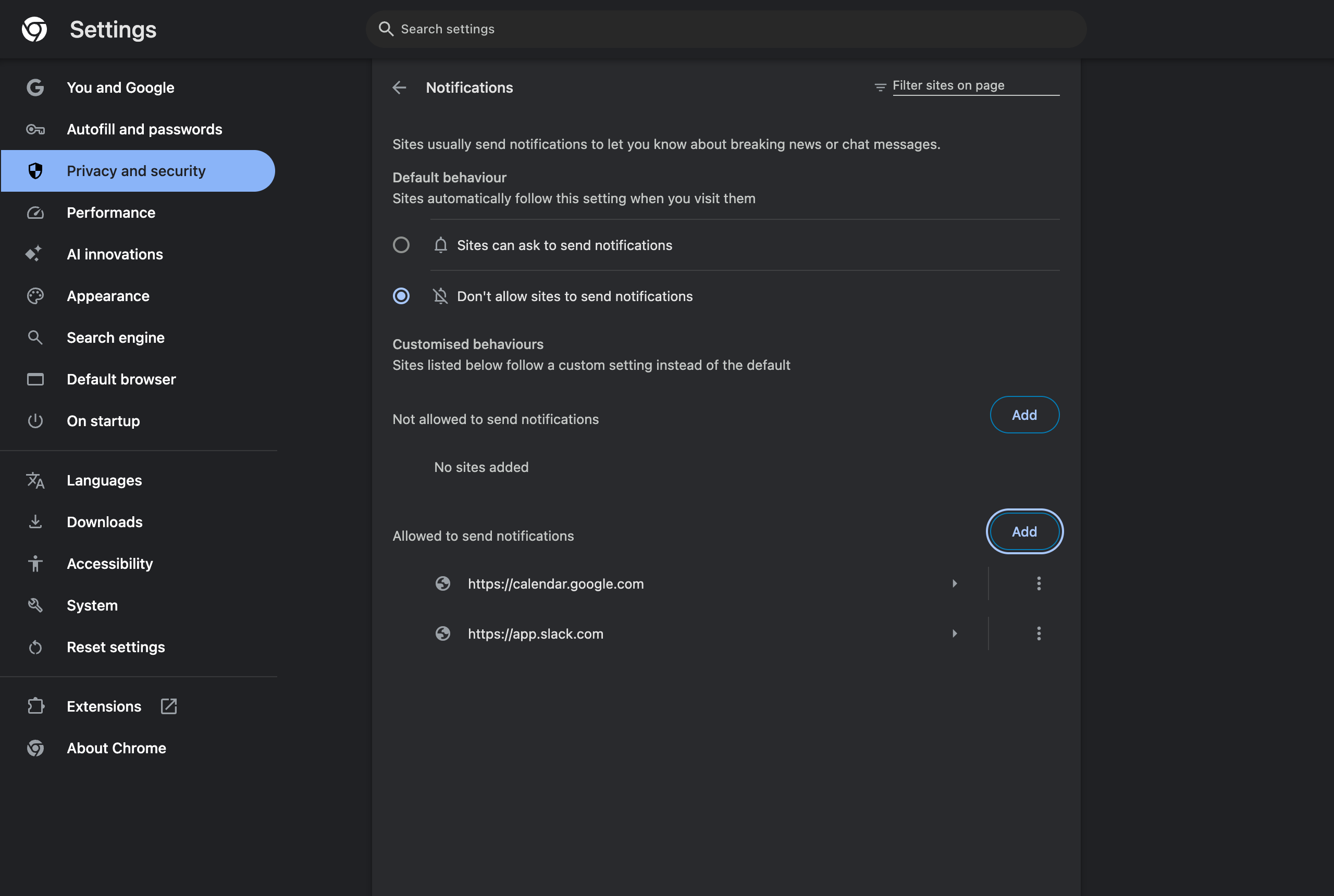
Two things change immediately:
- The How to show requests section disappears — there is nothing left to show.
- Sites see the permission as already refused. On my local test page,
Notification.permissionandnavigator.permissions.query({name: 'notifications'})both returneddeniedon load, before any request. CallingNotification.requestPermission()returneddeniedin 1 ms.
That second point matters more than it sounds. Well-built sites check the permission state before showing their own "Turn on notifications?" banner. When Chrome reports denied up front, many of them skip the in-page nag too — so blocking at the browser level removes not just Chrome's prompt but often the site's pre-prompt as well.
Chrome's own warning on this option is accurate: "Features that need notifications won't work." That is why the allow list exists.
Keep an Allow List for the Sites That Matter
Blocking everything and allowing a handful of sites is the setup I recommend for anyone who works in the browser. Under Allowed to send notifications, click Add and enter the site — for example https://calendar.google.com or https://app.slack.com.
I verified the precedence: with the default set to block, a test origin on the allow list reported granted, while another origin on the block list reported denied. Site exceptions always win over the default.
Good candidates for the allow list:
- Calendar (meeting reminders are the one notification almost everyone wants)
- Team chat if you use the web version rather than the desktop app
- Email, only if you genuinely triage from notifications
- Monitoring, on-call or build dashboards
You can also manage a single site without opening settings: click the site-info icon to the left of the URL, then Site settings, and set Notifications to Allow, Block or Ask. The full list of per-site and global pages is in the chrome:// internal pages list.
Which Setting Should You Use?
| Your goal | Default behaviour | How to show requests | Extra step |
|---|---|---|---|
| Never see a notification prompt again | Don't allow | — (hidden) | Allow-list the 2–5 sites you need |
| Fewer prompts, still decide case by case | Sites can ask | Collapse all requests in the address bar | None |
| Let Chrome filter spammy sites only | Sites can ask | Collapse unwanted requests (recommended) | None — this is the default |
| Focus time with zero interruptions | Don't allow | — | Also mute Chrome in OS notification settings |
| Developer testing permission flows | Sites can ask | Expand all requests | Use a separate profile |
My own setup: block by default, Calendar and Slack allowed. Everything else is denied before it can ask.
The Notification Flag in Chrome 156: PermissionsAIv4
Older guides tell you to enable chrome://flags/#quiet-notification-prompts. That flag no longer exists: I searched all 621 experiments listed on chrome://flags in Chrome 156 and it is not among them. The quiet UI graduated into the settings page years ago.
What does exist is PermissionsAIv4:
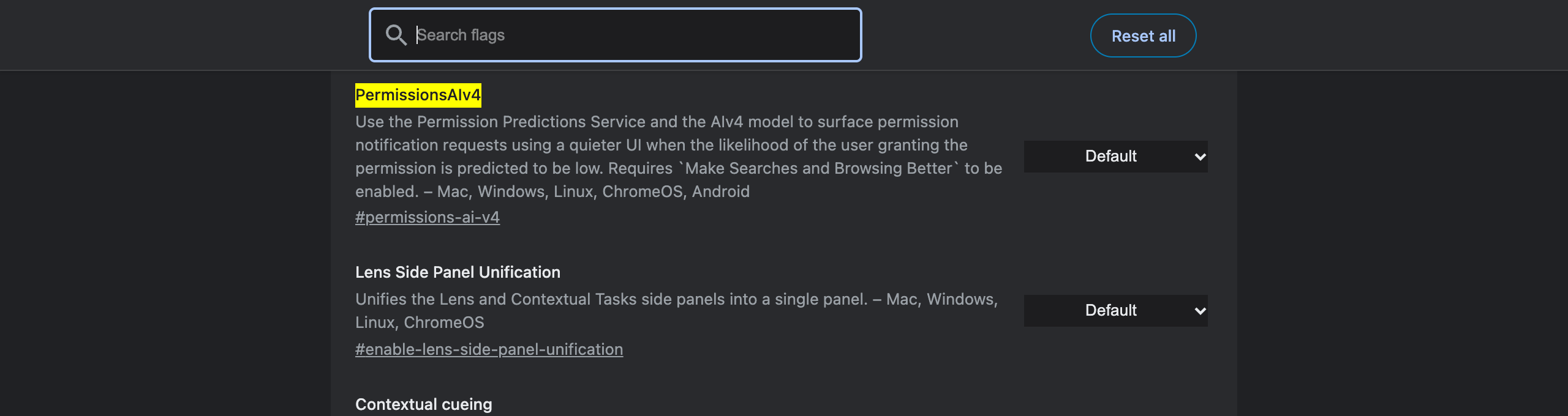
Chrome's description: "Use the Permission Predictions Service and the AIv4 model to surface permission notification requests using a quieter UI when the likelihood of the user granting the permission is predicted to be low. Requires Make Searches and Browsing Better to be enabled."
In other words, it is the engine behind Collapse unwanted requests, using a newer model. It is set to Default and is available on Mac, Windows, Linux, ChromeOS and Android. I would leave it alone: the settings page already gives you full control, and the prediction depends on sending browsing data through "Make searches and browsing better", which privacy-minded users often switch off (see how to turn off Chrome's AI features). If you do experiment with it, the general rules in are Chrome flags safe apply, and the flags genuinely worth changing are in my tested list of useful Chrome flags.
Clean Up Sites You Already Allowed: Safety Hub
Blocking new prompts does nothing about the sites you clicked "Allow" on two years ago. Chrome 156 has three cleanup mechanisms in Safety Hub (chrome://settings/safetyCheck):
- Notification review. When a site sends many notifications that you rarely interact with, Safety Hub lists it with three choices: "Don't allow", "Always allow notifications from this site" and "Don't allow but ask later". There is also a Block all button for the whole list.
- Abusive sites. Chrome revokes the permission from sites it flags as abusive. In the site list they appear with "Dangerous site. Chrome removed notifications."
- Unused sites. "Automatically remove permissions from unused sites" — "To protect your data, let Chrome remove permissions from sites that you haven't visited recently."
The manual route is faster if you want a clean slate: open the notifications page, scroll to Allowed to send notifications, and remove everything you do not recognise. On a profile that has been in use for a few years, that list is usually longer than you would expect.
Chrome Notifications vs OS Notification Settings
Chrome settings decide which sites may send notifications. Your operating system decides whether Chrome may show them at all:
| Layer | Where | What it controls |
|---|---|---|
| Chrome default | chrome://settings/content/notifications | Whether sites may ask, and how requests look |
| Chrome per-site | Allowed / Not allowed lists, or site info → Site settings | Individual exceptions |
| macOS | System Settings → Notifications → Google Chrome | Banners, sounds, Focus modes for all Chrome notifications |
| Windows | Settings → System → Notifications → Google Chrome | Same, plus Do not disturb |
For deep-work blocks, muting Chrome at the OS level is the stronger switch — it silences even the sites you allowed, without touching your Chrome configuration. The broader setup for distraction-free browsing is in Chrome extensions for focus and deep work. Note that none of this affects extensions: an extension's own notifications are governed by its permissions, not by site settings.
FAQ
Where is the quiet notifications setting in Chrome? Open chrome://settings/content/notifications, or Settings, Privacy and security, Site settings, Notifications. In Chrome 156 the quiet options are under How to show requests: Collapse all requests in the address bar, Collapse unwanted requests (recommended) and Expand all requests.
What happened to Use quieter messaging in Chrome? It was replaced by the three-option How to show requests section. Collapse all requests in the address bar is the direct successor of Use quieter messaging: every notification request is shrunk to a small address bar indicator instead of a pop-up.
How do I stop all websites from asking to show notifications? Choose Don't allow sites to send notifications under Default behaviour. In my Chrome 156 test, sites then report the permission as denied before they ask, and any request is rejected in about a millisecond with no prompt at all.
Can I block notifications but still get them from Gmail or Slack? Yes. Set the default to Don't allow, then add those sites under Allowed to send notifications. A site on the allow list keeps the permission even while the default blocks everyone else.
What does Collapse unwanted requests do? It is the recommended default in Chrome 156. Chrome shows the normal prompt for sites you are likely to accept and collapses the request into the address bar for sites it predicts you would decline, based on the site's reputation and your past choices.
Is there a Chrome flag for quiet notification prompts? The old quiet notification prompts flag is gone. Chrome 156 has PermissionsAIv4 at chrome://flags/#permissions-ai-v4, which uses the AIv4 prediction model to show low-likelihood requests with the quieter UI and requires Make searches and browsing better to be on.
Why did Chrome remove notifications from a site by itself? Safety Hub revokes notification permission from sites it considers abusive, shown as Dangerous site. Chrome removed notifications, and can remove permissions from sites you have not visited recently if Automatically remove permissions from unused sites is on.
Fewer Interruptions, Faster Sharing
Once the prompts are gone, the browser gets out of your way. The other small friction worth removing is copying links: Ctrl+Shift+C copies the current tab's URL with one shortcut — no pop-ups, no notifications, no data collected.
Try Ctrl+Shift+C
Copy any URL with one keyboard shortcut. Free forever, no data collected.