Force Dark Mode in Chrome: Auto Dark Flag Tested (2026)
To force dark mode on every website in Chrome, open chrome://flags/#enable-force-dark, set Auto Dark Mode for Web Contents to Enabled and relaunch. Chrome then generates a dark version of any page that doesn't have one. I tested it on Chrome 156.0.8078.48 on macOS against pages I built to break it. Text-heavy pages convert well. Logos drawn in black disappear. And Chrome quietly skips some sites, which explains most "it doesn't work here" complaints.
Most guides for this flag were written years ago and still describe a dropdown full of inversion modes. That dropdown no longer exists. Below is what the flag looks like and does in current Chrome, with side-by-side screenshots of every case I checked.
The Short Version
| Question | Answer from testing on Chrome 156 |
|---|---|
| Where is it? | chrome://flags/#enable-force-dark — "Auto Dark Mode for Web Contents" |
| Options | Default, Enabled, Disabled. The old inversion variants are gone |
| Command-line equivalent | --enable-features=WebContentsForceDark (read from chrome://version) |
| Text, links, code blocks, tables | Converted cleanly |
| Photos | Left untouched |
| White-background diagrams | Left white, so they glow on the dark page |
| Black logos on transparent backgrounds | Practically invisible |
| Sites with their own dark theme | Skipped when Chrome is in dark mode, darkened by Chrome when it's in light mode |
| Does the site know? | No. Its CSS and prefers-color-scheme are unchanged |
| Per-site exceptions | None |
How to Force Dark Mode in Chrome
- Paste
chrome://flags/#enable-force-darkinto the address bar. Chrome opens the experiments page with the flag highlighted in yellow. - Change the dropdown from Default to Enabled.
- Click Relaunch. Flags only apply at startup, so nothing changes until Chrome restarts.
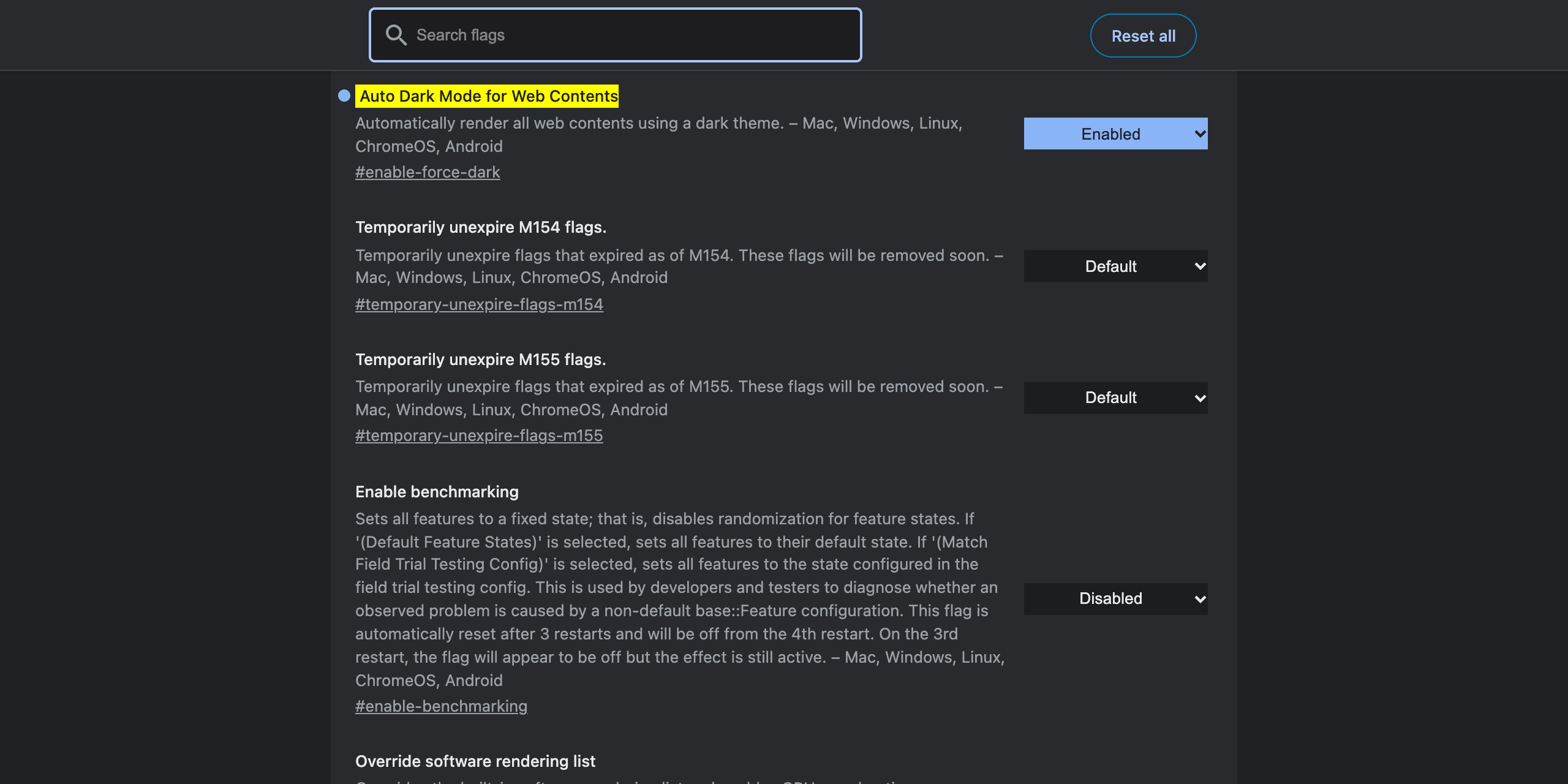
Chrome describes the flag in one line: "Automatically render all web contents using a dark theme." It lists Mac, Windows, Linux, ChromeOS and Android as supported platforms. I only tested on macOS.
To check whether the flag is really active, open chrome://version and look at the Command Line row. With the flag on, Chrome adds --enable-features=WebContentsForceDark between --flag-switches-begin and --flag-switches-end. You can also start Chrome with that switch directly if you'd rather not touch the flags page. The guide to whether Chrome flags are safe covers that audit trick in more detail.
To undo it, set the dropdown back to Default and relaunch, or hit Reset all at the top of the flags page.
The Inversion Variants Are Gone
Search for this flag and you'll find instructions to pick "Enabled with selective image inversion" or a specific inversion method from a long dropdown. In Chrome 156 the dropdown has exactly three entries: Default, Enabled and Disabled. I dumped the option list from chrome://flags to confirm it rather than trusting the rendered page.
I also tried passing one of the old tuning parameters on the command line, --enable-features=WebContentsForceDark:image_behavior/selective. The test page rendered identically to plain Enabled. So whatever the parameters once did, they made no visible difference in my test. Treat any guide that tells you to pick a variant as out of date.
That leaves Chrome's built-in behavior as the only behavior. The rest of this post is about what that behavior actually is.
What Force Dark Mode Changes on a Normal Page
My first test page is a typical light-only article: a beige header bar, a yellow callout box, a light-grey code block, a table with a grey header row, and a blue link. Every color is hard-coded, with no dark theme of its own.
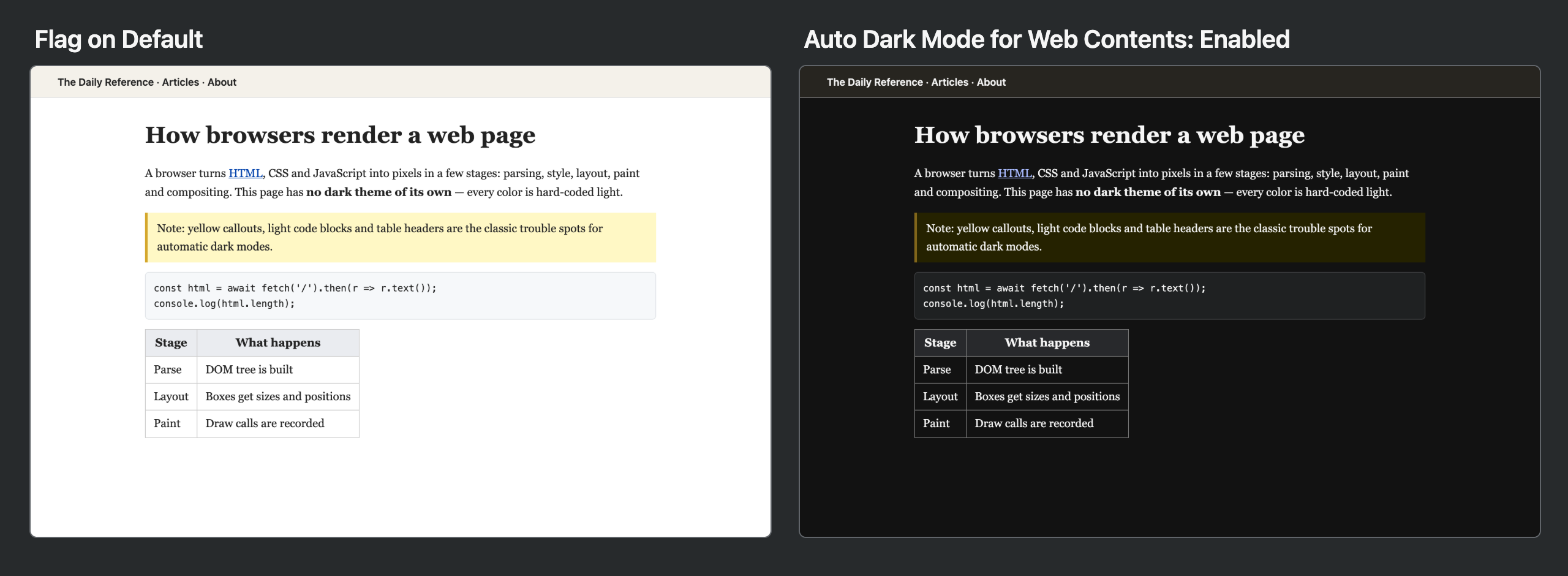
The conversion is good. The background goes near-black, body text goes white, the yellow callout becomes a dark olive box with readable light text, the code block and table header turn dark grey, and the blue link turns a lighter blue that still reads as a link. Nothing became unreadable on this page.
One detail matters if you build websites. With the flag on, getComputedStyle(document.body).backgroundColor still returned rgb(255, 255, 255). The page's CSS and its prefers-color-scheme media query were exactly as they were with the flag off. Chrome changes the colors at paint time, so the site has no idea it's being shown dark. If you're testing your own dark theme, use the DevTools emulation in the DevTools command menu ("Emulate CSS prefers-color-scheme: dark") instead. The flag doesn't trigger your dark styles.
What Breaks: Logos, Diagrams and Gradients
The second test page holds the things automatic dark modes usually get wrong. There's a photo, a diagram on a white background, a black logo in a transparent PNG, an inline SVG logo with black text and a red circle, and a yellow-to-pink CSS gradient.
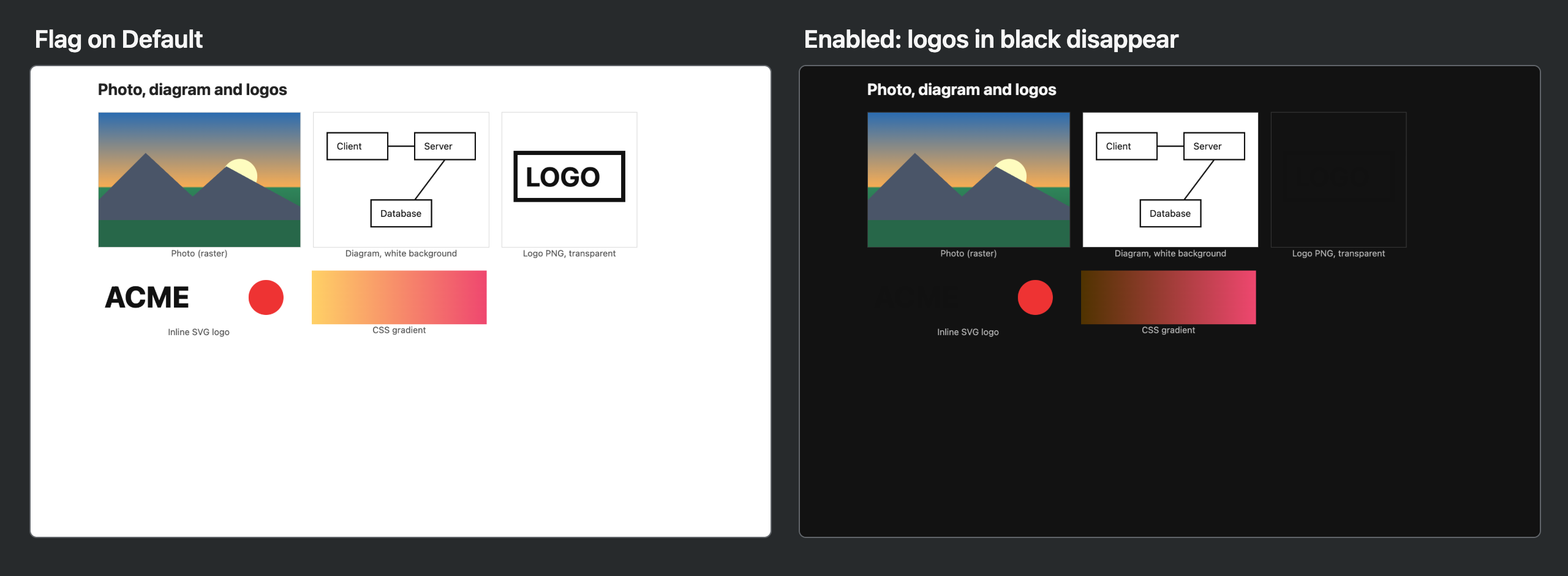
Here's what happened to each:
| Element | Result with the flag Enabled | Verdict |
|---|---|---|
| Photo | Unchanged | Good |
| Diagram with white background | Unchanged, still a bright white box | Jarring but readable |
| Black logo, transparent PNG | Black on near-black, practically invisible | Broken |
| Inline SVG, black "ACME" text | Practically invisible; the red circle survived | Broken |
| CSS gradient, yellow to pink | Yellow end turned dark brown | Changed, still fine |
| Text, borders, captions | Lightened | Good |
The logo result is the one you'll notice in daily use. Plenty of sites put a black wordmark on a transparent background in their header. With forced dark mode on, that header looks empty. Raster images are left alone, which protects photos but also means anything drawn black-on-transparent has nothing to stand out against.
The white diagram is the opposite problem. Screenshots, charts and scanned documents keep their white backgrounds, so a dark page full of them flashes bright every time you scroll past one.
When Chrome Skips a Site Entirely
This is the behavior most "force dark mode not working" questions come down to. Chrome won't override a site that can show its own dark theme. What counts as "can" depends on the dark mode setting in Chrome itself, not just the flag.
I tested a page with a designed dark palette (prefers-color-scheme styles plus <meta name="color-scheme" content="light dark">):
- Chrome in dark mode: the page showed its own designed dark palette. The flag stayed out of the way.
- Chrome in light mode: the page loaded its light palette, and the flag darkened that with its generated colors. You get Chrome's version of dark, not the site's.
Then I built a page that declares color-scheme: light dark but never actually styles a dark version. Every color is hard-coded light:
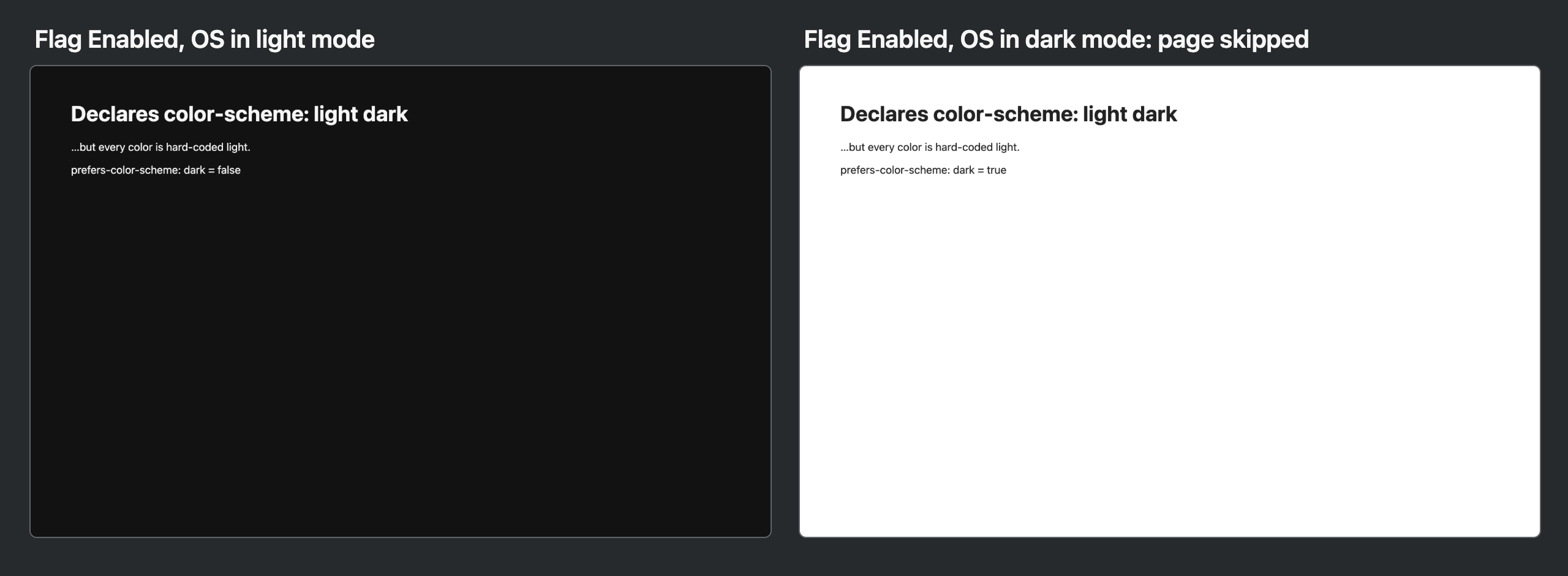
With Chrome in light mode, the flag darkened it as expected. With Chrome in dark mode, Chrome took the page at its word, skipped it, and left it bright white. So if one particular site stays white while everything else goes dark, this is the likely cause. The site claims dark support it doesn't deliver. The flag has no per-site setting to force it.
Chrome's Dark Mode Setting vs the Flag
Chrome has a regular, non-experimental dark mode too. It's under Settings → Appearance → Mode, with three choices in Chrome 156: Light, Dark and Device.
That setting does two things. It switches Chrome's own interface (tabs, toolbar, menus, settings pages) to dark. And it controls what websites see as your preference. My Mac was in dark mode, yet with Chrome set to Light, the test page's prefers-color-scheme: dark query returned false. Set to Dark or Device, it returned true. Chrome's Mode setting wins over the operating system for web pages.
What it doesn't do is touch sites without a dark theme. A light-only page stays light. That's the gap the flag fills.
The combination that worked best in my testing is Mode: Dark plus the flag Enabled. Sites with a real dark theme show their designed version, and everything else gets Chrome's generated one. With Mode on Light and the flag on, even well-designed dark-capable sites get the generated look instead of their own.
Flag vs Chrome Theme vs Dark Mode Extension
| Chrome Mode: Dark | Auto Dark Mode flag | Dark-mode extension (e.g. Dark Reader) | |
|---|---|---|---|
| Chrome's own UI | Dark | No change | No change |
| Sites with a built-in dark theme | Switches them to it | Skips them when Mode is Dark | Usually applies its own theme |
| Sites without a dark theme | No change | Generated dark colors | Generated dark colors |
| Per-site on/off | — | No | Yes |
| Brightness/contrast tuning | — | No | Yes |
| Needs access to your pages | No | No | Yes, to every site you visit |
| Stability | Stable setting | Experimental flag | Depends on the extension |
| Survives a Chrome update | Yes | Until the flag is removed or renamed | Yes |
I tested the first two columns. The extension column is general for this class of extension, and I didn't run one for this post. The trade-off is the usual one: an extension gets per-site control because it can read and modify every page. The flag doesn't need that permission, but you also can't tell it to leave one broken site alone. The same trade-off comes up across the Chrome flags worth enabling, where Auto Dark Mode is one of the few flags I'd keep on long term.
If you mainly want dark mode for long reads, there's a third option. Chrome's reading mode has its own Dark and Low-contrast dark themes, and it re-renders the article as plain text, so logos and white images never come into it.
Is the Flag Safe to Leave On?
It's one of the lowest-risk flags on the page. It only changes how pages are painted. It doesn't touch security settings, site permissions or your data. The two real risks are cosmetic: unreadable logos and the odd site where generated colors look wrong. Like every flag, Chrome can rename or remove it in a future release. When that happens, the flag simply disappears from chrome://flags and sites go back to light. Nothing breaks.
I didn't measure a performance cost in this test. If you see rendering glitches on a specific machine, turning the flag back to Default is the first thing to try.
FAQ
How do I force dark mode on every website in Chrome?
Open chrome://flags/#enable-force-dark, set Auto Dark Mode for Web Contents to Enabled and click Relaunch. Chrome then renders light websites with a generated dark theme. It works on Mac, Windows, Linux and ChromeOS, and the flag also lists Android.
Where did the force dark mode options like selective image inversion go?
They are gone from the flag. In Chrome 156 the dropdown has only Default, Enabled and Disabled. Older guides list several inversion variants because they were written for much older Chrome builds.
Why are logos invisible with Chrome force dark mode?
Logos drawn in black on a transparent background end up black on a near-black page. In my Chrome 156 test both a transparent PNG logo and an inline SVG logo with black text became practically invisible, while photos were left alone.
Why does force dark mode not work on some sites?
Chrome skips pages that can show their own dark theme. If Chrome is in dark mode and a page declares support for a dark color scheme, Chrome uses the site styling instead of darkening it, even when the site never actually styles its dark version.
Is the Chrome dark mode setting the same as the force dark flag?
No. Settings → Appearance → Mode switches Chrome itself to dark and tells websites you prefer dark, so only sites with a built-in dark theme change. The flag darkens sites that have no dark theme at all.
Is the force dark mode flag better than Dark Reader?
The flag needs no extension and no site permissions, but it has no per-site exceptions or brightness controls. An extension like Dark Reader gives per-site control in exchange for access to every page you visit.
Try It, Then Keep What Works
Set Chrome's Mode to Dark, enable the flag, relaunch, and browse normally for a day. If a site you use constantly loses its logo or stays stubbornly white, you now know why, and you can decide whether that's worth an extension.
If you like small changes that remove friction, Ctrl+Shift+C is another: one shortcut copies the current tab's URL, with no data collected and nothing running until you press it.
Try Ctrl+Shift+C
Copy any URL with one keyboard shortcut. Free forever, no data collected.