Send Tab to Another Device in Chrome (Chrome 156)
To send a tab to another device in Chrome, right-click the tab and choose Send to your device, then pick the phone, tablet or computer from the list. The page arrives on the other device as a "Tab sent from …" notice. Both devices have to be signed in to Chrome with the same Google Account. There is no extension, flag or setting to turn on.
Google calls the feature Send Tab to Self internally and "Send to your device" in the menus. I checked this guide against Chrome 156.0.8078.48 on macOS (October 2026): the menu labels, prompts and status text quoted below come from that build's own English UI strings, and the flags come from its live chrome://flags list. One limitation up front: my test profile was not signed in, so I verified the entry points, requirements and failure states, not a live end-to-end send. Anything that depends on a signed-in account is marked as such.
Where "Send to Your Device" Lives in Chrome 156
Chrome has moved this command several times over the years. People who learned the old address-bar laptop icon often can't find it now. In Chrome 156 the command lives in these places:
- Tab right-click menu → Send to your device. Chrome's own onboarding text in 156 says: "Right-click on a tab with the link you want to send", then "Select 'Send to your device' and choose where you want to get the link." This is the fastest route.
- Page right-click menu → Send to Your Device. Right-click an empty part of the page. The menu item is in the 156 string table as "Send to Your &Device", with the underlined D as the access key.
- Share button in the address bar. Its tooltip in 156 reads "Share this tab by sharing the link, creating a QR code, casting, and more." Send to your device is one of the options inside.
- Three-dot menu → Cast, save, and share. This submenu holds the same sharing actions as the Share button, including QR codes.
On Android Chrome adds a tip: "To quickly send this page to another device, touch & hold the address bar." On a phone you can also use the Share sheet, where Chrome lists "Send to your device" as one of its own targets.
There is no default keyboard shortcut for sending a tab. The tab right-click is the closest thing. If you live on the keyboard, the context-menu key (or Shift+F10 on Windows) on a focused page opens the same menu.
How to Send a Tab to Another Device, Step by Step
- Open the page you want on the other device.
- Right-click its tab and choose Send to your device.
- Chrome shows a dialog headed "Send this page" with the instruction "Choose a device. Then, to see the page, open Chrome there."
- Each device shows its type and how recently it was used: "Active now", "Active 1 hour ago", "Active today", "Active 3 days ago".
- Click a device. Chrome confirms with "Sending link to [device]" and, on mobile builds, "Sent to Chrome on your [device]".
If you send the same page twice, Chrome 156 says so: "Already sent to Chrome on your [device]". That is a useful sanity check when you can't tell whether the first send worked.
The "Active …" label matters more than it looks. It shows when the target last checked in with Google, so it tells you whether the device is likely to pick up the tab soon. A phone marked "Active 6 days ago" might be off, stuck in a drawer, or signed out. In practice, send to devices marked Active now or Active today.
What the Receiving Device Shows
The tab does not open itself on the other device. Chrome delivers a notice and you choose whether to open it. The 156 strings for the receiving side are:
| Where | What you see | What it does |
|---|---|---|
| Android / iOS | "Tab sent from [device]" notification | Tap to open the page in Chrome |
| Desktop Chrome | "Tab sent from your [device]" notice in the browser | Opens the page in a new tab |
| Several sends | "3 links sent from [device]" | Groups multiple received links |
| Mobile, after sending | "Sent to Chrome on your [device]" | Confirmation on the sending phone |
(Labels from Chrome 156's UI strings. I could not trigger a real notification on a signed-out test profile.)
Two practical consequences:
- The receiving device has to be awake and running Chrome before it can show anything. On a phone the notification usually arrives within seconds if Chrome is allowed to run in the background. A laptop with Chrome closed picks up the tab the next time Chrome starts.
- You get a page, not a URL on your clipboard. If your real goal is to paste the link somewhere on the other device, you still have to open the tab and copy the address there. On desktop that's two keystrokes (Ctrl+L, then Ctrl+C), or one with a copy-URL shortcut like Ctrl+Shift+C.
Sent tabs do not wait forever. In Chromium's source code, a sent entry and the "recently active" cut-off for the device list are both set to 10 days. I didn't wait out a real expiry, so treat the exact number as what the code says, not something I watched happen. The takeaway: send tab is for "open this later today", not a reading list. For saving pages long-term, bookmarks or the reading list are the right tools.
Requirements: Sign-in, Sync and Accounts
Chrome 156's own error text spells out the rules:
- "To send this tab to another device, sign in to Chrome on both devices."
- "To send links between devices, ensure both are signed in to the same Google account."
- "To send links, verify it's you." (shown when Chrome has your account but its sign-in session needs re-authentication)
Note the wording: signed in, not "sync turned on". Chrome has been separating "signed in to Chrome" from "full sync" for a while. In 156 the flags page still has experiments named Replace all sync-related UI with sign-in ones and Migrate syncing user to signed in state, both on Default. If an older tutorial tells you to turn on full sync just to send tabs, the current UI doesn't ask for that. Being signed in with the same account on both ends is the requirement Chrome states.
What does not work:
- Sending to a device signed in to a different Google Account. There is no "send to a friend" here.
- Sending to Safari, Firefox or Edge. The target is Chrome on the other device.
- Sending from a Guest window, which is never signed in. (I didn't test Incognito separately; it also has no account session of its own.)
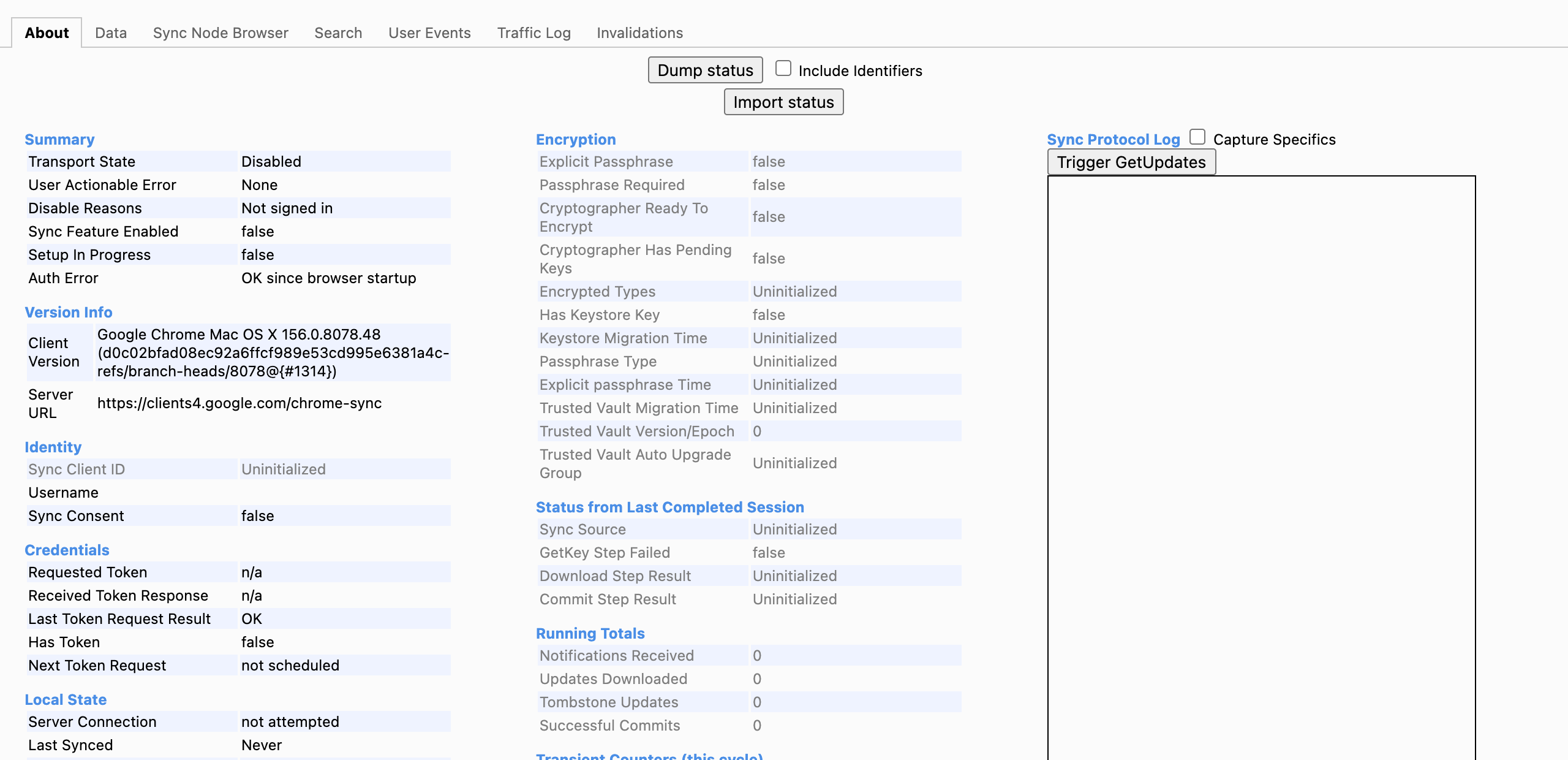
The fastest way to see why sending isn't available is chrome://sync-internals. On my test profile the Summary block shows Transport State: Disabled and Disable Reasons: Not signed in. That one line answers most "why is the option missing" questions without guessing. On a working profile, Transport State reads Active and the Type Info table on the right lists the synced data types. It's one of the more useful pages in our list of Chrome internal pages.
Why the Other Device Is Not Showing Up
This is the most-searched problem with the feature. Here are the causes, from most to least common, each with how to check it:
| Symptom | Likely cause | Fix |
|---|---|---|
| Prompt to sign in instead of a device list | This Chrome profile is not signed in | Sign in to Chrome (profile icon → Turn on / Sign in) |
| Device list empty, you are signed in | Other device is signed out, or on another account | On the other device: Chrome → profile icon, check the account email |
| Phone missing, but it is signed in | Chrome on the phone hasn't run recently | Open Chrome on the phone once, wait a minute, retry |
| Wrong laptop listed, right one missing | You are in a different Chrome profile on the sender | Check the profile avatar in the top-right; switch profiles |
| Option greyed out or absent on a work laptop | Policy managed by your organization | Check chrome://policy for sync or sign-in restrictions |
| Device listed but the tab never arrives | Notifications blocked for Chrome on the receiver | Allow Chrome notifications in OS settings; open Chrome to collect it |
| "Verify it's you" | Account session expired | Click it and sign in again |
Two notes from testing the signed-out state:
- When no device can receive the tab, Chrome 156 has an experiment, Send Tab to Self No Target Device QR Code (
#send-tab-to-self-no-target-device-qr-code, Default on my build). It replaces the empty state with a QR code that sends you to download Chrome on your phone and sign in. Chrome's string for it: "Scan the QR code with your phone to download Chrome and sign in to your Google Account." - Profile confusion is the most common cause on work laptops: the personal account in one Chrome profile and the work account in another. Send tab only works between devices on the same account, so the profile you are sending from decides which devices you see.
The Send Tab Flags in Chrome 156
The feature works with every flag on Default. Chrome 156 lists these related experiments in chrome://flags:
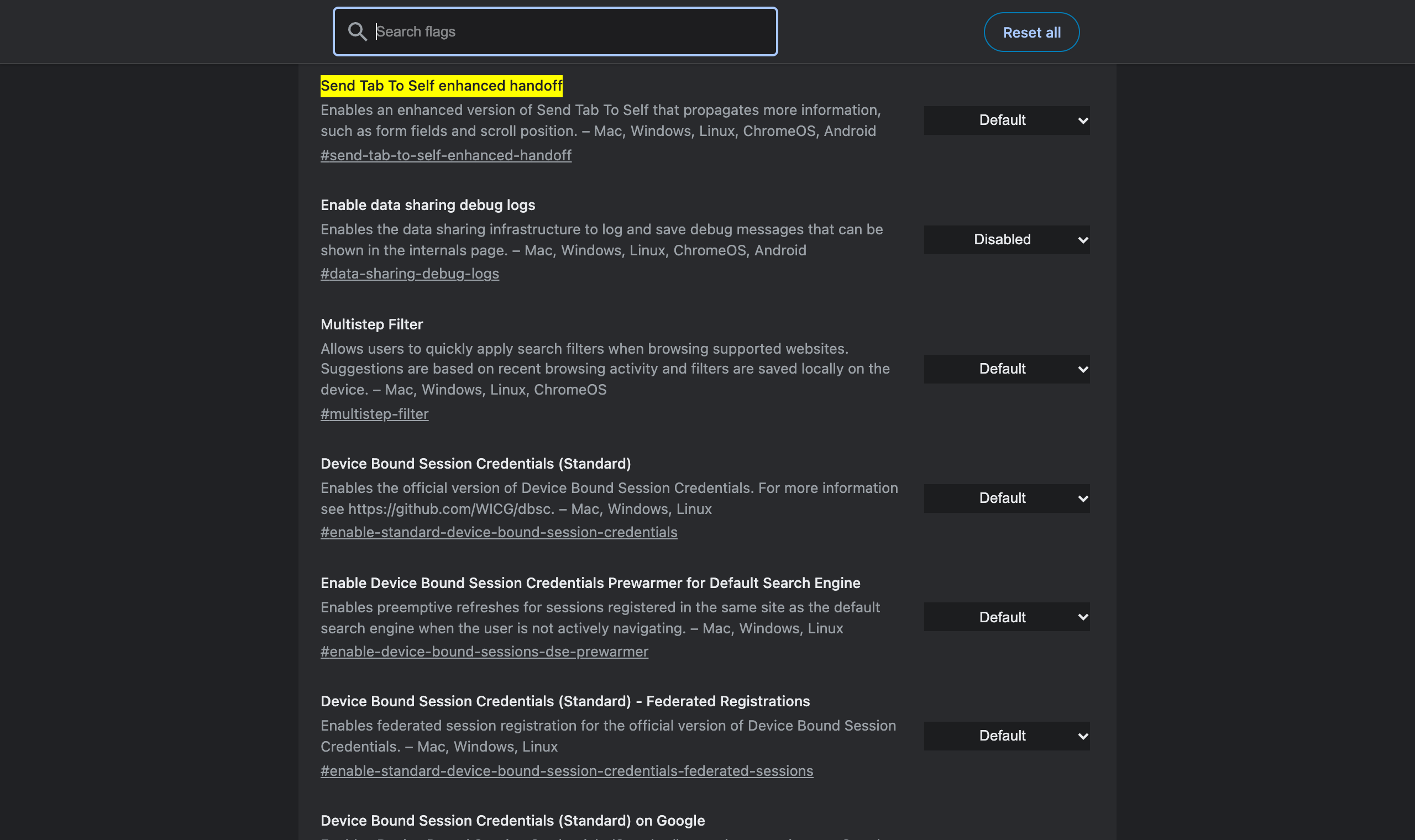
| Flag | What Chrome says it does | Platforms | Worth it? |
|---|---|---|---|
#send-tab-to-self-enhanced-handoff | "propagates more information, such as form fields and scroll position" | Mac, Windows, Linux, ChromeOS, Android | Interesting: the other device opens at the same scroll point and with your half-filled form. Options: Enabled / Enabled with fast-follows. Experimental. |
#send-tab-to-self-no-target-device-qr-code | QR code to get Chrome on mobile when no target devices are found | Mac, Windows, Linux | Only helps first-time setup |
#omnibox-cross-device-tab-zero-suggest | Shows tabs from other devices when you click into an empty address bar | Mac, Windows, Linux, ChromeOS, Android | Good companion: makes the passive "pull" side faster |
#browsing-history-filter-by-device | Filters history by device | Mac, Windows, Linux, ChromeOS, Android | Useful if you dig through synced history |
Enhanced handoff is the one to watch. Plain Send Tab to Self only sends the URL, so a long article opens at the top and anything you typed into a form is gone. If the "form fields and scroll position" behaviour ships, sending a tab becomes a true "continue on phone". I didn't enable it for a live test because that needs two signed-in devices, so I'm not claiming it works yet. Flip it one change at a time and reset it if anything misbehaves: the same rules as in our guide to whether Chrome flags are safe. For the experiments that actually improve day-to-day browsing, see useful Chrome flags.
Send Tab vs Tabs From Other Devices vs QR Code vs Copy URL
Sending a tab is one of four ways to get a page from one screen to another, and it's not always the best one:
| Method | Direction | Needs same account? | What arrives | Best for |
|---|---|---|---|---|
| Send to your device | Push, from the device you're on | Yes, signed in on both | A notification that opens the page | "Read this on my phone later" |
Tabs from other devices (chrome://history/syncedTabs) | Pull, from the device you're about to use | Yes, with history sync | A list of open tabs; right-click → Copy link address | Grabbing a tab you left open elsewhere, no action on the source |
| Create QR code (Share → QR code) | Desktop → any phone camera | No | The URL opens in the phone's browser | Someone else's phone, test devices, no account |
| Copy URL + paste (chat, email, notes) | Any | No | A URL string you can paste anywhere | Links you need as text: tickets, docs, messages |
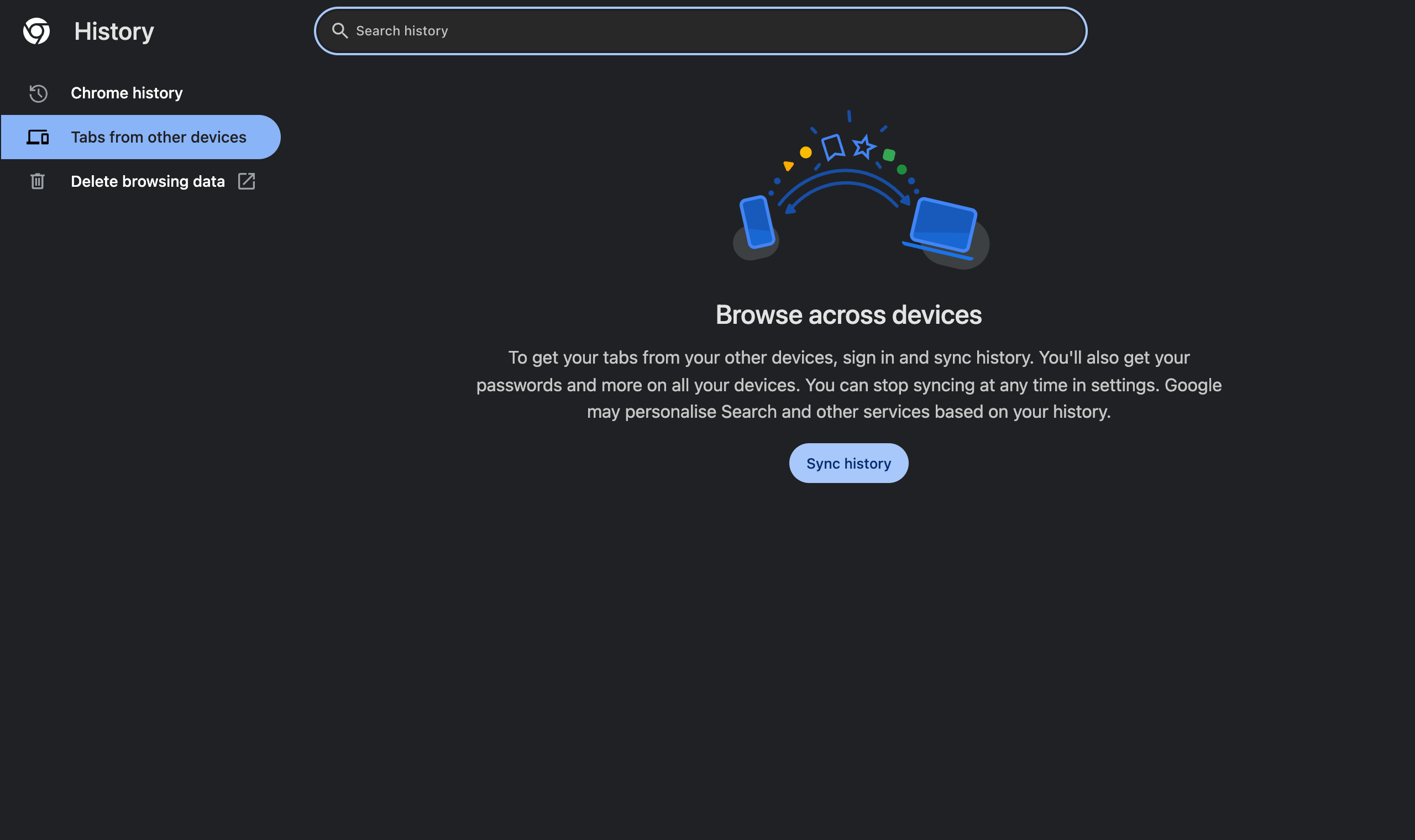
The pull method has a stricter requirement than sending. On a signed-out profile, Chrome 156's Tabs from other devices page asks you to "sign in and sync history" before it lists anything (screenshot above). Send tab only needs sign-in. Synced tabs need history sync as well.
The QR code is the only built-in option that doesn't involve your Google Account. Chrome generates the code locally from the page URL, which makes it the privacy-friendly choice and the only one that works for someone else's phone. Chrome 156 also offers "Create QR Code for this Link" and "Create QR Code for this Image" in the right-click menu, so you can share a link on the page without opening it first.
The older, broader guide to copying URLs between devices in Chrome also covers OS-level clipboard sync and message-yourself workflows. If your target is mostly your phone, copying URLs on mobile Chrome covers the Android and iOS side.
Privacy: What Sending a Tab Shares
Sending a tab goes through your Google Account: the page's URL and title are stored there long enough for the other device to collect them. That's how it can deliver to a laptop that was closed when you hit Send. A few practical points:
- Don't send tabs with secrets in the URL. Password-reset links, magic sign-in links and share links with tokens grant access to whoever has the URL. They travel through your account like any other sent tab.
- The QR code doesn't involve Google's servers. Use it when you don't want the link in your account at all.
The same logic applies to copying: a tool that copies URLs should do it locally. Ctrl+Shift+C reads the active tab's URL and writes it to your clipboard on the device. Nothing is sent anywhere, and the extension collects no data.
Frequently Asked Questions
How do I send a tab to another device in Chrome? Right-click the tab (or the page) and choose Send to your device, or open the Share button in the address bar, then pick the device. Both devices must be signed in to Chrome with the same Google Account.
Why is my device not showing in Send to your device? The usual causes are: the other device is signed in to a different account, it is signed out of Chrome, it hasn't opened Chrome recently, or you are in a different Chrome profile. Open Chrome on the missing device, check the account, then try again.
Do I need Chrome sync turned on to send a tab? You need to be signed in to Chrome on both devices with the same Google Account. Chrome 156 phrases the requirement as signing in, not as turning on full sync. If you are signed out, Chrome shows a prompt to sign in instead of a device list.
Where does a sent tab appear on the other device? On the receiving device Chrome shows a "Tab sent from" notice with the source device name. On a phone it is a notification you tap to open the page. On desktop it appears as a notice in Chrome that opens the page in a new tab.
Can I send a tab to an iPhone from Chrome on a computer? Yes, as long as Chrome for iOS is installed on the iPhone and signed in with the same Google Account. Safari is not a target; the tab is delivered to Chrome.
Is there a Chrome flag for Send Tab to Self? The feature itself needs no flag. Chrome 156 has two related experiments: Send Tab To Self enhanced handoff, which also carries form fields and scroll position, and Send Tab to Self No Target Device QR Code, which shows a sign-in QR code when no devices are found.
Send the Page, Copy the Link
Send to your device is the right tool when you want to keep reading on another screen: right-click the tab, pick a device marked "Active today", open the notification there. When you need the link itself, for a chat, a ticket or a doc, you need a URL on the clipboard, not a page on another device. Ctrl+Shift+C copies the current tab's URL in one keystroke, on any Chrome desktop, with zero data collection.
Try Ctrl+Shift+C
Copy any URL with one keyboard shortcut. Free forever, no data collected.