Chrome Vertical Tabs: How to Enable (Tested on Chrome 156)
Chrome vertical tabs move the tab strip from the top of the window to a panel on the left, where every tab shows its full title. In Chrome 156 you turn them on with one click: right-click any tab and choose Show Tabs Vertically, or go to Settings > Appearance and set Tab position to Vertical. No flag, no restart.
That is the answer most people need. The rest of this guide covers what older tutorials get wrong (the flag they tell you to enable is gone), the collapse and hover options, how to switch back, and what vertical tabs actually cost you in screen space, measured in a real window rather than guessed. Everything was tested on Chrome 156.0.8078.48 on macOS in October 2026, in a separate test profile.
Chrome Vertical Tabs in Chrome 156: What You Get
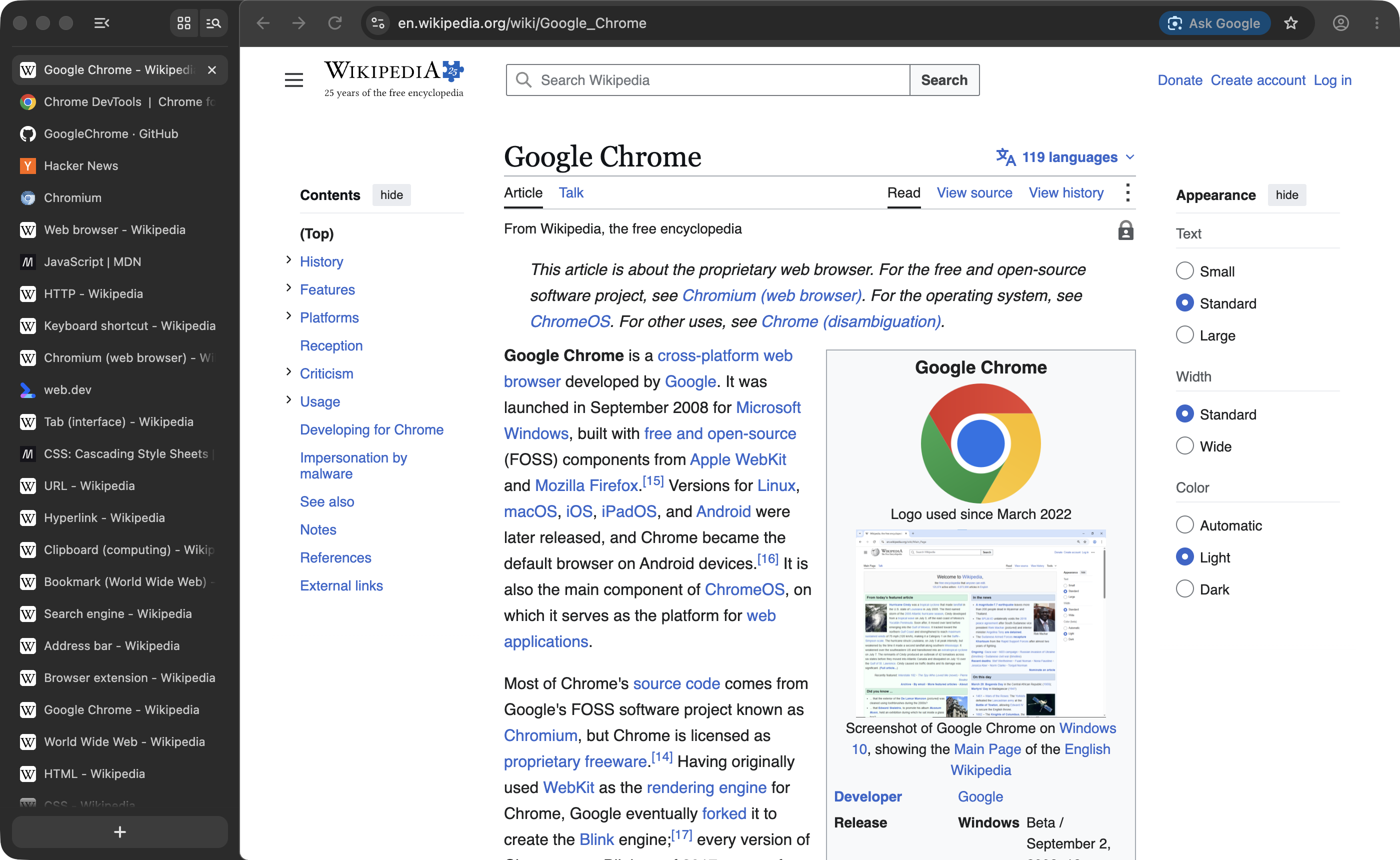
This is my test window with 30 tabs open and vertical tabs enabled. The tab panel sits on the left, and each row shows a favicon plus the page title. At the default width 23 rows fit in an 860 px tall window before the list scrolls, and every one of them is readable: "Keyboard shortcut - Wikipedia", "Chromium (web browser)", "JavaScript | MDN".
The panel header holds three controls:
- Collapse (the arrow-and-lines icon), which shrinks the panel to an icon rail
- Saved tab groups, the same menu the horizontal strip has
- Tab search, the list-and-magnifier button
The address bar and toolbar move up into the space where the horizontal tab strip used to be, so the window has one bar along the top instead of two. The new-tab + button sits at the bottom of the tab list.
Chrome's own onboarding text for the feature, from the 156 string table, sums up the pitch: "See entire tab titles, easily manage tab groups, and free up vertical space by moving your tabs to the side."
How to Enable Vertical Tabs in Chrome (2 Ways)
Method 1: Right-click a tab
- Right-click any tab in the tab strip.
- Choose Show Tabs Vertically.
The strip moves to the left side immediately. Chrome even uses this as its in-product hint: "Right-click here and select 'Show Tabs Vertically'."
Method 2: Settings > Appearance
- Open
chrome://settings/appearance(or the Chrome menu > Settings > Appearance). - Find Tab position.
- Change the dropdown from Horizontal to Vertical.
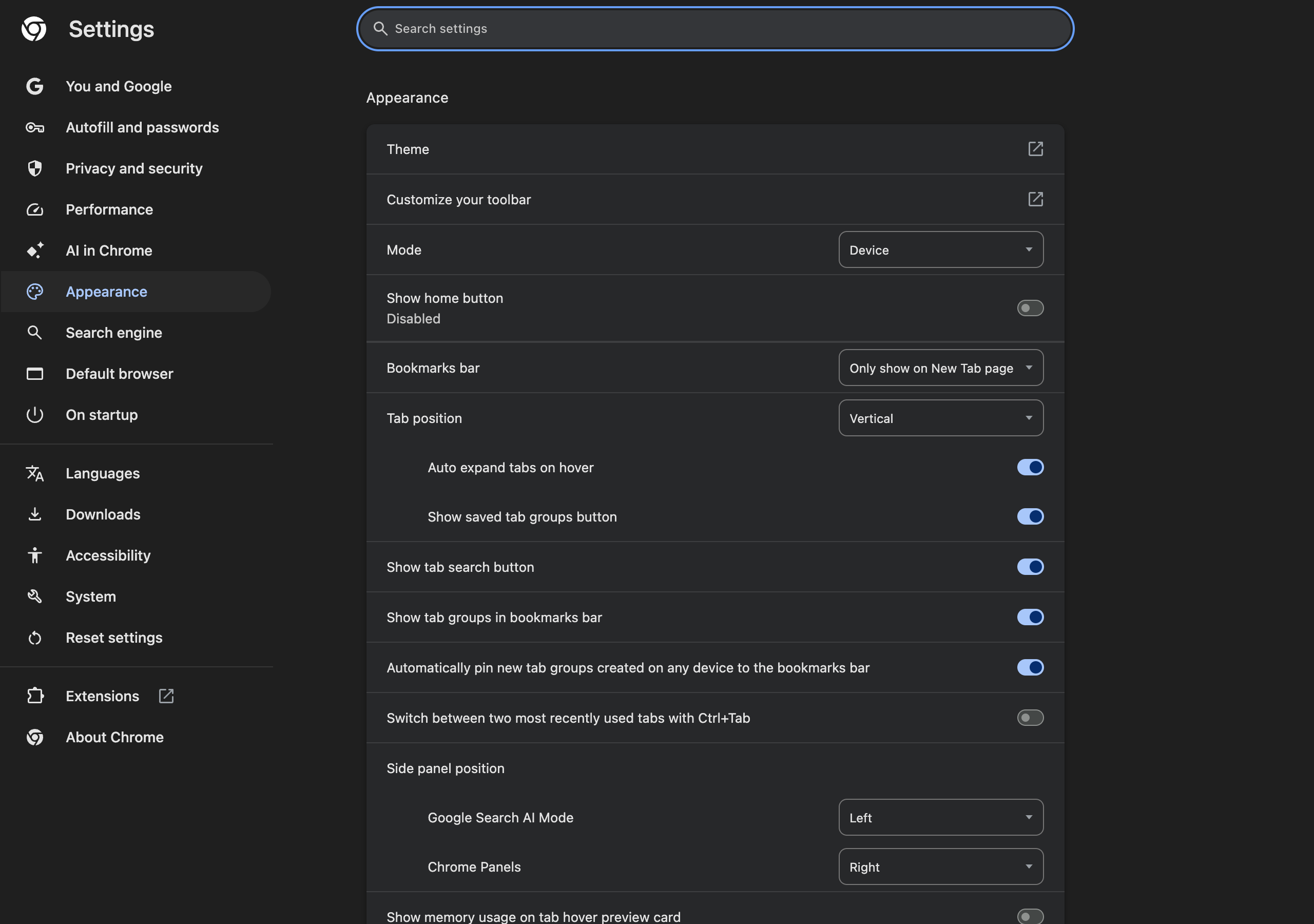
The setting is stored in the profile preference vertical_tabs.enabled, so it applies to every window in that profile, survives restarts, and is independent per profile. Your work profile can use side tabs while your personal profile stays horizontal.
Two extra toggles appear under Tab position only when you pick Vertical. I confirmed this by flipping the setting back and forth: with Horizontal selected they disappear from the page.
| Setting (Chrome 156) | Shown when | Default | What it does |
|---|---|---|---|
| Tab position | Always | Horizontal | Vertical / Horizontal switch |
| Auto expand tabs on hover | Vertical only | On | A collapsed panel opens while your pointer is over it |
| Show saved tab groups button | Vertical only | On | Keeps the saved-groups button in the panel header |
| Show tab search button | Always | On | Tab search button in the tab strip |
If you are coming from an older tutorial: these settings are where the old flags went. For the wider list of tab experiments still in chrome://flags, see the Chrome flags worth enabling.
The Vertical Tabs Flag Is Gone in Chrome 156
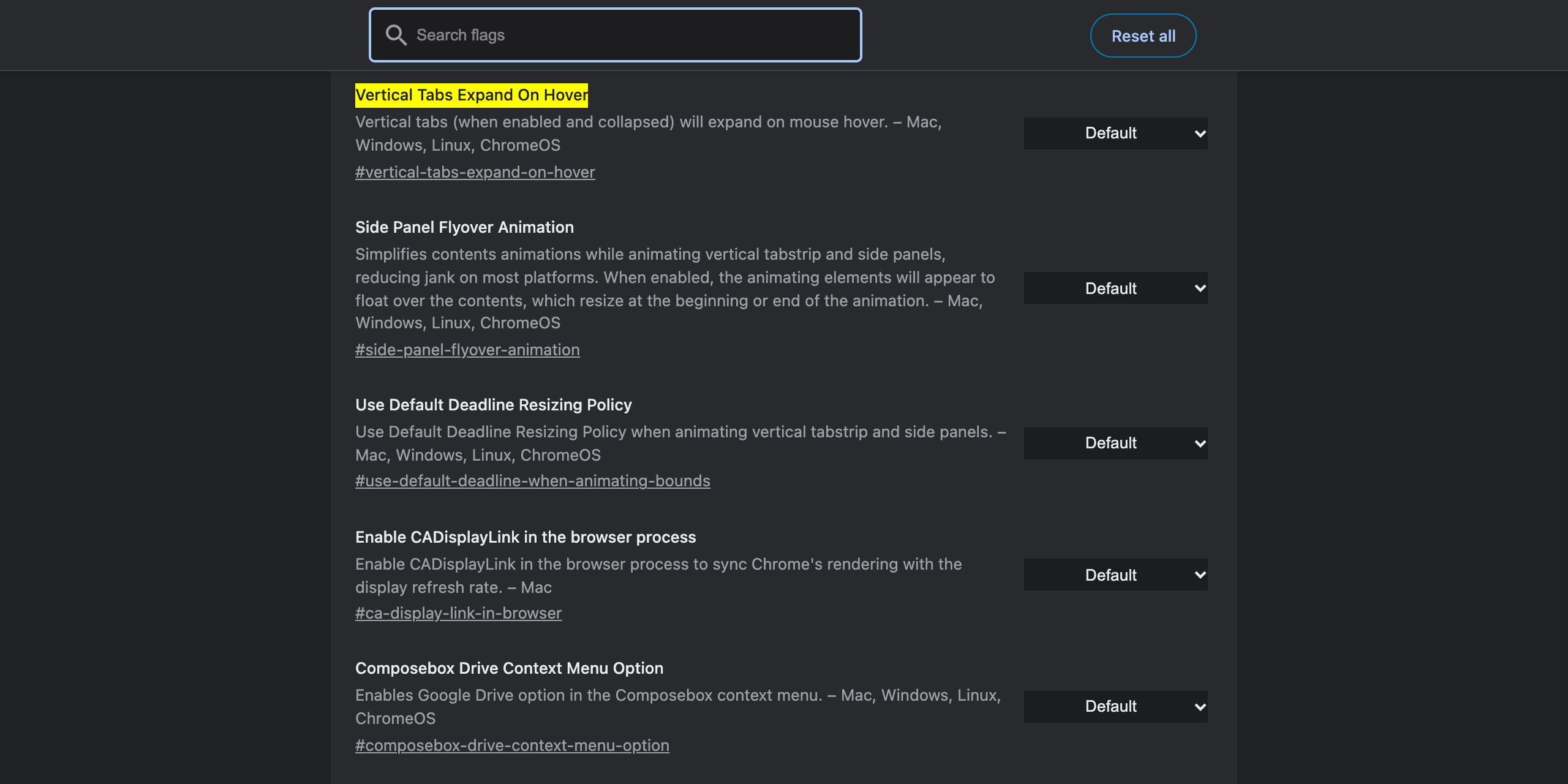
Most guides published before mid-2026 tell you to open chrome://flags/#vertical-tabs, set it to Enabled and relaunch. In Chrome 156 that flag no longer exists. I dumped all 621 experiments on chrome://flags and there is no vertical-tabs entry. The feature graduated into the regular settings shown above, so the flag step is simply dead.
Several related flags are still listed, and none of them is needed to use the feature:
| Flag | Chrome's description (156) | Worth touching? |
|---|---|---|
#vertical-tabs | Not present | Nothing to enable any more |
#vertical-tabs-expand-on-hover | "Vertical tabs (when enabled and collapsed) will expand on mouse hover." | No: the Settings toggle already does this, on by default |
#side-panel-flyover-animation | Floats animating panels over the page to reduce jank | Only if the collapse animation stutters for you |
#tab-strip-unification | "Unifies horizontal and vertical tab strips to share infrastructure." | No, it's internal plumbing |
#tab-group-ribbon | A vertical ribbon on the left for switching between tab groups | Experimental; separate from vertical tabs |
If chrome://flags/#vertical-tabs shows "No matching experiments" for you, that is expected on current Chrome. If you are on a build where neither the right-click option nor the Tab position setting appears, update Chrome first (Chrome menu > Help > About Google Chrome). Reports from earlier in 2026 put the stable rollout around Chrome 146. I can only vouch for what 156 does.
Collapse, Expand on Hover and Resize
Expanded vertical tabs are 240 px wide in a fresh profile (the vertical_tabs.uncollapsed_width preference). You have three ways to make them take less room:
- Collapse the panel. Click the collapse button in the panel header. The panel shrinks to a 56 px rail of favicons. Chrome's strings call the actions "Collapse Tabs" and "Expand Tabs", and the collapsed state is remembered across restarts (
vertical_tabs.collapsed_state). - Expand on hover. With Auto expand tabs on hover on (the default), a collapsed rail opens while your pointer is over it and closes when you move away. Chrome's strings also include matching "Turn on Auto Expanding Tabs" / "Turn off Auto Expanding Tabs" menu entries. If the panel keeps sliding open when you just want the scrollbar of a page, turn this off.
- Drag the edge. The panel has a resize handle (Chrome's accessibility label is "Vertical Tab Strip Resize Handle (Draggable)"). Narrow it until titles just fit.
One limitation: in full screen the tab panel is hidden. Chrome's own message for that case is "Exit full screen to show tabs vertically."
Vertical vs Horizontal Tabs: Measured Screen Space
The usual argument for vertical tabs is "widescreen monitors have spare width." I wanted numbers, so I measured the page viewport (window.innerWidth and innerHeight) in the same 1400 × 860 window in all three layouts, then opened the same 30 tabs horizontally.
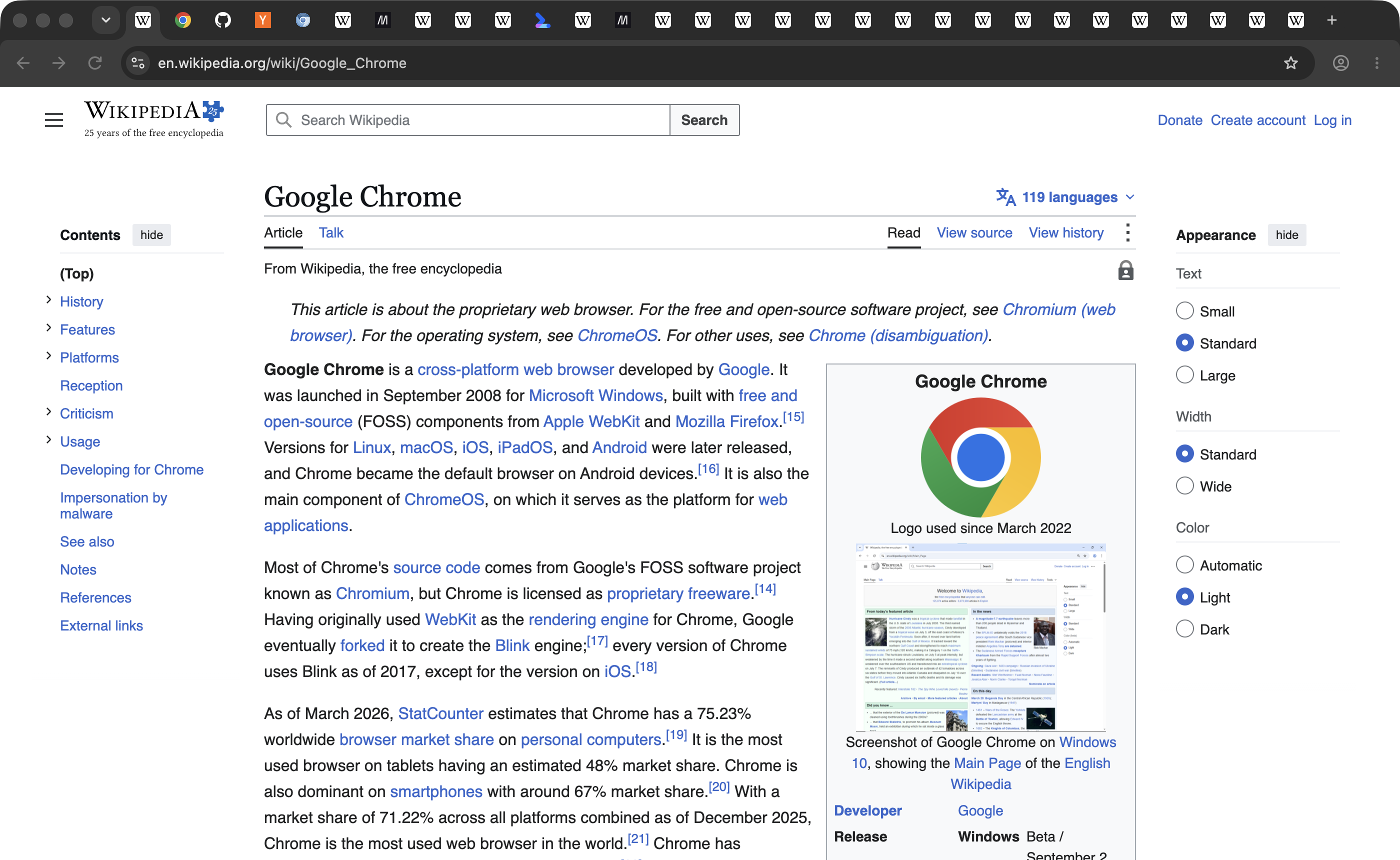
With 30 tabs, the horizontal strip shrinks each tab to about 40 px, which is a favicon and nothing else. Eighteen of my tabs were Wikipedia pages, so the strip showed eighteen identical "W" icons. Finding "HTTP" meant hovering or using tab search.
| Layout (1400 × 860 window) | Page viewport | Page area vs horizontal | Titles readable with 30 tabs |
|---|---|---|---|
| Horizontal tabs | 1400 × 773 | baseline | 0 (favicons only) |
| Vertical, expanded (240 px) | 1160 × 813 | −12.9% | 23 visible without scrolling, all with full titles |
| Vertical, collapsed rail | 1344 × 813 | +1.0% | 0 until you hover or expand |
What the numbers say:
- Vertical tabs give back 40 px of height. The horizontal tab row disappears, and the toolbar moves into its place. On a laptop that's two or three more lines of text per screen.
- Expanded, they cost 240 px of width, about 13% of the page area in this window. On a 27-inch monitor that 240 px rarely matters, because most sites cap their content width anyway. On a 13-inch laptop split-screened with another app, it does.
- Collapsed, they are slightly better than horizontal tabs for space (+1%), and with hover-expand you get full titles back whenever you reach for them.
My takeaway: expanded vertical tabs on a large monitor, collapsed with hover on a laptop.
Vertical Tabs, Tab Groups and Other Tab Layouts
Vertical tabs change where the strip is drawn, not what it can do. Everything else carries over.
| Feature | Horizontal tabs | Vertical tabs (Chrome 156) |
|---|---|---|
| Full titles with 20+ tabs | No, titles truncate then vanish | Yes, one row per tab |
| Tab groups (names, colors, collapse) | Yes | Yes; Chrome's onboarding pitches the side layout for managing groups |
| Tab search | Yes | Yes, in the panel header |
| Extra vertical space for pages | Baseline | +40 px in my window |
| Works in full screen | Tab strip hidden | Panel hidden ("Exit full screen to show tabs vertically") |
| Per-profile setting | — | Yes (vertical_tabs.enabled) |
If you already organize with groups, the two features stack well: groups give you structure, and the side panel gives the group names room to breathe. My Chrome tab groups guide covers naming, colors, saved groups and the close-vs-delete distinction. Those all work identically in the vertical layout. For running two pages side by side in the content area, Chrome split view is the companion feature. Side tabs plus a split view is about as close to a two-pane workspace as Chrome gets without extensions.
What about other browsers? Microsoft Edge has offered vertical tabs since 2021, and Arc built its whole interface around a sidebar. Chrome's version is the plainest of the three: a list of tabs on the side, with Chrome's existing group and search features. If you want workspaces or automatic tab archiving, that still takes another browser or an extension. The roundup of Chrome extensions for tab management covers the extension route. And if your tab habit is really a "keep this link for later" habit, a one-shortcut copy tool like Ctrl+Shift+C lets you grab the URL into your notes and close the tab instead of keeping it open.
How to Turn Off Vertical Tabs
Switching back takes the same two paths in reverse:
- Right-click any tab and choose Show Tabs Horizontally. Chrome's hint text after you enable the feature says exactly this: "You can move your tabs back to the top by right-clicking any tab and selecting 'Show Tabs Horizontally'."
- Or set Settings > Appearance > Tab position back to Horizontal.
Nothing is lost when you switch. Groups, pinned tabs and tab order stay the same; only the strip's position changes. Chrome 156 also ships a "Send Feedback About the Tab Strip" menu entry, if something about the side layout bothers you enough to tell Google.
What I Could Not Verify
Being explicit about the limits:
- The right-click menu. I could not open Chrome's native context menu from my automated setup. The menu labels quoted here ("Show Tabs Vertically", "Show Tabs Horizontally", "Collapse Tabs", "Turn on Auto Expanding Tabs", "Send Feedback About the Tab Strip") come from Chrome 156's English string table. The Settings path I tested directly.
- Collapsed-rail screenshot. The 56 px rail width and the +1% area figure are measured; I just don't have an image of the collapsed state.
- Windows and Linux. I tested on macOS. Chrome lists the expand-on-hover flag for Mac, Windows, Linux and ChromeOS, and the settings UI is shared, but I did not run it on those systems.
- Mobile. Vertical tabs are a desktop feature; I did not look for them on Android or iOS.
Frequently Asked Questions
How do I enable vertical tabs in Chrome? Right-click any tab and choose Show Tabs Vertically, or open Settings > Appearance and set Tab position to Vertical. In Chrome 156 no flag is needed and no restart is required.
Do I still need chrome://flags/#vertical-tabs? No. In Chrome 156 the #vertical-tabs flag no longer exists in chrome://flags. Vertical tabs are a regular setting now; only the companion flag #vertical-tabs-expand-on-hover is still listed.
How do I turn vertical tabs off and get tabs back on top? Right-click any tab and choose Show Tabs Horizontally, or set Settings > Appearance > Tab position back to Horizontal. Chrome remembers the choice per profile.
Do vertical tabs take up more screen space? Expanded, yes: in my 1400 by 860 window the page lost 240 px of width and gained 40 px of height, about 13% less page area. Collapsed to the icon rail, the page got about 1% more area than with horizontal tabs.
Can I make the vertical tab strip narrower or wider? Yes. The strip has a draggable resize handle on its edge. The default width in a fresh Chrome 156 profile is 240 px, stored in the vertical_tabs.uncollapsed_width preference.
Do tab groups work with vertical tabs? Yes. Tab groups, pinned tabs, tab search and saved tab groups all carry over. Chrome even describes the side layout as a way to easily manage tab groups in its own onboarding text.
Put Your Tabs on the Side
Chrome vertical tabs are no longer an experiment. Right-click a tab, choose Show Tabs Vertically, and decide between the full 240 px panel and the collapsed rail with hover-expand. Thirty readable tab titles beat thirty identical favicons. Once every tab title is readable, the next friction is getting links out of those tabs: Ctrl+Shift+C copies the current tab's URL with one shortcut. It's free, needs only the clipboard permission, and collects zero data.
Try Ctrl+Shift+C
Copy any URL with one keyboard shortcut. Free forever, no data collected.