Chrome Tab Groups: Complete Guide (Tested on Chrome 154)
Chrome tab groups let you bundle related tabs under a colored, named label in the tab strip, collapse them to a single chip, and — in current Chrome — save them automatically so a closed group can be reopened later. Right-click any tab, choose Add Tab to New Group, name it, pick a color, and you have a group.
That is the 10-second version. This guide covers the rest of Chrome tab groups end to end: the editor's options, collapsing, the difference between closing and deleting, where saved groups live, how to get a closed one back, how groups interact with the new split view, and which tab group experiments are sitting in chrome://flags. Everything below was tested on Chrome 154.0.8037.93 on macOS in October 2026. If you are specifically after keyboard bindings, the companion piece is Chrome tab group shortcuts; this one is the full feature tour.
What Chrome Tab Groups Look Like in Chrome 154

Three groups in one window: Research (blue) and Work (green) are expanded, and Reading (purple) is collapsed to just its label. Each group has:
- A header chip on the left with the name (or a plain colored dot if unnamed).
- A colored underline running beneath every tab that belongs to it.
- A shared color that also appears in tab search, the Chrome menu and hover cards.
Chrome also writes the group into each tab's accessible name — "Hacker News – Part of group Work" — which is why screen readers and tab search both know which group a tab is in.
How to Create a Tab Group in Chrome
There are three ways in Chrome 154, all verified:
- Tab right-click menu. Right-click a tab → Add Tab to New Group (Google's help notes you can also pick an existing group from the same menu).
- Mac menu bar. With the tab active, choose Tab → Group Tab. This creates the group and opens the editor immediately.
- Chrome menu. ⋮ → Tab groups → Create new tab group.
To add more tabs, drag them onto the group or right-click and pick the existing group. Multi-select first (Ctrl/⌘-click or Shift-click several tabs) and you can group them all in one action.
Naming, Colors and the Group Editor
Right-click the group header to open the editor (a left-click toggles collapse instead):
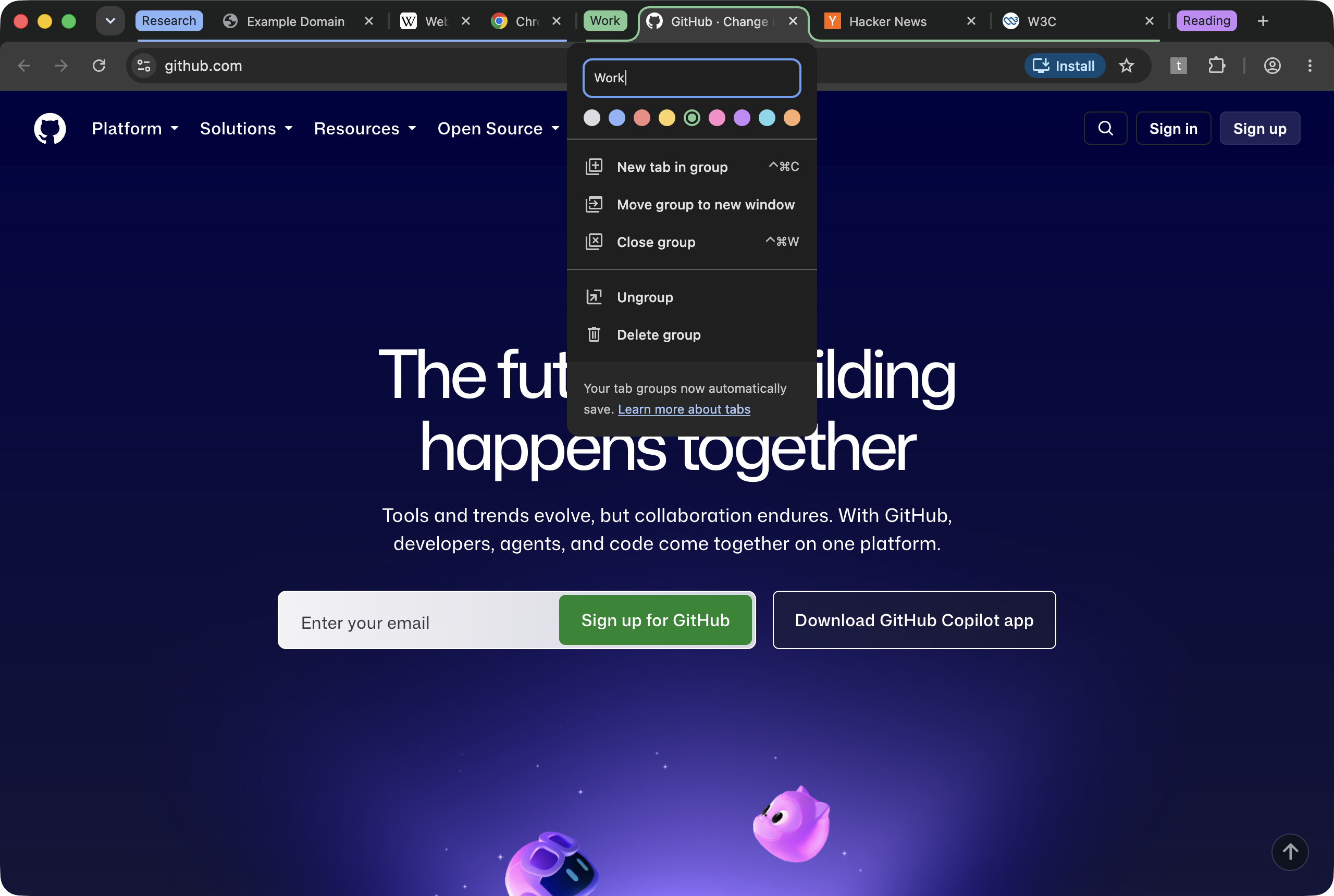
What the editor contains in Chrome 154:
| Option | What it does | Notes from testing |
|---|---|---|
| Name field | Sets the group label | Empty name shows only a colored dot |
| 9 color swatches | Grey, Blue, Red, Yellow, Green, Pink, Purple, Cyan, Orange | Same nine values the extension API exposes |
| New tab in group | Opens a new tab inside the group | Labeled ⌃⌘C on Mac |
| Move group to new window | Moves all the group's tabs to a fresh window | Keeps name and color |
| Close group | Closes the tabs, keeps the saved group | Labeled ⌃⌘W on Mac |
| Ungroup | Removes the grouping, keeps the tabs open | Tabs stay where they are |
| Delete group | Removes group and tabs | Google says this syncs to other devices |
At the bottom of the editor Chrome now prints: "Your tab groups now automatically save." That one line is the biggest change to Chrome tab groups in years, and it is the reason "close" and "delete" are now different buttons.
A note on the Mac key labels: Chrome 154 displays ⌃⌘C and ⌃⌘W in this editor, and ⌃⌘P next to "Create new tab group" in the Chrome menu. When I pressed those keys with a web page focused, none of them fired (while ⌃⌘F for full screen worked fine in the same session), so treat them as unconfirmed for now. The bindings that definitely work around groups are covered in Chrome tab group shortcuts.
Collapsing Groups: How Much Space You Actually Get Back
Click a group's header and it collapses to just the chip; click again to expand. Collapsed state is stored per group, and extensions can read and set it through the API.
The payoff is real tab-strip width. I measured it in a 1,280-pixel-wide window holding 11 tabs across three groups. With the two-tab Reading group collapsed, the three Work tabs were each 155 px wide. Expanding Reading squeezed them to 119 px — a 23% loss in width for every other tab in the window, because Chrome shrinks all tabs evenly as the strip fills.
So the rule of thumb holds: collapse every group you are not actively using. It is the cheapest way to keep tab titles readable without closing anything. If memory rather than space is your concern, collapsing does not unload tabs — that is the job of Chrome Memory Saver.
Close vs Delete: Where Saved Tab Groups Live
Because groups auto-save, closing one is now non-destructive. I closed the green Work group (three tabs) from the editor, then went looking for it.
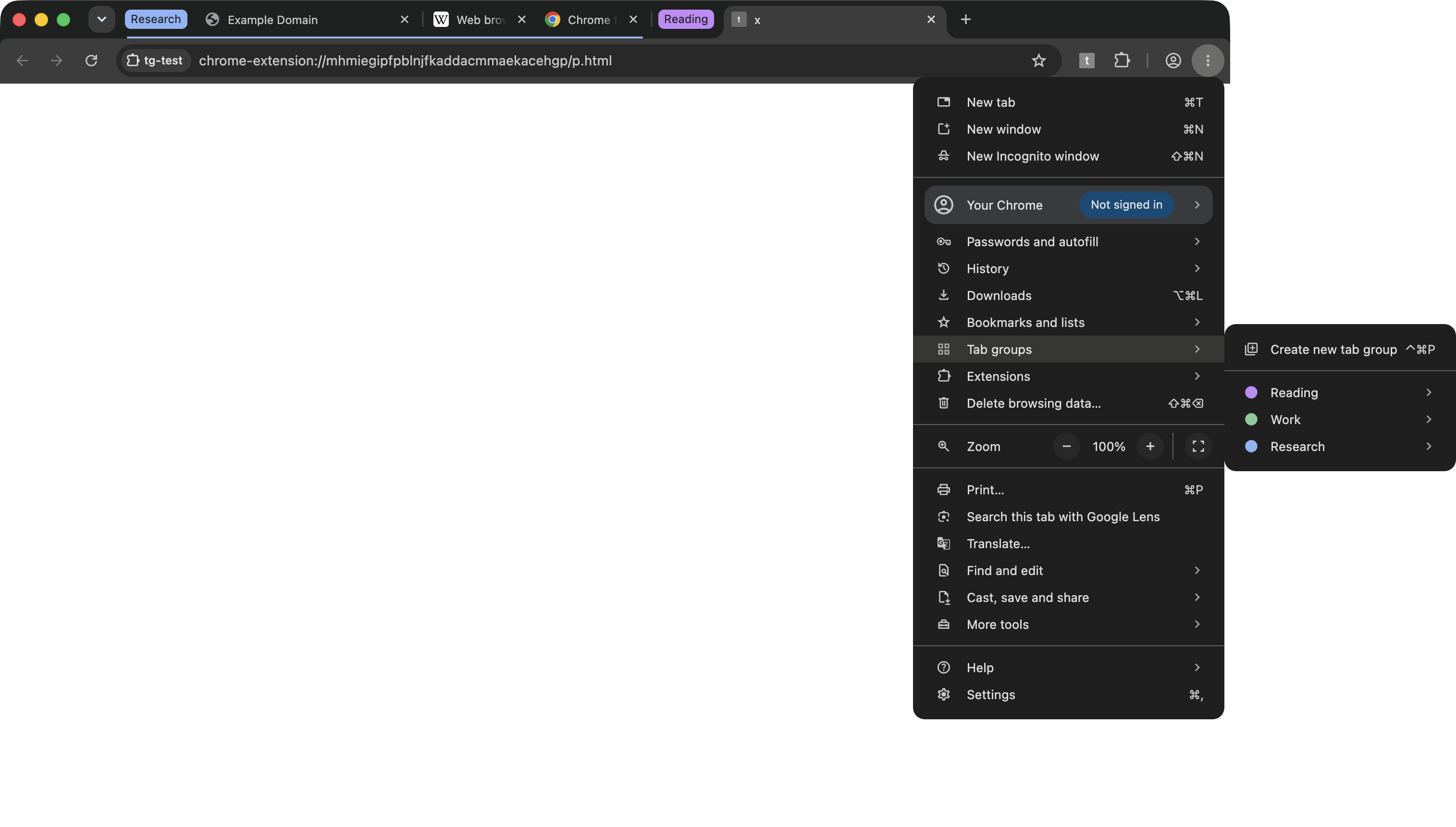
In the Chrome menu. ⋮ → Tab groups lists every saved group with its color dot. After closing, Work was still there, marked closed in its accessible label ("Work group – Closed"), alongside the two open groups:
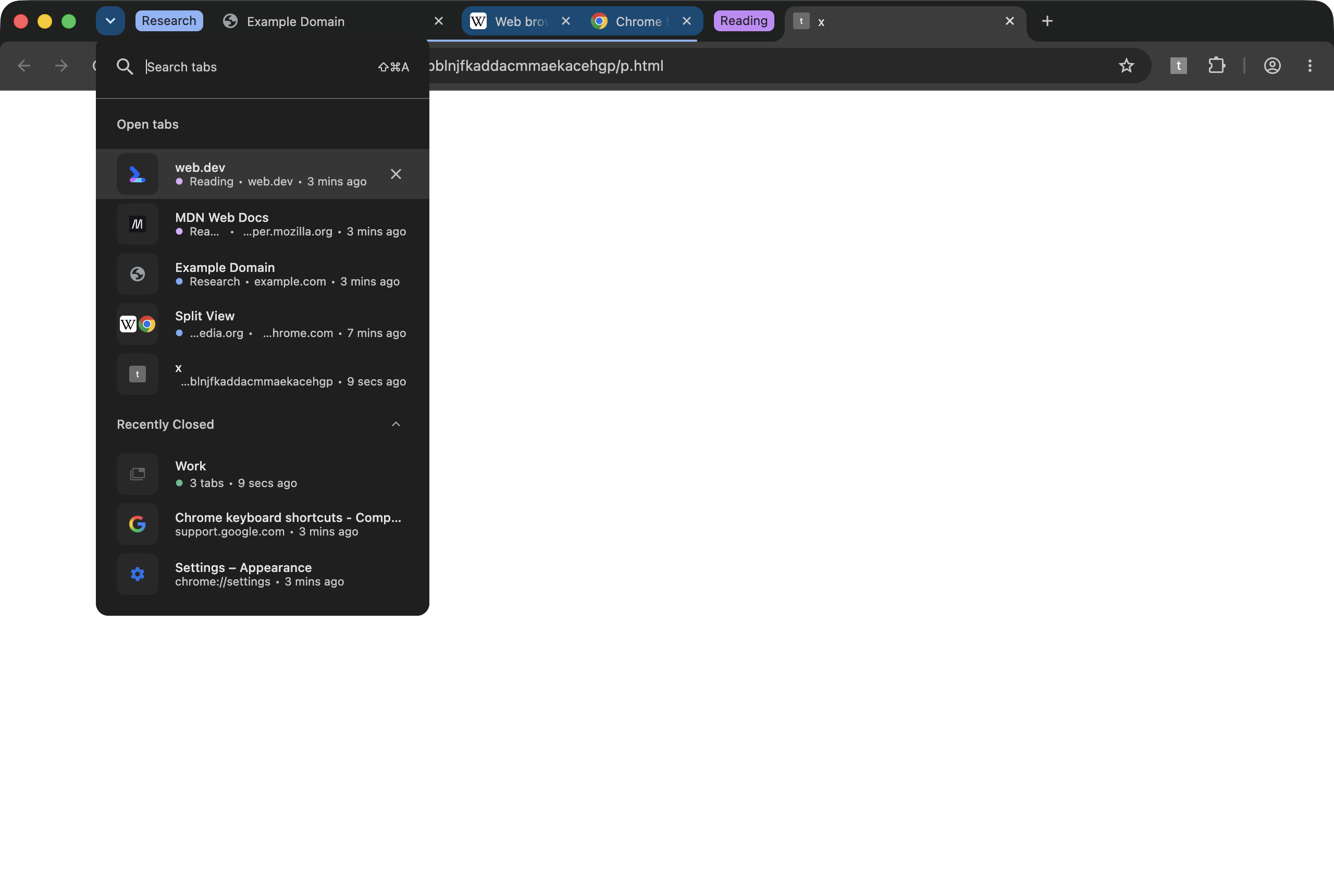
In tab search. Ctrl+Shift+A (⌘⇧A) showed the closed group under Recently Closed as "Work · 3 tabs", with the open tabs above it tagged by their group name:
On the bookmarks bar. Chrome 154's Settings → Appearance has two related toggles, both on by default in a fresh profile: Show tab groups in bookmarks bar and Automatically pin new tab groups created on any device to the bookmarks bar. Google's help page says saved groups can be reopened from the bookmarks bar on any synced device; toggle the bar with ⌘⇧B / Ctrl+Shift+B.
The difference between the two buttons, per Google's help page and consistent with what I saw:
- Close group — tabs close, the saved group remains and can be reopened.
- Delete group — the group and its tabs are removed, and if you are signed in with sync, the deletion syncs across your devices.
- Ungroup — the label disappears, the tabs stay open as normal tabs.
How to Restore a Closed Tab Group
Three routes, from fastest to most deliberate:
- Ctrl+Shift+T / ⌘⇧T right after closing. In my test this brought back all three tabs of the closed Work group as a group — same name, same green color. Chrome assigned it a new internal group ID, but from the user's side it is the same group.
- Tab search. Open it, find the group under Recently Closed, select it.
- Chrome menu → Tab groups → [group name]. This works days later, because the saved group persists rather than living only in recent history.
Tab groups also survived a full restart. With session restore enabled (Settings → On startup → Continue where you left off), I relaunched Chrome and the Research group came back with its name and color, and the split view inside the window came back paired.
Tab Groups and Split View Together
Chrome's new split view shows two tabs side by side in one window, and it plays well with groups. A split view occupies two adjacent tabs in the strip, and tab search lists the pair as a single "Split View" row.
When I added just one half of a split view to the Research group, Chrome pulled both halves in together. The extension API confirmed it: both tabs ended up with the same groupId and kept their shared splitViewId. Chrome treats the split as one unit, so you never end up with half a split in one group and half outside it.
That makes a practical pattern: a group per project, with a split view inside it for the "reference on the left, work on the right" pair.
What Extensions Can Do With Tab Groups
I loaded a minimal test extension into Chrome 154 to see the chrome.tabGroups API surface. The namespace has get, query, update and move, plus onCreated, onUpdated, onMoved and onRemoved events. Creating a group goes through chrome.tabs.group(), ungrouping through chrome.tabs.ungroup(). Each group object reports title, color, collapsed, windowId and a shared flag (false for every group in my unsigned test profile).
That API is what tab manager extensions use to offer things Chrome does not — "group all tabs from this domain", auto-naming, one-key collapse-all. The trade-off is permission scope: grouping requires broad tab access, which means the extension can see every URL you have open. Chrome extensions for tab management compares the options with that in mind.
Tab Group Experiments in chrome://flags (Chrome 154)
Several tab group features are still experiments. Here is what chrome://flags lists in Chrome 154, with Chrome's own descriptions:
| Flag | Chrome's description | Worth trying? |
|---|---|---|
#tab-groups-focusing | "When a tab group is focused, the tabstrip constrains visibility to the tabs in that group." | Yes, if you run many groups — closest thing to workspaces |
#tab-group-ribbon | "Displays a vertical ribbon on the left side of the browser window for quickly switching between tab groups." | Interesting for heavy group users |
#tab-group-hover-cards | "Enables hover cards for tab group headers in the tab strip." | Low risk, small convenience |
#tab-group-home | "Home surface for a tab group." | Experimental; expect rough edges |
#tab-group-color-refresh | "Update the color selection for tab groups." | Cosmetic only |
#ntp-tab-groups-module | "Shows the Tab Groups module on the New Tab Page." | Useful if you live on the NTP |
These are experiments: they can change or vanish in any release. Enable one at a time, relaunch, and turn it off if anything misbehaves. For how flags work and which ones are genuinely worth it, see Chrome flags useful settings.
A Tab Group Workflow That Holds Up
What has worked for me after living with auto-saved Chrome tab groups:
- One group per task, not per topic. "q4-pricing-page" closes when the task ends; "docs" never does.
- Collapse everything but the active group. The measured 23% width difference adds up fast past a dozen tabs.
- Close groups instead of keeping them open "just in case". Saving is automatic now, so closing costs nothing.
- Delete deliberately. Delete is the only destructive button, and with sync it is destructive everywhere.
- Pull the links out before deleting. A group is a temporary working set; the URLs worth keeping belong in a doc or ticket. Copying each one is where Ctrl+Shift+C helps: one keystroke per tab, no address-bar detour.
What I Could Not Verify
Being explicit about the limits of this test: my Chrome 154 profile was not signed in to a Google account, so I could not test cross-device sync of saved groups or shared tab groups. The sync and delete-propagation behavior described above comes from Google's help documentation, not my own testing. Everything else — creating, naming, colors, collapse, close, restore, restart, split views and the flags list — I tested directly.
Frequently Asked Questions
How do I create a tab group in Chrome? Right-click a tab and choose Add Tab to New Group. Chrome creates an unnamed group and opens the editor, where you type a name and pick one of nine colors. On Mac you can also use Tab > Group Tab in the menu bar.
Are Chrome tab groups saved automatically? Yes. In Chrome 154 the group editor says "Your tab groups now automatically save." A closed group stays listed under the Chrome menu > Tab groups and can be reopened from there.
What is the difference between Close group and Delete group? Close group closes the tabs but keeps the saved group so you can reopen it later. Delete group removes the group and its tabs permanently, and according to Google that deletion syncs to your other signed-in devices.
How many colors can a Chrome tab group have? Nine: grey, blue, red, yellow, green, pink, purple, cyan and orange. The same nine values are exposed to extensions through the chrome.tabGroups Color enum.
How do I reopen a tab group I closed by accident? Press Ctrl+Shift+T, or Command+Shift+T on Mac. In my Chrome 154 test it restored all three tabs of a closed group with the original name and color. You can also reopen it from the Chrome menu under Tab groups.
Do Chrome tab groups survive a restart? With session restore on (Continue where you left off), yes. After relaunching Chrome 154 my test group came back with its name and color, and an open split view came back paired.
Can I put a split view inside a tab group? Yes. When I added one half of a split view to a group in Chrome 154, Chrome moved both halves into the group together, so the pair always stays side by side.
Group, Collapse, Close — Without Fear
Chrome tab groups finally behave like project containers: name them, color them, collapse what you are not using, and close them freely because they save themselves. Learn the restore path (⌘⇧T / Ctrl+Shift+T) and the difference between Close and Delete, and groups stop being something you hoard tabs in. Before you delete a group for good, grab the links worth keeping — Ctrl+Shift+C copies the current tab's URL in one keystroke, free, clipboard permission only and zero data collected.
Try Ctrl+Shift+C
Copy any URL with one keyboard shortcut. Free forever, no data collected.