Chrome Split View: Two Tabs Side by Side (Chrome 154)
Chrome split view is real, built in, and on by default: it shows two tabs side by side inside a single Chrome window. Press Shift+Alt+N (Windows/Linux) or ⌘⌥N (Mac), or right-click a tab and choose Add tab to new split view, then pick the second tab. No flag, no extension.
I tested Chrome split view on Chrome 154.0.8037.93 (macOS, October 2026) to answer the question most articles dodge: what exactly is shipped, what is still behind a flag, and what the docs describe that you may not see yet. Short version — side-by-side splitting is fully shipped; stacked top/bottom splitting is still an experiment in 154.
Is Chrome Split View Shipped or Still a Flag?
Shipped. In a clean Chrome 154 profile with zero flags changed, split view appears in five places:
- Mac menu bar → Tab → Add tab to new split view (⌥⌘N).
- Tab right-click menu — on the active tab, "Add tab to new split view"; on another tab while a split is active, "Move tab into split view".
- Link right-click menu → Open Link in Split View.
- A split view button to the left of the address bar whenever the active tab is part of a split.
- Settings → Appearance → "Allow split view drag and drop on left or right edge of window" — a toggle for dragging tabs to a window edge to split.
Google's official keyboard shortcut list also includes it: "Open split view in the active tab" — Shift+Alt+N on Windows/Linux, ⌘+Option+N on Mac. According to Chrome's developer blog, native split view arrived in Chrome 145, and the old #side-by-side and #split-view flags are gone (they appear in our list of removed Chrome flags in 2026).
What is still a flag is covered further down.
How to Open Chrome Split View (4 Ways)
1. Keyboard shortcut
| Platform | Shortcut |
|---|---|
| Windows / Linux | Shift + Alt + N |
| Mac | ⌘ + ⌥ + N |
| ChromeOS | Ctrl + Alt + N (per Google) |
I pressed ⌥⌘N on a regular tab in Chrome 154 and the window split immediately: the current tab moved to the left half and the right half showed a tab picker.
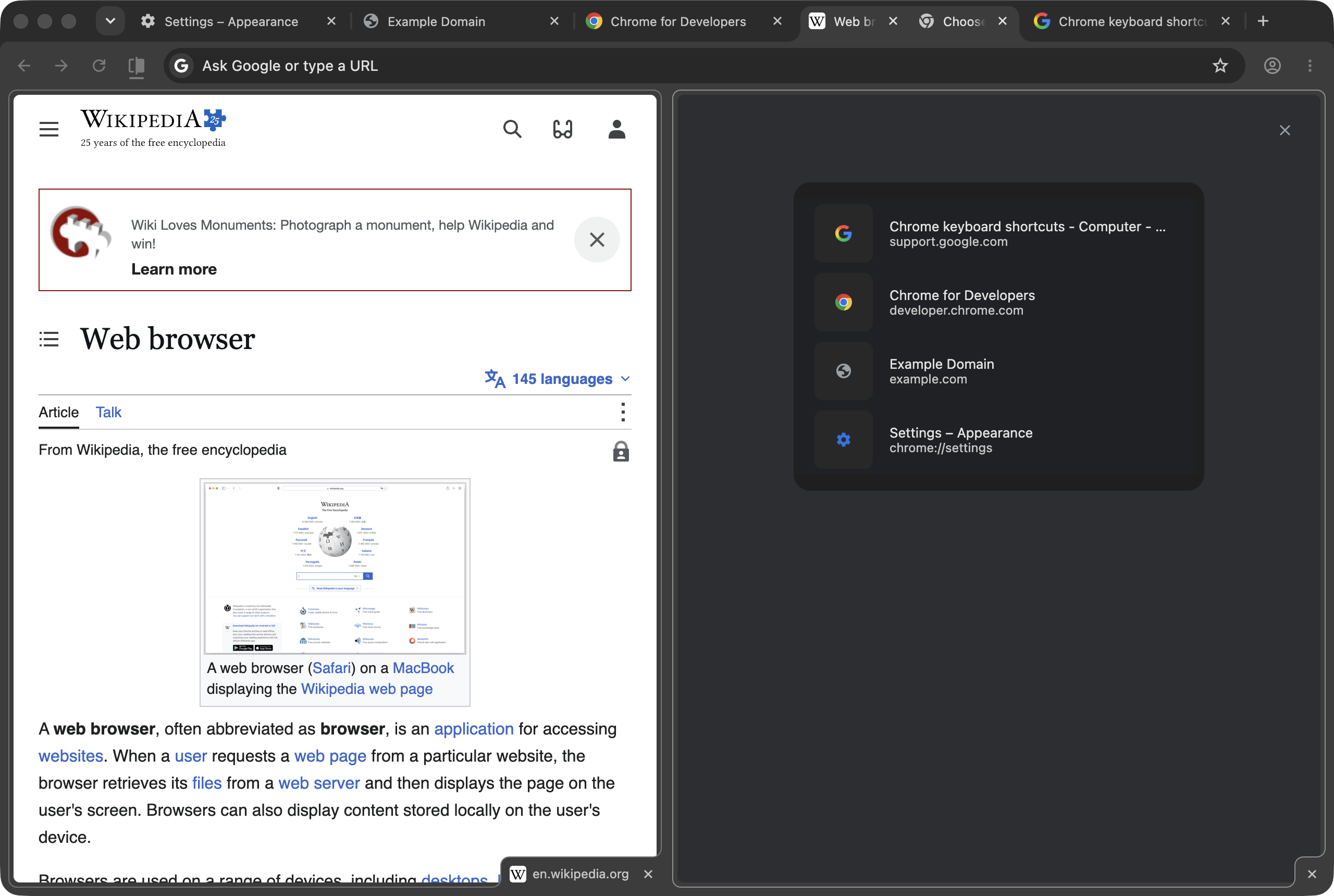
The picker lists your other open tabs. Choosing one moved that tab into the right pane, and the temporary "Choose a tab" placeholder disappeared from the tab strip.
2. Tab right-click menu
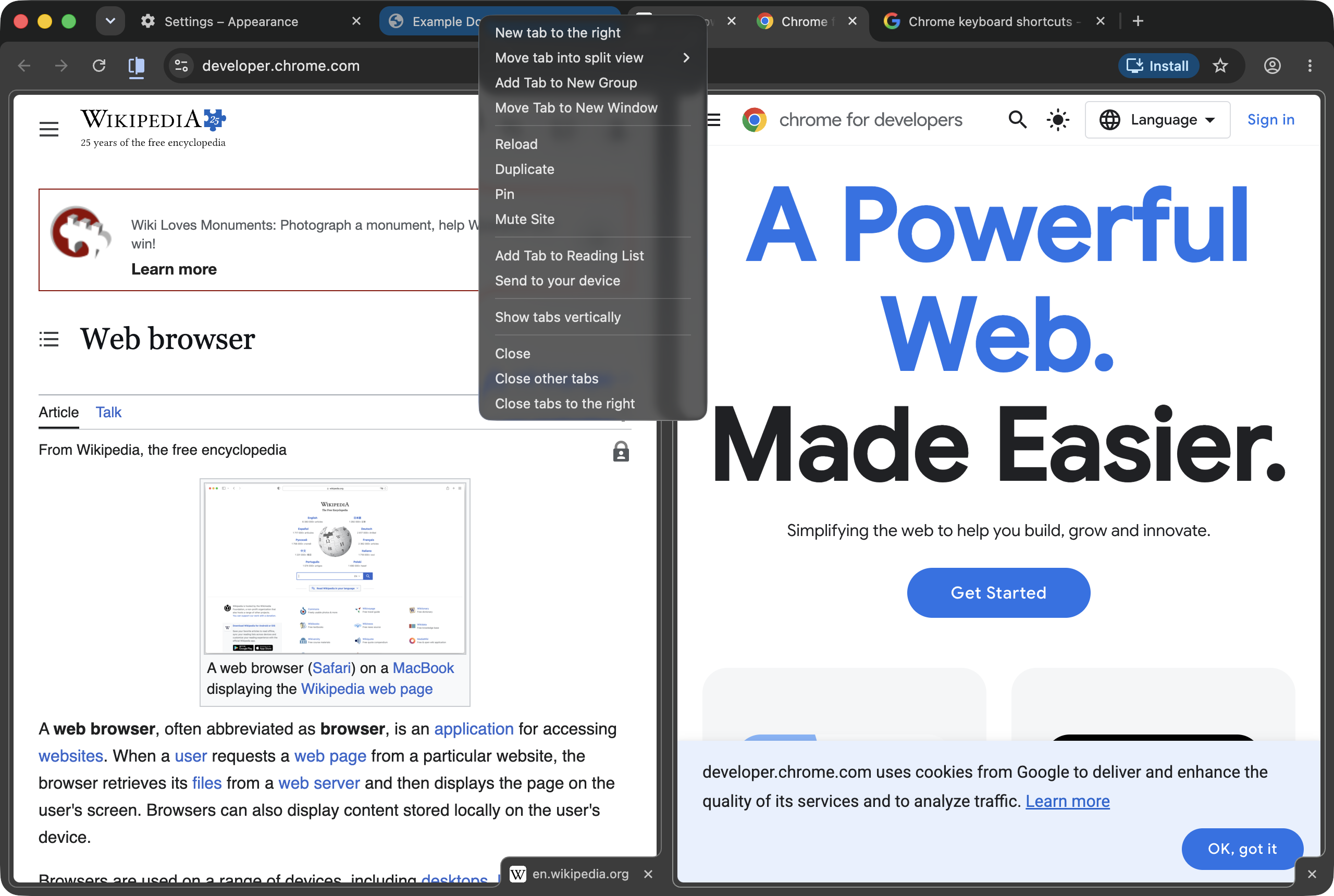
Right-click the tab you are on and choose Add tab to new split view. If a split is already active, right-clicking a different tab offers Move tab into split view (a submenu) instead:
3. Open a link in split view
Right-click any link → Open Link in Split View. I tested it on the "Learn more" link on example.com: Chrome opened the target in a new pane next to the original page and paired the two tabs as a split. This is the fastest way to follow a reference without losing the page you were reading.
4. Drag a tab to the window edge
Google's help describes dragging a tab to the edge of a Chrome window and holding it there to drop it into a split. I did not test the drag gesture itself, but the matching toggle is present in Chrome 154: if you trigger splits by accident while rearranging tabs, turn off "Allow split view drag and drop on left or right edge of window" in Settings → Appearance.
What a Split Looks Like and How It Behaves
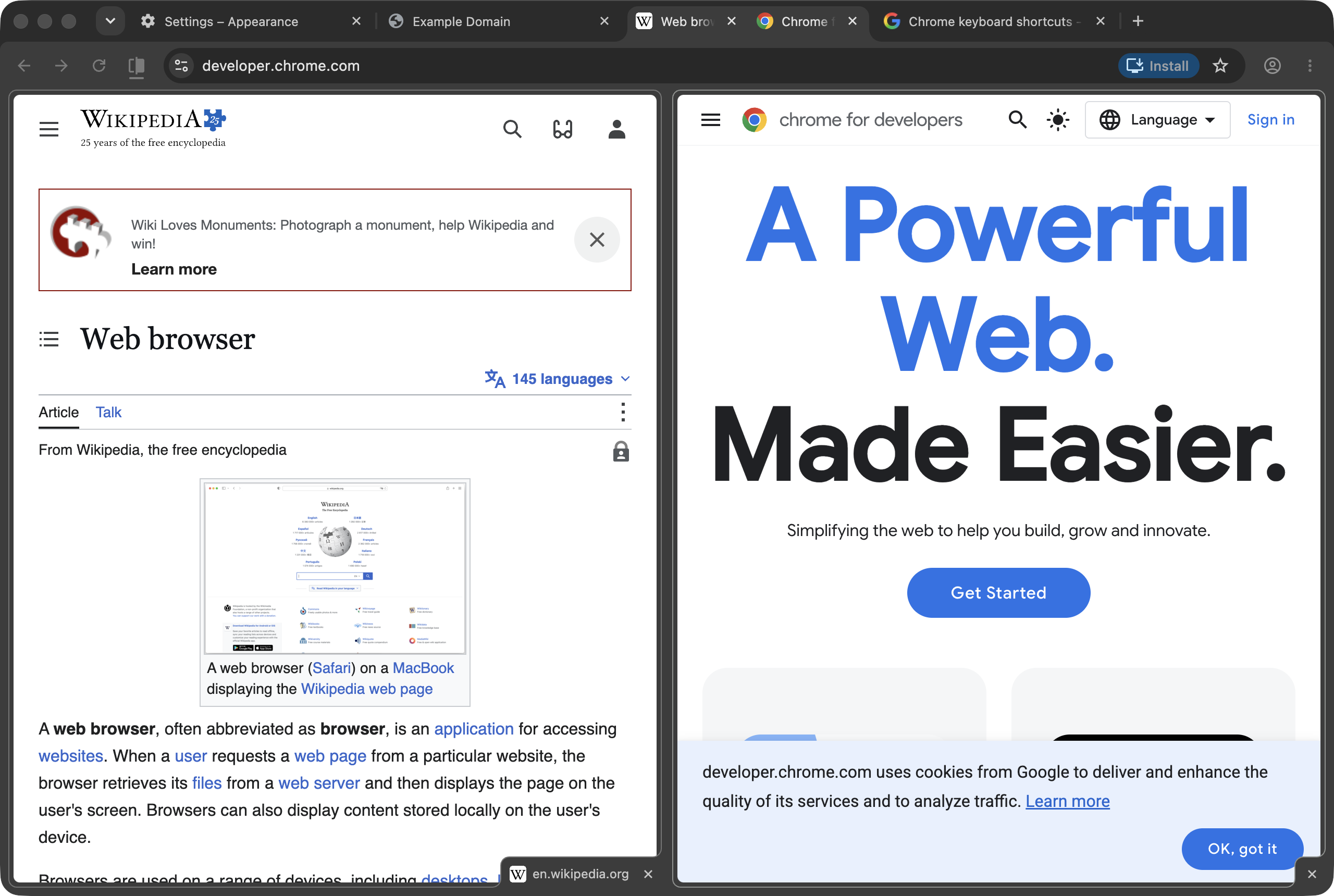
What I observed in Chrome 154 with the window at 1,280 pixels wide:
- Two equal panes by default. Each pane measured 627 px wide, with a 10 px divider between them holding a draggable resize handle.
- One active pane. The toolbar — back, forward, reload, address bar — controls only the active pane. The window title tells you which one: "Chrome for Developers – right view". Click into the other pane to make it active.
- Each pane is a full tab. In the tab strip the pair sits side by side as two adjacent tabs, and each keeps its own hover card and memory figure (76.1 MB and 91.6 MB for my two panes).
- Close buttons on each pane. The bottom-right corner of each pane has its own close control.
- Tab search treats the pair as one row. Ctrl+Shift+A / ⌘⇧A lists it as "Split View" with both sites underneath.
- Splits survive a restart. With session restore on, my split came back paired after relaunching Chrome.
The Arrange Menu: Separate, Close, Reverse
Click the split view button left of the address bar to manage the pair:
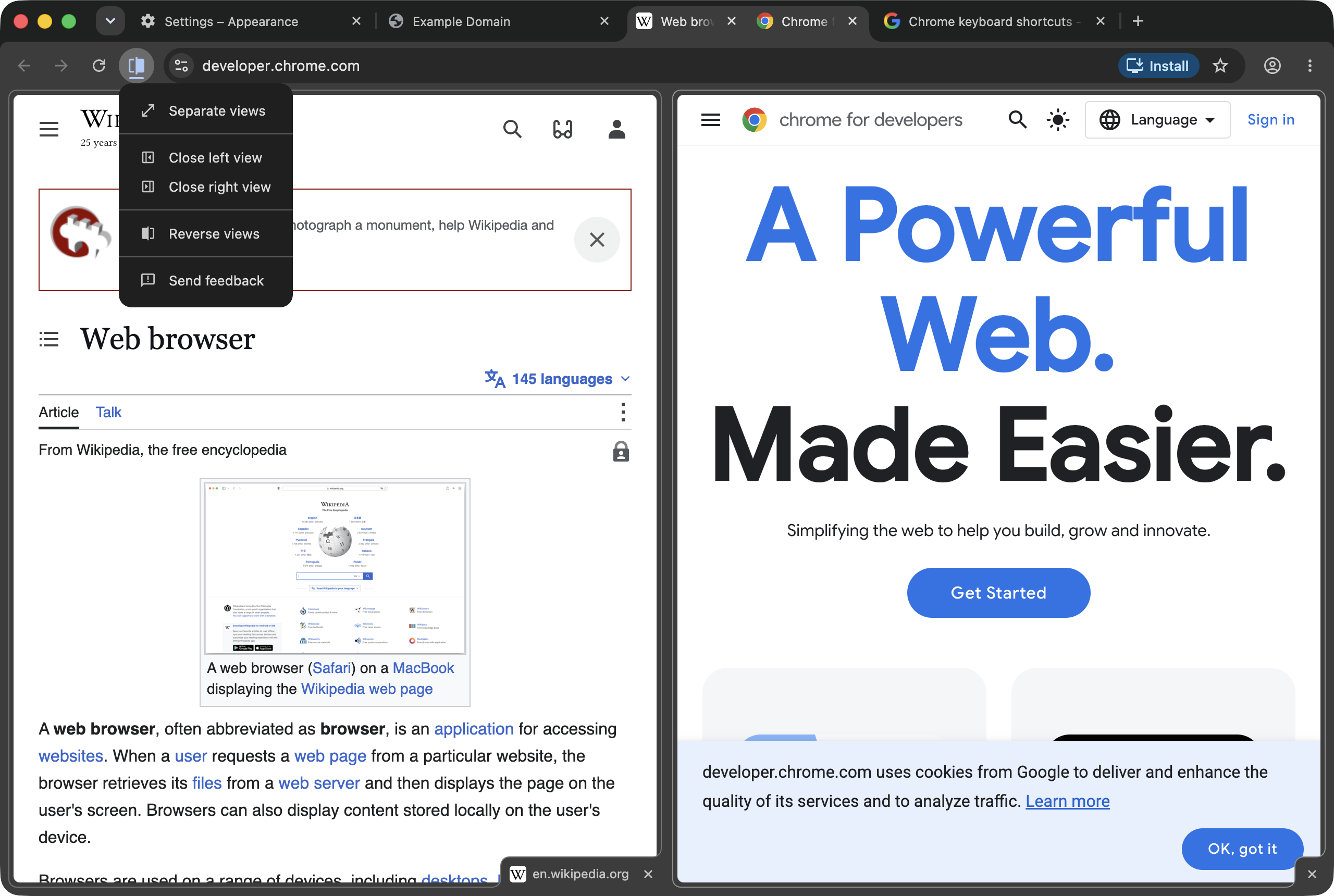
In Chrome 154, without flags, the menu contains:
| Menu item | What it does |
|---|---|
| Separate views | Ends the split; both pages stay open as normal tabs |
| Close left view | Closes the left page, keeps the right one as a normal tab |
| Close right view | Closes the right page, keeps the left one |
| Reverse views | Swaps left and right |
| Send feedback | Opens Chrome's feedback form for split view |
Note what is missing: there is no "stacked" or top/bottom layout option. Google's help page describes switching between stacked and side-by-side layouts and dragging tabs to the bottom edge, but in my Chrome 154 build the settings toggle mentions only the "left or right edge", and the arrange menu offers no layout switch. That is exactly what you would expect from a feature still gated behind a flag.
Chrome Split View Flags in Chrome 154
Searching chrome://flags for "split" in Chrome 154 returns one split view experiment:
| Flag | Chrome's description | Options |
|---|---|---|
#split-view-horizontal (Stacked Split Views) | "Whether split views can be arranged in a stacked layout." | Default, Enabled, Enabled Direct Access |
If you want top/bottom splits now — useful on portrait monitors or for comparing wide tables — enable Stacked Split Views, relaunch, and look for the layout option. Chrome does not document how "Enabled Direct Access" differs from plain "Enabled", so start with "Enabled". Treat it as you would any experiment: one flag at a time, and reset it if anything misbehaves. For the broader list of experiments actually worth enabling, see Chrome flags useful settings.
Chrome Split View vs Two Snapped Windows
Before split view, the standard answer was two Chrome windows snapped to the left and right halves of the screen. Both still work. Here is how they compare from my testing:
| Chrome split view | Two snapped windows | |
|---|---|---|
| Setup | One shortcut + pick a tab | Open a second window, snap both |
| Pages shown | Exactly 2 | As many windows as you tile |
| Toolbar | One shared, follows the active pane | One per window |
| Survives restart as a pair | Yes, with session restore | Windows reopen, layout depends on the OS |
| Moves as a unit | Yes — drag the window, both move | No |
| Works inside a tab group | Yes, both halves join together | Groups are per window |
| Different screen sizes per page | Draggable divider | Full freedom |
Rule of thumb: split view for a pair you will keep together (docs + editor, source + translation, a ticket + the page it describes); OS window tiling for three or more pages or for spreading across monitors. The keyboard side of the second approach is in Chrome window management shortcuts.
Split View With Tab Groups and Extensions
Two behaviors worth knowing if you organize heavily:
Tab groups. When I added just one half of a split to a tab group, Chrome pulled both halves into the group. The pair is treated as a unit, so a group can contain splits but never half of one. More on how groups behave in the Chrome tab groups guide.
Extensions. In Chrome 154, extensions can see splits but not create them. Each tab object carries a splitViewId (both tabs in a pair share it; -1 means not split), but chrome.tabs.createSplit and chrome.tabs.unsplit were undefined when I checked. Chrome's developer blog says those creation and separation APIs arrive in Chrome 155, without any extra permission.
Where Split View Saves Real Time
The workflows where I stopped reaching for a second window:
- Copying between two pages. Ticket on the left, code review or docs on the right. No Alt-Tab, no window shuffling.
- Following references. Open Link in Split View keeps the article on the left and the cited source on the right.
- Comparing. Two pricing pages, two versions of a doc, staging next to production.
- Writing with a source. Notes in one pane, the video or article in the other.
The first one is where URLs flow constantly — you read on the right and paste links into the left. Copying the current page's address is still a two-step job in Chrome (Ctrl+L, then Ctrl+C) and it pulls focus into the address bar of whichever pane is active. Ctrl+Shift+C does it in one keystroke for the active tab. For all the split view and tab shortcuts on one page, print the Chrome shortcuts cheat sheet PDF.
Frequently Asked Questions
Does Chrome have a built-in split view? Yes. Split view ships enabled in desktop Chrome; Chrome's developer blog dates it to Chrome 145. In Chrome 154 it needs no flag: it is in the tab right-click menu, the Mac Tab menu, the link right-click menu and has its own keyboard shortcut.
What is the keyboard shortcut for split view in Chrome? Shift+Alt+N on Windows and Linux, Command+Option+N on Mac, and Ctrl+Alt+N on Chromebook according to Google. It moves the current tab to the left half and shows a picker for the right half.
How do I open a link in split view? Right-click the link and choose Open Link in Split View. In Chrome 154 the link opens in a new pane next to the current page, paired with it as a split view.
Can Chrome split view show tabs stacked top and bottom? Not by default in Chrome 154 on my test machine. Stacked layouts are behind the Stacked Split Views flag (#split-view-horizontal). Google's help page already describes stacked layouts, so expect them to roll out more widely.
How do I exit split view in Chrome? Click the split view button left of the address bar and choose Separate views to turn the pair back into normal tabs, or use Close left view or Close right view. Each pane also has a close button in its bottom-right corner.
How many tabs can I show side by side in Chrome? Two. A split view pairs exactly two tabs in one window. For more pages at once, use several windows arranged with your operating system's window tiling.
Can extensions control Chrome split view? In Chrome 154 extensions can only read it: each tab has a splitViewId shared by the two paired tabs. Google's developer blog says creating and separating splits from extensions arrives in Chrome 155.
Split Your Screen, Not Your Attention
Chrome split view is the rare Chrome feature that needs no setup: ⌘⌥N or Shift+Alt+N, pick a tab, done. Use Open Link in Split View for references, Reverse and Separate from the arrange menu, and leave the stacked layout flag for when you genuinely need top/bottom. When you are moving links from one pane into the other all day, add the shortcut Chrome still lacks — Ctrl+Shift+C copies the active tab's URL in one keystroke, free, with zero data collected.
Try Ctrl+Shift+C
Copy any URL with one keyboard shortcut. Free forever, no data collected.