Chrome Shortcuts Cheat Sheet PDF: One Page, Mac + Windows
This Chrome shortcuts cheat sheet PDF is one printable page: 55 keyboard shortcuts with the Windows/Linux keys and the Mac keys side by side, so the same sheet works on any desk. Download the PDF (US Letter, 1 page, about 460 KB) or read on for how it was built and what made the cut.
Every entry was cross-checked against Google's official Chrome keyboard shortcuts page and against Chrome 154.0.8037.93 itself, as of October 2026. Below is what the sheet covers, how I verified it, and the handful of shortcuts that are new enough that most lists online still miss them.
Download the One-Page Chrome Shortcuts Cheat Sheet PDF
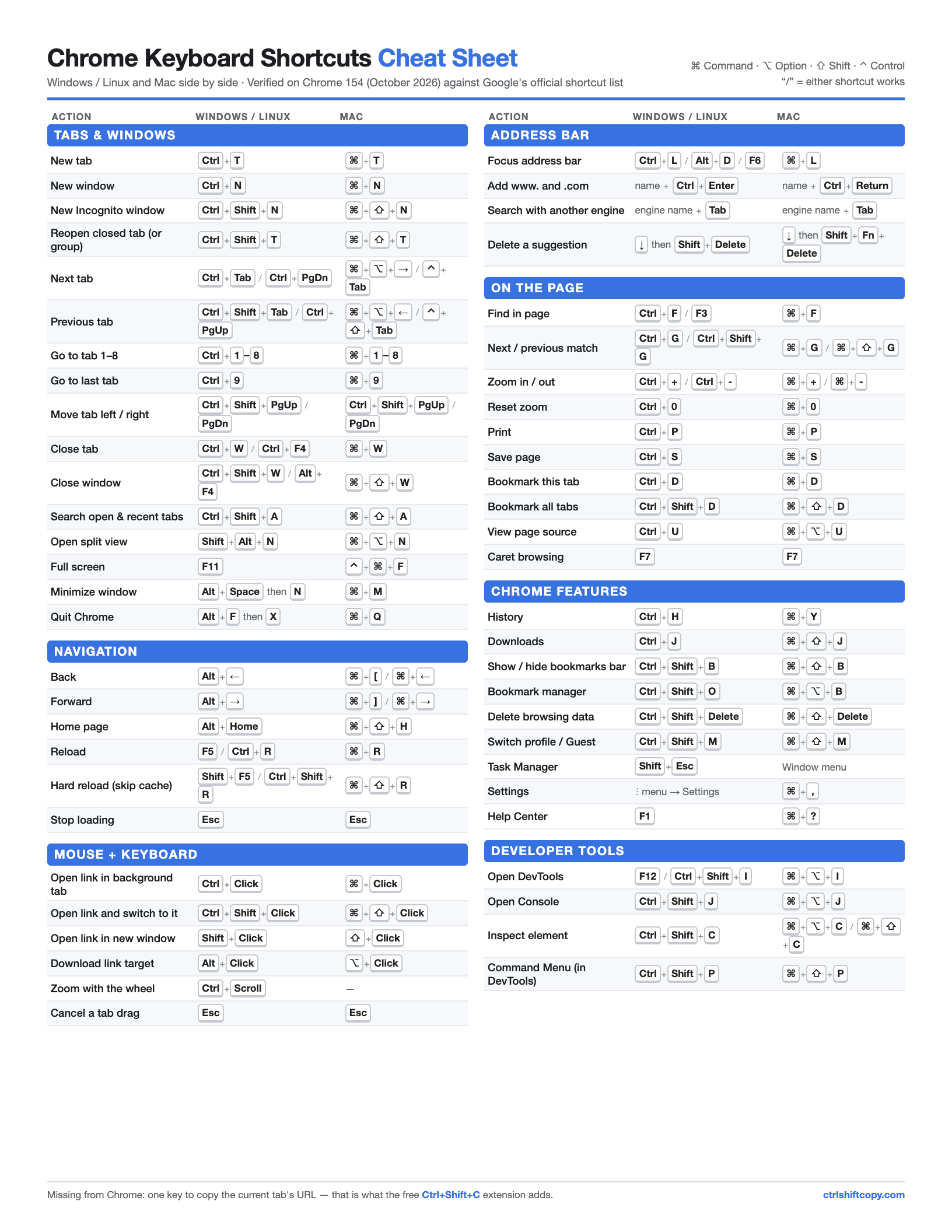
Download chrome-shortcuts-cheat-sheet.pdf — free, no email, no sign-up.
What is on it:
- Tabs & windows (16 shortcuts) — including split view and tab search
- Navigation (6) — back, forward, reload, hard reload
- Mouse + keyboard (6) — the click combinations for opening links
- Address bar (4) — focus, the www/.com trick, search-engine keywords
- On the page (10) — find, zoom, print, save, bookmarks, source
- Chrome features (9) — history, downloads, Task Manager, profiles
- Developer tools (4) — DevTools, Console, inspect, Command Menu
If you want the exhaustive, every-shortcut-in-every-category reference to read on screen, that already exists as the Chrome shortcuts cheat sheet on this blog. This page is the opposite trade-off: the 55 that earn space on paper next to your keyboard.
Why a One-Page Sheet Instead of the Full List
Google's own help page lists 88 entries for Windows and Linux and 79 for Mac. I counted them. That sounds like a reason to print the whole thing, but read the list and the problem is obvious: it repeats itself (Alt+Home appears twice in the Windows tables), it mixes keyboard shortcuts with pure mouse gestures like "drag a tab out of the tab strip", and it splits the two platforms into separate tabs so you cannot compare them.
A Chrome shortcuts cheat sheet PDF that is useful on paper has three properties:
- It fits on one page. The moment it becomes a booklet, nobody pins it next to a monitor.
- Both platforms are on the same line. Plenty of people use a Mac at home and Windows at work, or the reverse. Seeing Ctrl+Shift+T next to ⌘⇧T makes the translation automatic.
- Every line is something you would actually press. "Scroll horizontally: Shift + mousewheel" is true and useless on a printout.
So the PDF keeps 55 entries, grouped by task, with a symbol legend in the corner (⌘ Command, ⌥ Option, ⇧ Shift, ⌃ Control) and a slash meaning "either works".
How I Verified Every Shortcut (Tested on Chrome 154)
Shortcut lists rot. Chrome renames menu items, moves features, and adds new bindings, and most cheat sheets online are copied from each other without anyone pressing the keys. For this Chrome shortcuts cheat sheet PDF I used three checks:
1. Google's official list. I pulled every row from Google's Chrome keyboard shortcuts help page for Windows/Linux and for Mac. Nothing goes on the sheet that is not either on that page or in the next check.
2. Chrome's own menus. On macOS, Chrome publishes its key equivalents in the menu bar, and those menus are readable through the macOS accessibility API. I dumped every menu item with its assigned key on Chrome 154.0.8037.93 and compared it with the Mac column. 38 of the 55 Mac entries on the sheet appear verbatim as menu key equivalents — New tab ⌘T, Close Window ⇧⌘W, Force Reload ⇧⌘R, Developer Tools ⌥⌘I, Downloads ⇧⌘J and so on.
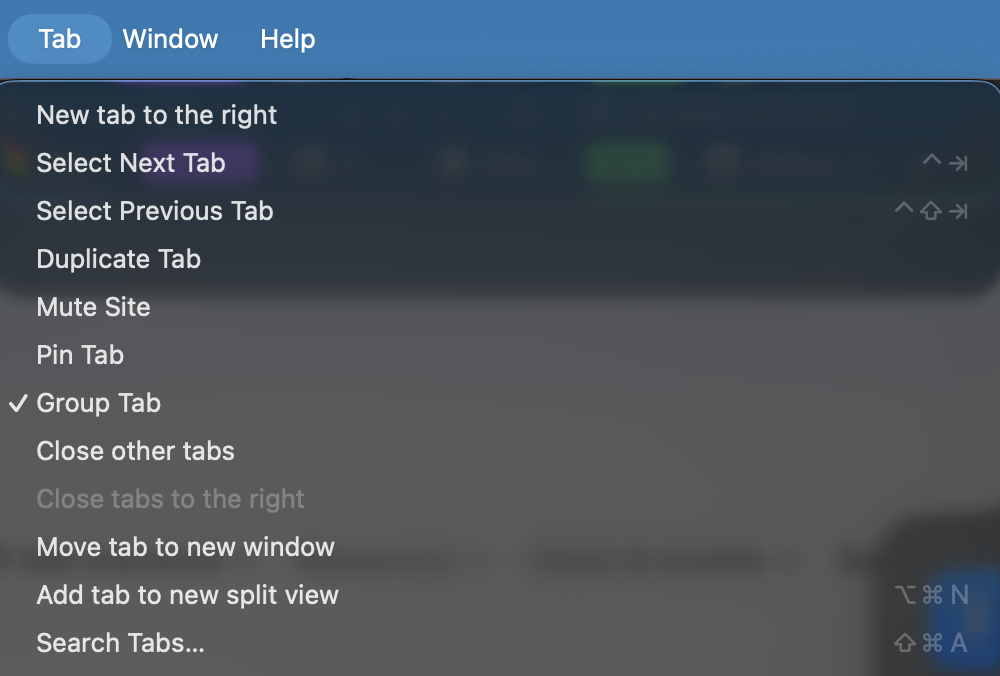
3. Actual keypresses. For the newest and most-contested entries I sent real keystrokes to a test profile and checked the result: ⌥⌘N opened a split view with the tab picker, ⇧⌘A opened tab search, ⇧⌘T restored a closed tab group with its name and colour intact, and ⌃⌘F toggled full screen.
One honest limitation: my test machine is a Mac. The Windows/Linux column matches Google's official list line for line, but I did not press those keys on a Windows PC for this edition.
The Chrome Shortcuts Most Lists Get Wrong or Miss
These are the lines where the PDF differs from the typical copied list.
| Action | Windows / Linux | Mac | What's going on |
|---|---|---|---|
| Open split view | Shift+Alt+N | ⌘+⌥+N | New since split view shipped; in Google's official list and in the Mac Tab menu |
| Search tabs | Ctrl+Shift+A | ⌘+⇧+A | Missing from Google's table, but bound in Chrome's Tab menu and shown in the tab search box |
| Reopen closed tab | Ctrl+Shift+T | ⌘+⇧+T | Also restores a whole closed tab group, name and colour included |
| Full screen | F11 | ⌃+⌘+F | Google's Mac page says Fn+F; Chrome's View menu lists both ⌃⌘F and Globe+F |
| Next tab (Mac) | Ctrl+Tab | ⌘+⌥+→ or ⌃+Tab | ⌃Tab is the Tab-menu binding on Mac, so Windows muscle memory works too |
| Downloads (Mac) | Ctrl+J | ⌘+⇧+J | The menu bar binds ⇧⌘J; the ⋮ menu in Chrome 154 shows ⌥⌘L for the same item |
| Task Manager | Shift+Esc | none | Mac has no binding; use Window → Task manager |
| Inspect element | Ctrl+Shift+C | ⌘+⌥+C or ⌘+⇧+C | Chrome's View → Developer menu binds ⌥⌘C; DevTools docs also list ⌘⇧C |
| Move tab left/right | Ctrl+Shift+PgUp / PgDn | Ctrl+Shift+PgUp / PgDn | Same keys on both platforms per Google — awkward on Mac laptops without Page keys |
Two entries deserve a sentence each.
Split view. Chrome now puts two tabs side by side in one window, and Shift+Alt+N / ⌘⌥N is the fastest way in. The full walkthrough, including what the arrange menu offers and which layout options are still behind a flag, is in the Chrome split view guide.
Tab search. It is the most useful shortcut that Google's own table leaves out. In Chrome 154 the list it opens covers open tabs, tab groups, split views (shown as a single "Split View" row with both sites) and a Recently Closed section — so it doubles as an undo history.
How to Print the Chrome Shortcuts Cheat Sheet PDF Cleanly
The PDF was generated from an HTML layout with headless Chrome's print engine, so it prints exactly as it renders: vector text, not a blurry screenshot. A few practical notes:
- Paper size: the file is US Letter (8.5 × 11 in). On A4, pick "Fit to page" (or "Scale to fit") in the print dialog.
- Colour: the section headers are blue, but the keys and text are dark grey on white. A black-and-white printer keeps everything legible.
- Margins: leave them at default; the layout already has its own margins.
- Laminate or pin it. The sheet is designed to live next to the monitor, not in a drawer.
If you would rather keep it digital, open the PDF in a pinned tab. ⌘1 / Ctrl+1 then jumps straight to it — which is itself shortcut number seven on the sheet.
What Is Deliberately Left Off the PDF
Trimming 167 official rows to 55 meant leaving things out. The cuts follow rules rather than taste:
- Pure mouse actions (drag a tab to a new window, double-click the tab strip) — you do not need a reference card for dragging.
- Text-field editing keys (Ctrl+Backspace, ⌥←) — these are operating-system shortcuts, not Chrome's.
- Window-manager shortcuts — snapping and tiling belong to Windows and macOS, not Chrome. They are covered in Chrome window management shortcuts.
- Accessibility focus keys (F6 to cycle panes, Shift+Alt+T to focus the toolbar, Alt+Shift+A for inactive dialogs). Real and valuable for keyboard-only users, but they change behaviour depending on what is open, which makes them a poor fit for a one-line printed entry.
- Anything without a verifiable binding. Chrome 154's tab group editor labels "New tab in group" with ⌃⌘C and "Close group" with ⌃⌘W, and the ⋮ → Tab groups menu labels "Create new tab group" with ⌃⌘P. When I pressed those keys with the page focused, nothing happened, so they stay off the sheet until I can confirm them.
For the shortcuts that never made it into Chrome at all, there is a separate list in hidden Chrome keyboard shortcuts.
Learning the Sheet Instead of Just Printing It
A Chrome shortcuts cheat sheet PDF only pays off if the shortcuts move from paper to fingers. The approach that works in my experience:
- Circle five. Pick five shortcuts you would use daily that you do not use yet. For most people that is Ctrl+Shift+T, Ctrl+L, Ctrl+Shift+A, Ctrl+1–9 and Ctrl+Shift+R.
- Use only those for a week. Every time you reach for the mouse for one of them, stop and press the keys instead.
- Circle the next five. After three or four rounds, the sheet becomes a reference for the rare ones rather than a crutch.
If you split time between platforms, the side-by-side layout helps here too: you learn the action once, and the modifier swap (Ctrl ↔ ⌘, Alt ↔ ⌥) mostly follows. The exceptions are exactly the rows where the Mac column looks different — History (⌘Y vs Ctrl+H), Downloads (⌘⇧J vs Ctrl+J), Bookmark manager (⌘⌥B vs Ctrl+Shift+O) and View source (⌘⌥U vs Ctrl+U). For the Mac-specific deep dive, see Chrome shortcuts for Mac.
The Shortcut That Is Not on Google's List
Look at the footer of the PDF. Of the 167 official entries, not one copies the current page's URL. The closest native path is Ctrl+L (⌘L) to focus the address bar, then Ctrl+C (⌘C) to copy — two shortcuts and a focus change for what is probably the most common thing people do with a browser tab besides reading it.
That gap is the reason Ctrl+Shift+C exists: one keystroke puts the current tab's URL on the clipboard without touching the address bar. Like any extension command, its key can be changed at chrome://extensions/shortcuts.
Frequently Asked Questions
Is there a printable Chrome shortcuts cheat sheet PDF? Google publishes its shortcut list only as a help page, not as a PDF. The one-page PDF on this page puts 55 Chrome shortcuts on a single US Letter sheet with Windows/Linux and Mac keys side by side, checked against Chrome 154.
How many keyboard shortcuts does Chrome have? Google's official help page lists 88 entries for Windows and Linux and 79 for Mac, including mouse combinations and address-bar tricks. Many of them are duplicates or rarely used, which is why a one-page sheet keeps about 55.
What is the Chrome shortcut for split view? Shift+Alt+N on Windows and Linux, Command+Option+N on Mac. It puts the current tab into a new split view and asks you to choose the second tab. On Mac the same command appears in the Tab menu as Add tab to new split view.
What is the Chrome shortcut to search open tabs? Ctrl+Shift+A on Windows and Linux, Command+Shift+A on Mac. It opens tab search, which lists open tabs, tab groups, split views and recently closed tabs and groups.
Does Chrome have a Task Manager shortcut on Mac? No. Shift+Esc opens the Task Manager on Windows, Linux and ChromeOS, but Chrome 154 on Mac has no key binding for it. Open it from the Window menu or from More tools in the Chrome menu.
Will this PDF print on A4 paper? The PDF is laid out for US Letter. On A4, choose Fit to page or Scale to fit in the print dialog so the margins are adjusted rather than the bottom rows being cut.
Can I change Chrome's built-in shortcuts? No. Chrome does not let you remap its own shortcuts. You can only assign keys to extension commands at chrome://extensions/shortcuts, which is how extensions add shortcuts Chrome never shipped.
Print It, Then Add the Missing Line
Download the Chrome shortcuts cheat sheet PDF, print it, circle five shortcuts and use them all week. I will refresh the sheet with each Chrome stable release and note what changed here. And for the one action no built-in shortcut covers, install Ctrl+Shift+C — free, one keystroke to copy the current URL, clipboard permission only, and zero data collected.
Try Ctrl+Shift+C
Copy any URL with one keyboard shortcut. Free forever, no data collected.