How to Remap Chrome Shortcuts (Tested on Chrome 156)
There is no setting in Chrome that changes its own keyboard shortcuts. To remap Chrome shortcuts you go one level down, to the operating system: App Shortcuts in macOS System Settings, PowerToys Keyboard Manager on Windows, or a key remapper such as keyd or xremap on Linux.
That is the short answer. The rest of this guide shows each method step by step, explains what each one can and cannot remap, and covers the few Chrome shortcuts that are editable inside the browser. I checked everything Chrome-specific against Chrome 156.0.8078.48 on macOS in November 2026: I searched the full chrome://flags list, the settings pages and Chrome's own menu strings. Where I couldn't test something on this machine (Windows and Linux), I say so.
If you want to change shortcuts for extensions, that is a different job with its own page, covered in custom keyboard shortcuts in Chrome. This post is about Chrome's built-in keys: Cmd+D, Ctrl+Shift+T, Cmd+Option+I and the rest.
Can You Change Chrome Shortcuts in Chrome Itself?
Mostly no. I looked in three places in Chrome 156:
chrome://flags: 21 experiments mention "shortcut", "keyboard", "accelerator" or "hotkey". None of them remaps browser shortcuts. The closest areui-debug-tools("Enables additional keyboard shortcuts to help debugging"),system-keyboard-lock(lets fullscreen websites capture system keys) andglic-hotkey-local-scope(limits the Gemini hotkey to the active window).chrome://settings: searching "shortcut" turns up the search engine keyword setting and the F7 caret-browsing note. There's no shortcut editor.chrome://extensions/shortcuts: this edits extension commands only. Chrome's own shortcuts don't appear there.
Desktop Chrome has no hidden switch for this either. On a Chromebook, keyboard customization lives in the ChromeOS settings, not in the browser; see the Chromebook shortcuts guide for what is possible there.
The three shortcuts Chrome does let you edit
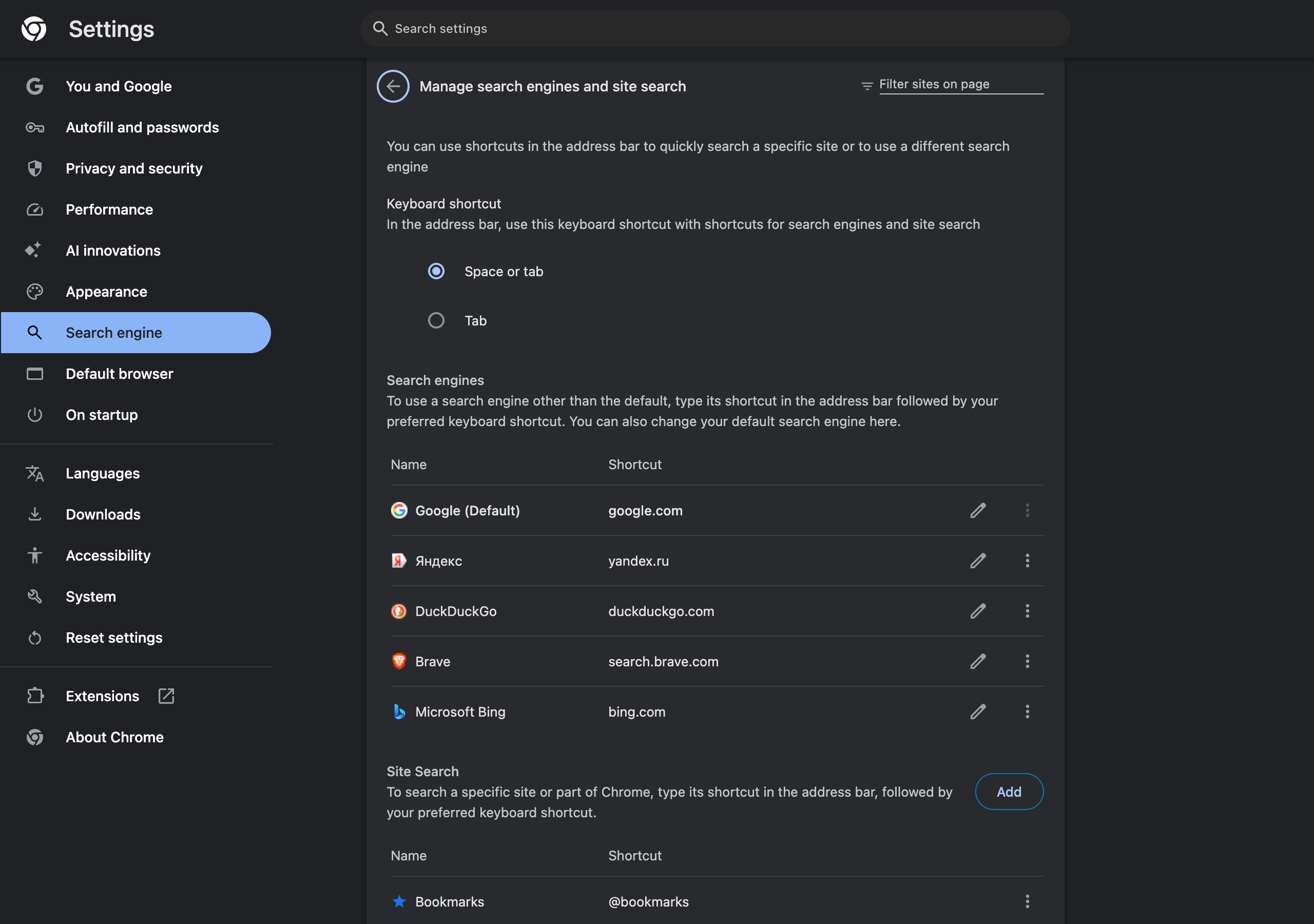
Chrome does have a few built-in keys you can change without leaving the browser:
- The search engine keyword trigger. Go to Settings, then Search engine, then Manage search engines and site search. Under "Keyboard shortcut" you choose whether typing a site-search keyword in the address bar is followed by Space or tab (the default) or Tab only. If you often type a word like "yt" and get thrown into YouTube search by accident, switch to Tab. How keywords work is covered in Chrome search engine shortcuts.
- The Gemini in Chrome shortcut. It has Edit and Clear buttons and an In Chrome / Global scope switch under Settings, then AI innovations. The details are in the Gemini in Chrome guide.
- Every extension shortcut, at
chrome://extensions/shortcuts.
Everything else, from Cmd+T to Ctrl+Shift+Delete, is fixed by Chrome. To change those keys you need the operating system.
Method Comparison: What Each One Can Remap
| Method | Platform | Remaps Chrome's built-in shortcuts? | Scope | Survives Chrome updates? | Tested here |
|---|---|---|---|---|---|
| System Settings → App Shortcuts | macOS | Yes, any menu bar item | Chrome only | Yes, unless Google renames the menu item | Menu titles verified against Chrome 156 |
| PowerToys Keyboard Manager | Windows 10/11 | Yes, any key combo → any key combo | Can be limited to Chrome | Yes | No (no Windows machine) |
| keyd / xremap | Linux | Yes, combo → combo | Per-app via window class | Yes | No |
chrome://extensions/shortcuts | All | No, only extension commands | In Chrome or Global | Yes | Yes, Chrome 156 |
| Search engine "Keyboard shortcut" | All | Only the keyword trigger | Address bar | Yes | Yes, Chrome 156 |
The macOS method is the cleanest because the remap is attached to a Chrome command (the menu item), not to a keystroke. The menu shows your new shortcut next to the item, and the old one stops working. The Windows and Linux tools work at the key level instead: they catch a combination and send a different one.
How to Remap Chrome Shortcuts on Mac (App Shortcuts)
macOS can give any menu bar command in any app a new key combination. Chrome builds a full native menu bar (File, Edit, View, History, Bookmarks, Tab, Window), so every command in it can be remapped. If you are still learning the defaults, keep the Chrome shortcuts for Mac list open while you plan.
- Open System Settings → Keyboard → Keyboard Shortcuts… → App Shortcuts.
- Click +.
- Application: choose Google Chrome. Choosing "All Applications" would apply the remap to every app with a menu item of that name.
- Menu title: type the menu item's name exactly, including capital letters and the
…character. - Keyboard shortcut: press the new combination.
- Quit and reopen Chrome. The new key appears next to the menu item.
Exact menu titles in Chrome 156
Step 4 is where most remaps fail: the title doesn't match. Chrome's menu text comes from its string table, so I decoded the English locale.pak that ships with Chrome 156 (12,495 strings) and copied these titles from it:
| Exact title to type | What it does | Default shortcut |
|---|---|---|
Reopen Closed Tab | Restores the last closed tab or window | Cmd+Shift+T |
Open Location… | Focuses the address bar | Cmd+L |
Reload This Page | Normal reload | Cmd+R |
Force Reload This Page | Reload bypassing the cache | Cmd+Shift+R |
Developer Tools | Opens DevTools | Cmd+Option+I |
JavaScript Console | Opens DevTools on the Console | Cmd+Option+J |
View Source | Opens view-source: | Cmd+Option+U |
Select Next Tab | Next tab | Cmd+Option+→ |
Select Previous Tab | Previous tab | Cmd+Option+← |
Duplicate Tab | Duplicates the current tab | none |
Pin Tab | Pins the current tab | none |
Mute Site | Mutes the current site | none |
Group Tab | Puts the tab in a group | none |
Task Manager | Opens Chrome's Task Manager | none |
Always Show Full URLs | Toggles showing https:// and www | none |
macOS only needs the title, not which menu the item is in. The location matters only when two menus have an item with the same name.
Some useful commands have no default key at all, including Duplicate Tab, Pin Tab, Mute Site and Task Manager. Those are the easiest wins, because you give them a key without taking one away from anything else.
Mac gotchas
- Some titles change with the tab selection. Chrome 156's strings include a second form for the tab commands:
Duplicate Selected Tab,Pin Selected Tab,Mute Selected SiteandGroup Selected Tab, used when several tabs are selected. macOS matches whatever title is showing, so add the "Selected" version too, with the same key, if you select multiple tabs with Shift-click. …is one character. "Open Location…" ends in an ellipsis (Option+; on a US keyboard), not three dots. Three periods won't match.- Overriding a taken key. If you give Pin Tab Cmd+D, Cmd+D can no longer bookmark reliably. Move "Bookmark This Tab…" to a different key at the same time. Check the Bookmarks menu for its exact title first, because the casing has changed between Chrome versions.
- The command line. App Shortcuts writes to the
NSUserKeyEquivalentskey incom.google.Chrome. On my machine it wasn't set at all, anddefaults read com.google.Chrome NSUserKeyEquivalentsis a quick way to see what you have set. Deleting a row in System Settings removes it again. - Accidental Cmd+Q. You don't need a remap for this one. Chrome's own menu has Warn Before Quitting (⌘Q).
How to Remap Chrome Shortcuts on Windows (PowerToys)
Windows has no built-in way to give a single app different shortcuts. The standard tool is Microsoft's free PowerToys, and its Keyboard Manager supports app-specific shortcut remaps:
- Install PowerToys from the Microsoft Store or GitHub and open Keyboard Manager.
- Make sure Enable Keyboard Manager is on, then click Remap a shortcut.
- Add a row. Under Select, press the shortcut you want to press (for example Ctrl+Shift+D). Under To send, press what Chrome should receive (for example Ctrl+D).
- In Target app, enter Chrome's process name,
chrome.exe. Without it, the remap applies system-wide. - Click OK. PowerToys warns you if the key you are sending is already used by something else.
I couldn't test this in this session, because I only had a Mac running Chrome 156. Two limitations follow from how Keyboard Manager works, and Microsoft's documentation notes both:
- PowerToys has to be running for the remap to apply.
- A key-to-key remap gives Chrome a different keystroke; it doesn't rename the command. So you can only send a combination Chrome already understands. Commands with no default key, like Pin Tab, can't be reached this way.
For a Windows-specific list of what Chrome binds by default, see Chrome shortcuts on Windows.
How to Remap Chrome Shortcuts on Linux
Linux desktops don't share one per-app shortcut editor, so the options depend on your display server:
- xremap maps key combos to other key combos and can limit a rule to an application (
application: only: [google-chrome]). It works on X11 and on several Wayland compositors (GNOME with its extension, KDE, Sway, Hyprland). - keyd with its application mapper (
keyd-application-mapper) does the same, with bindings keyed on the window class. - AutoKey works under X11 only.
These work like PowerToys: they swap one keystroke for another and can only send keys Chrome already accepts. I didn't test any of them for this post. The main thing to get right is the window class: Chrome reports itself as google-chrome, and Chromium as chromium.
What About Extensions? The chrome://extensions/shortcuts Trap
This page looks like a shortcut editor for the whole browser, but it only lists extension commands. One behaviour in Chrome 156 surprised me. I loaded a small test extension with three commands, then typed Chrome's own shortcuts into its fields. The page accepted ⌘T, ⌘W, ⌘D, ⌘L, ⌘R, ⌘Y and ⇧⌘T without any error or conflict warning:
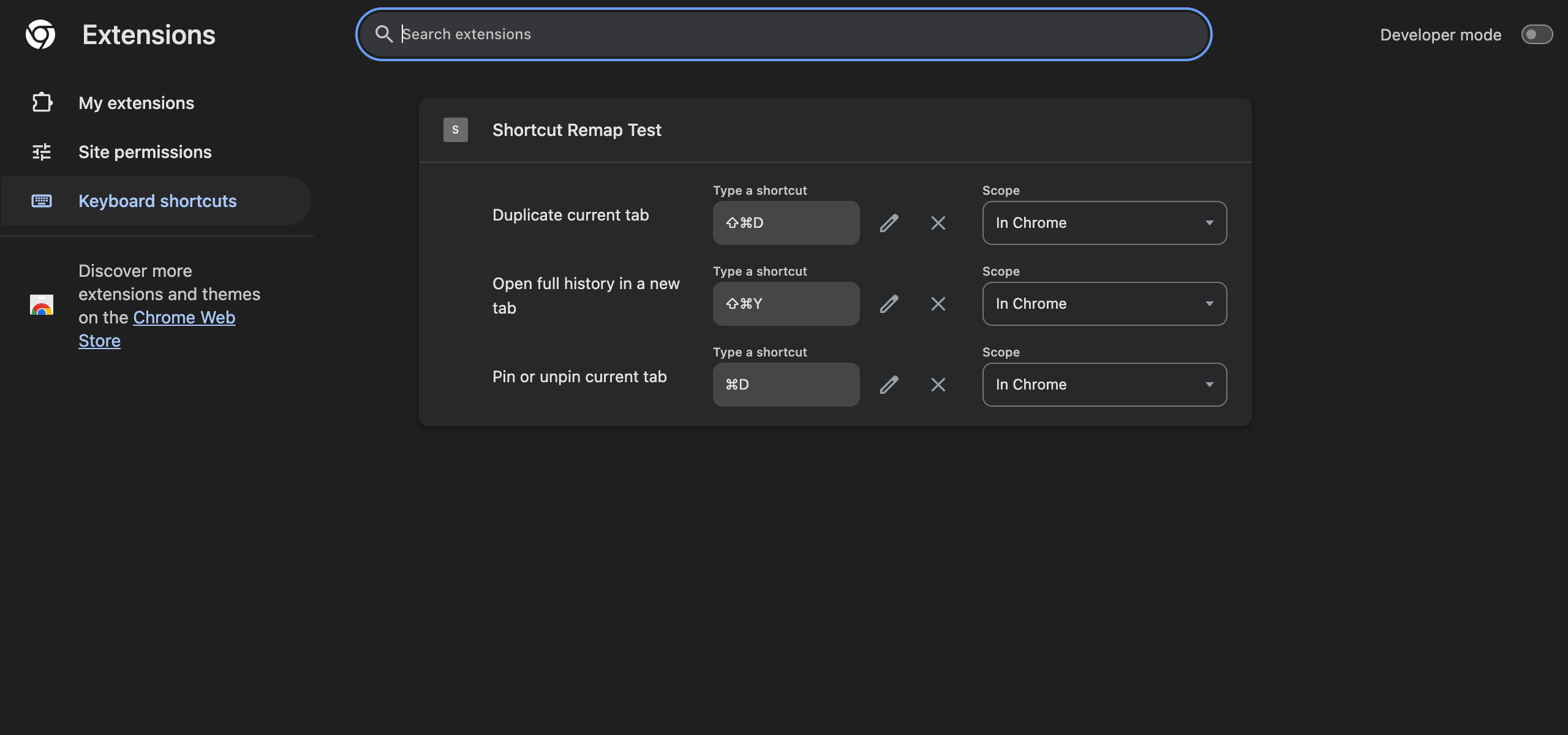
That doesn't mean the extension wins when you press the key. Google's chrome.commands documentation says some browser shortcuts, such as window management, always take priority over extension commands. The page simply doesn't check. So after giving an extension a key Chrome already uses, press it on a normal web page and see which action runs. If Chrome's action runs, choose another key.
If you want a new action rather than a different key for an existing one (there's no built-in "copy this tab's URL" key, for example), an extension is the right tool, and Ctrl+Shift+C is one example. Its shortcut is listed on the same page, so you can move it to any free key. The step-by-step for that page is in how to set custom shortcuts for a Chrome extension.
Which Method Should You Use?
- You're on a Mac and want a key for a menu command: App Shortcuts. It is native, it shows in the menu, and it's undone by deleting one row.
- You're on Windows and want to move a key: PowerToys with Target app set to
chrome.exe. - You want a key for something Chrome can't do yet: an extension, then set its key at
chrome://extensions/shortcuts. - You keep switching into site search by accident: change the search engine "Keyboard shortcut" to Tab.
- You keep quitting Chrome by accident on a Mac: Warn Before Quitting, no remap needed.
On privacy: none of these methods sends anything anywhere. App Shortcuts and PowerToys are local OS settings, and extension shortcut assignments are stored in your local Chrome profile and aren't synced. That also means you set them up again on each machine.
Frequently Asked Questions
Can you change Chrome keyboard shortcuts in settings? Not the built-in ones. Chrome 156 has no settings page or flag for remapping its own shortcuts. The exceptions are the search engine keyword trigger (Space or Tab), the Gemini in Chrome shortcut, and extension shortcuts at chrome://extensions/shortcuts.
How do I remap a Chrome shortcut on a Mac? Use System Settings → Keyboard → Keyboard Shortcuts → App Shortcuts. Add Google Chrome, type the exact menu item title (for example "Pin Tab" or "Developer Tools") and press the new key combination, then restart Chrome.
How do I remap Chrome shortcuts on Windows? Install Microsoft PowerToys, open Keyboard Manager, choose Remap a shortcut, and set the target app to Chrome so the remap only applies inside the browser. Windows itself has no per-app shortcut editor.
Can an extension override Ctrl+T or Cmd+D? Chrome 156 lets you type keys like Cmd+T, Cmd+W and Cmd+D into chrome://extensions/shortcuts without a warning. Google documents that some browser shortcuts always take priority, so test the key after assigning it.
How do I disable a Chrome keyboard shortcut I keep pressing by accident? On a Mac, give the menu item a different key combination in App Shortcuts so the old one stops firing. On Windows, PowerToys can remap the shortcut to a harmless key for Chrome only. For Cmd+Q, Chrome also has Warn Before Quitting in the Chrome menu.
Do remapped Chrome shortcuts sync between computers? No. macOS App Shortcuts, PowerToys remaps and chrome://extensions/shortcuts assignments are all stored locally, so you set them up again on each machine.
Add the Shortcut Chrome Never Shipped
Remapping moves Chrome's keys around, but it can't add a command Chrome doesn't have. The one most people miss is copying the current page's address without clicking the address bar first. Install Ctrl+Shift+C and one keystroke puts the URL on your clipboard. It collects no data, and its key can be moved to whatever you like at chrome://extensions/shortcuts.
Try Ctrl+Shift+C
Copy any URL with one keyboard shortcut. Free forever, no data collected.