Force Hover State in DevTools: The :hov Guide (2026)
To force hover state in DevTools, select the element in the Elements panel, click :hov in the Styles pane toolbar, and tick :hover. The element now renders as if the mouse were over it — and stays that way while you edit its CSS, which is the whole point: hover styles normally vanish the moment your cursor leaves the page to go click something in DevTools.
That is the one-line answer. The rest of this page is what I found testing the feature properly in Chrome 154.0.8037.93 (October 2026) on a demo page built for it: a hover dropdown, a hover tooltip, a button with hover, active and focus-visible styles, and a form with a :focus-within ring. Including the gotcha that makes forced :hover look broken on most real dropdown menus.
Why Hover Styles Are So Hard to Inspect
Hover, focus and active styles exist only during an interaction. Move the mouse to DevTools and :hover ends. Click inside DevTools and the page loses focus, so :focus and :focus-within end too. Press the mouse button and release it, and :active lasted a few hundred milliseconds at best. That is the problem the ability to force hover state in DevTools solves.
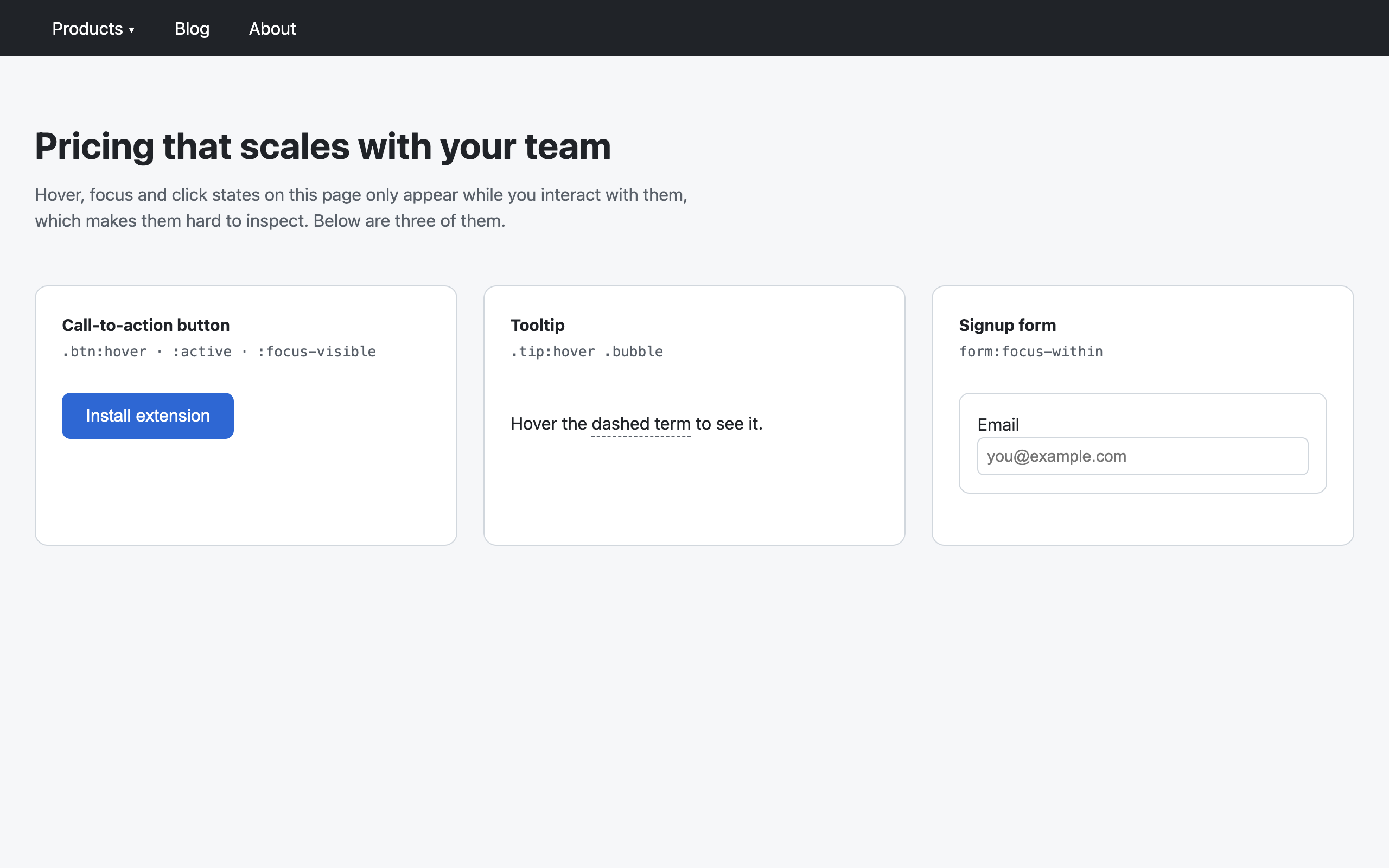
Here is the demo page in its resting state. Nothing interesting is visible — no menu, no tooltip, no focus ring:
And here is the same page with forced states applied — :hover on the Products menu, :hover plus :focus-visible on the button, :hover on the tooltip term and :focus-within on the form. Nothing is being hovered; DevTools is holding every state on:
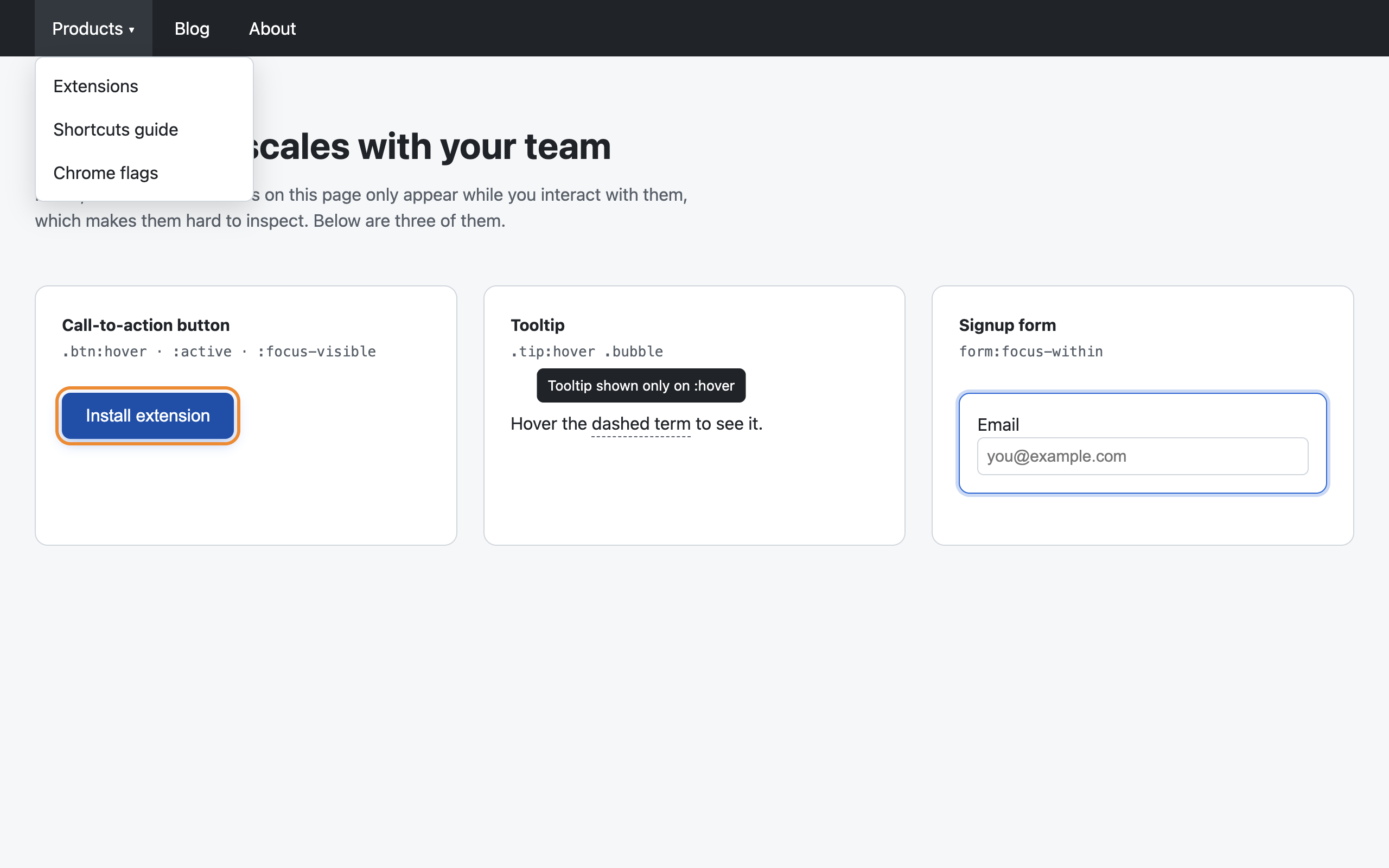
I checked the computed styles before and after rather than eyeballing them. The dropdown's display went from none to block, the button background from rgb(9, 105, 218) to its hover color rgb(5, 80, 174), the tooltip's visibility from hidden to visible, and the form gained its 0 0 0 3px focus ring shadow. Those are exactly the declared hover and focus rules, applied without any mouse.
How to Force Hover State in DevTools, Step by Step
- Open DevTools on the element. Right-click it on the page and choose Inspect, or press
Cmd+Option+C(Mac) /Ctrl+Shift+C(Windows, Linux) and click it. - Select the element that owns the
:hoverrule — more on why this matters in the next section. - Click :hov in the Styles pane toolbar, next to the Filter box and
.cls. - Tick :hover (or any other state) under "Force element state".
- Edit the hover styles live. The Styles pane now shows the matching
:hoverrules as active, so you can tweak colors, shadows and transitions in place.
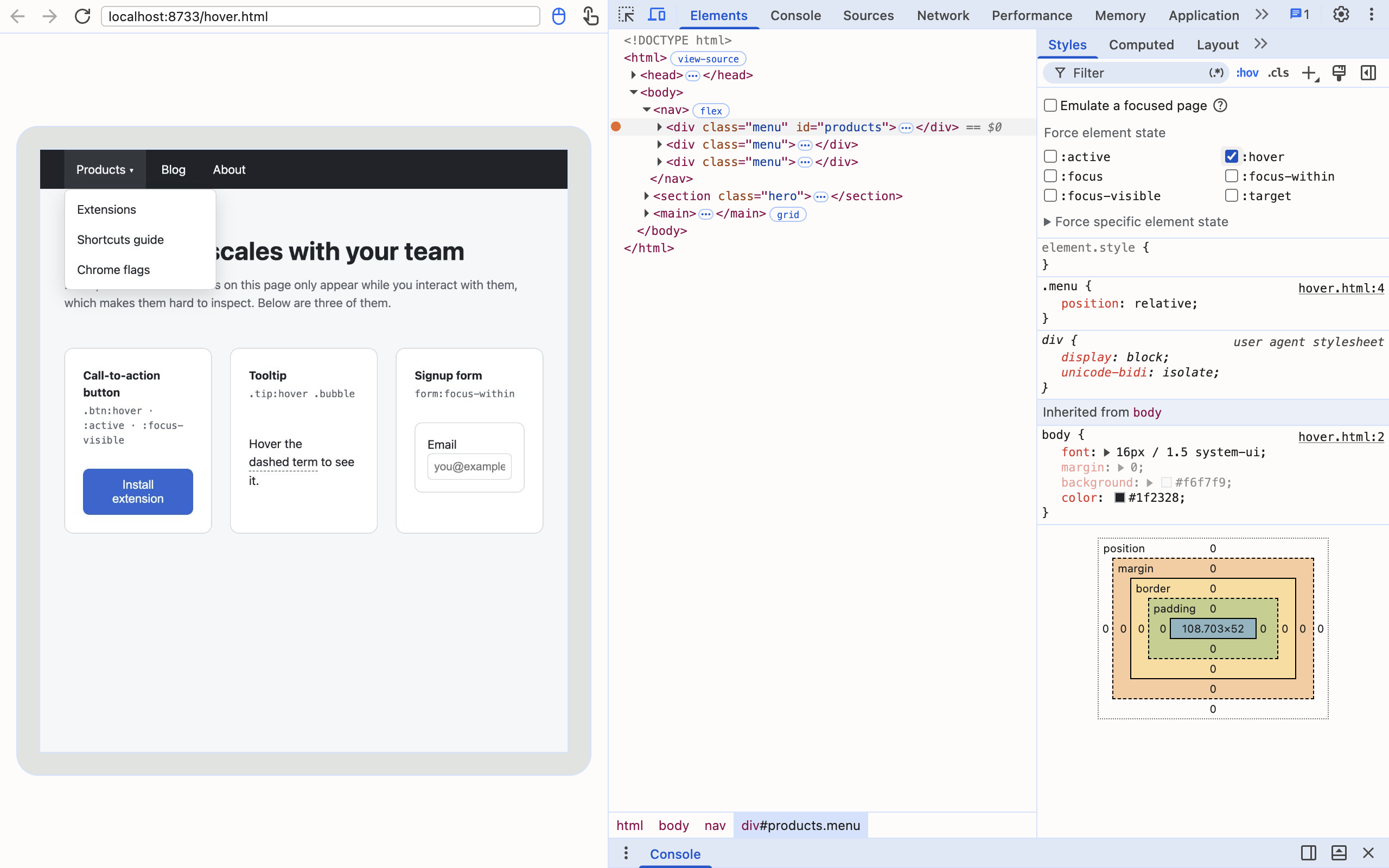
One detail from the screenshot worth knowing: the node with a forced state gets a colored dot to the left of it in the Elements tree, so you can find forced elements later.
There is a second route that skips the Styles pane: right-click a node in the Elements tree and open Force state. In Chrome 154 that entry sits in the node's context menu between "Hide element" and "Break on".
The Gotcha: Forced States Do Not Bubble to Parents
This is the part most guides on how to force hover state in DevTools miss. My first attempt on the demo page was to force :hover on the "Products" link itself — the thing you would actually point at. The dropdown stayed closed. Computed display: still none.
The CSS was .menu:hover .dropdown { display: block }. With a real mouse, hovering the link also makes its parent .menu match :hover, because hover applies to an element and all its ancestors. A forced state does not do that. It applies to exactly the node you ticked it on. Forcing :hover on the .menu wrapper opened the dropdown instantly.
The rule of thumb: read the selector, and force the state on the element named before the pseudo-class. For .card:hover .actions, force the card. For nav li:hover > ul, force the li. For .btn:hover, the button. If a forced state seems to do nothing, you almost always forced it one level too deep.
Every State You Can Force in Chrome 154
The :hov panel has two sections. The main list is always shown:
| State | Typical use | Forced on the demo page |
|---|---|---|
:hover | Menus, tooltips, card lifts | Dropdown opened, tooltip shown |
:active | Pressed-button styles | Button moved 1px down, darker blue |
:focus | Inputs and focus styles | — |
:focus-within | Form or card rings when a child has focus | Form ring appeared |
:focus-visible | Keyboard focus outlines | Orange outline on the button |
:target | Styles for #anchor targets | — |
Below that is a collapsible "Force specific element state" section. It only lists states that make sense for the selected element, and in Chrome 154's DevTools source it covers twenty: :enabled, :disabled, :valid, :invalid, :user-valid, :user-invalid, :required, :optional, :read-only, :read-write, :in-range, :out-of-range, :visited, :link, :checked, :indeterminate, :placeholder-shown, :autofill, :open and :target-current.
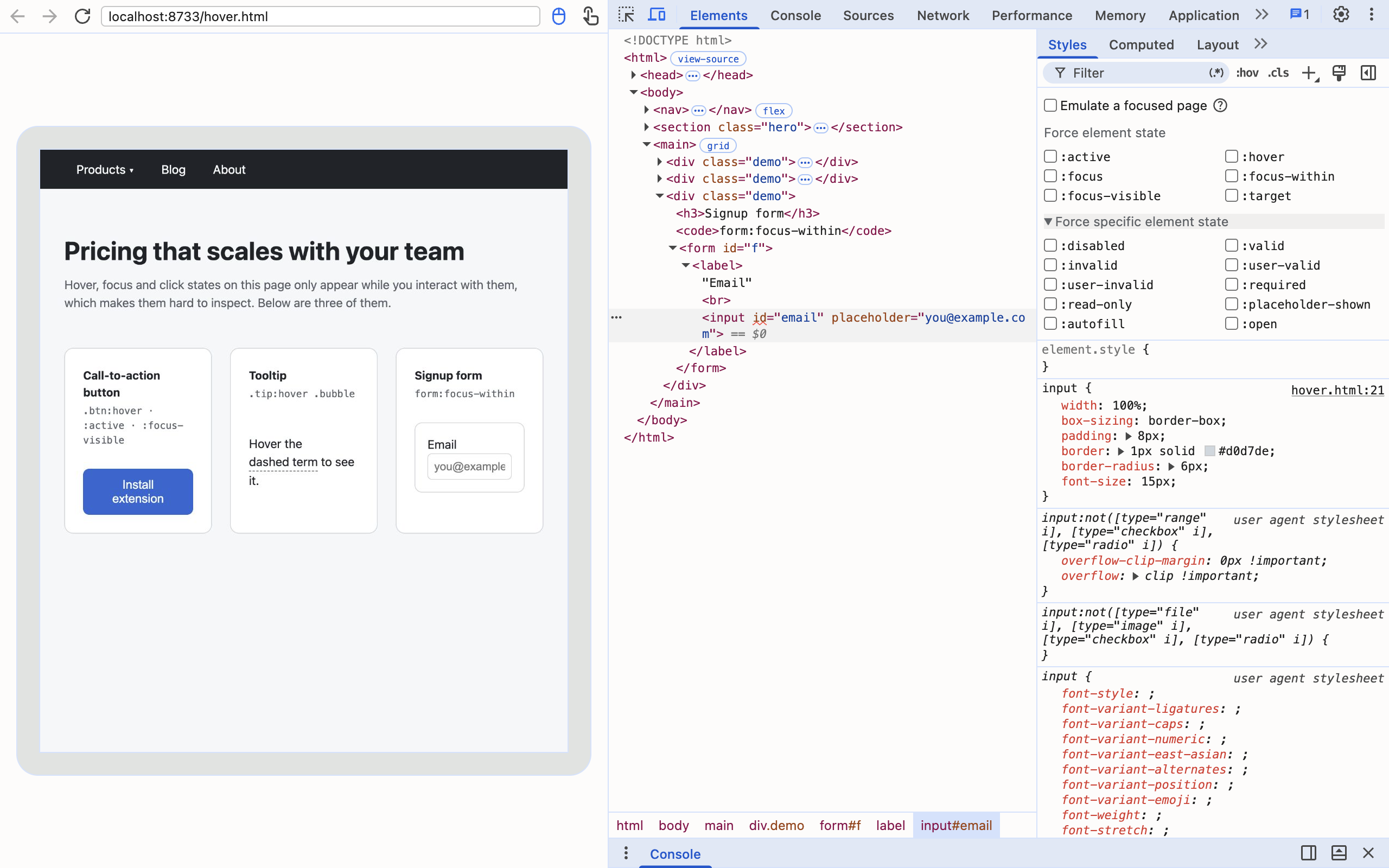
For a plain text input, ten of them appeared: :disabled, :valid, :invalid, :user-valid, :user-invalid, :required, :read-only, :placeholder-shown, :autofill and :open. That is the fastest way I know to style validation errors and autofill backgrounds without filling the form in wrong on purpose fifty times. Opposite pairs are treated as exclusive — DevTools unticks :valid when you tick :invalid, and likewise for :visited and :link or :read-only and :read-write.
Emulate a Focused Page: For Things That Vanish on Blur
Some UI does not depend on :hover at all. Autocomplete dropdowns, date pickers and custom selects often close on a blur event, and clicking into DevTools blurs the page. Forcing a pseudo-class does not help there.
That is what the "Emulate a focused page" checkbox at the top of the :hov panel is for. Chrome's own tooltip describes it as "Keep page focused. Commonly used for debugging disappearing elements." Turn it on, open the dropdown with the mouse, then move into DevTools — the page keeps behaving as if it still has focus. You can also reach it from the command menu by typing "focused".
For popups driven by JavaScript timers rather than focus, the old fallback still works: run setTimeout(() => { debugger }, 3000) in the console, open the popup within three seconds, and the debugger freezes the page with the popup on screen.
Forced States and JavaScript
When you force hover state in DevTools, the result is a real state as far as CSS matching is concerned, and that includes JavaScript selector checks. With :hover forced on the menu, document.querySelector("#products").matches(":hover") returned true. What does not happen is any event: no mouseenter, no mouseover, no focus. So hover effects built purely in CSS appear, while effects wired to mouse events in JavaScript do not. If forcing :hover shows nothing, check whether the component listens for mouseenter instead of using CSS — in that case use monitorEvents() from the Chrome console utilities to see which events it expects.
Forced states are also temporary. After a reload, every state I had forced was gone: dropdown hidden, button back to its resting color.
Automating It: CSS.forcePseudoState
The before-and-after screenshots on this page were not taken by hand, and you do not need the DevTools UI to force hover state at all. The DevTools Protocol exposes the same feature as CSS.forcePseudoState, which takes a node ID and a list of pseudo-classes. Puppeteer and Playwright users can call it through a CDP session to capture hover and focus states in visual regression tests without simulating the mouse:
await cdp.send('DOM.enable');
const { root } = await cdp.send('DOM.getDocument');
const { nodeId } = await cdp.send('DOM.querySelector', {
  nodeId: root.nodeId, selector: '#products',
});
await cdp.send('CSS.enable');
await cdp.send('CSS.forcePseudoState', {
  nodeId, forcedPseudoClasses: ['hover'],
});
Two things I hit while scripting it. The list replaces the previous one — forcing ['active'] after ['hover', 'focus-visible'] left only :active. And Chrome did not reject an invalid name: ['placeholder-shown', 'bogus'] was accepted silently, so a typo fails quietly rather than loudly.
Quick Reference
- Force hover state on a single element: select it, click :hov, tick :hover.
- Hover menu will not open: force
:hoveron the element before:hoverin the selector, usually a parent. - Focus ring styling:
:focus-visiblefor keyboard rings,:focus-withinfor parent rings. - Validation styling: expand "Force specific element state" and use
:user-invalid. - Popup closes when you click DevTools: tick "Emulate a focused page".
- Find what you forced: look for the colored dot in the Elements tree, or reload to clear everything.
This page goes deep on one trick; the Chrome DevTools tips and tricks guide covers the wider toolkit, and the DevTools keyboard shortcuts post lists the shortcuts that get you to the Elements panel faster.
Frequently Asked Questions
How do I force hover state in Chrome DevTools? Select the element in the Elements panel, click :hov in the Styles pane toolbar, and tick :hover under Force element state. You can also right-click the node and use the Force state submenu. The state stays on until you untick it or reload the page.
Why does forcing :hover not open my dropdown menu?
Forced states apply to the exact element you selected only, not to its ancestors. A real mouse hover also makes every parent match :hover, but a forced one does not. If the CSS says .menu:hover .dropdown, you must force :hover on the .menu element itself.
Which states can DevTools force? In Chrome 154 the main list is :active, :hover, :focus, :focus-within, :focus-visible and :target. A collapsible Force specific element state section adds form and link states such as :invalid, :user-invalid, :placeholder-shown, :autofill, :checked and :visited, shown only when they apply to the selected element.
Does a forced state affect JavaScript on the page?
Yes. With :hover forced on an element, element.matches(":hover") returned true in my Chrome 154 test. Scripts that check pseudo-class matches will see the forced state, although no mouse events are fired.
What does Emulate a focused page do? It keeps the page behaving as if it has focus while you click around in DevTools. Without it, clicking into DevTools blurs the page, which closes menus and popovers that hide on blur. Chrome describes it as commonly used for debugging disappearing elements.
How do I know which elements have a forced state? DevTools shows a small colored dot to the left of every node with a forced pseudo-class in the Elements tree. Reloading the page clears all forced states.
Once the hover bug is fixed, you will probably want to drop a link to the page into the ticket. Ctrl+Shift+C copies the current tab's URL with one shortcut — no address bar, no right-click, and no data collected.
Try Ctrl+Shift+C
Copy any URL with one keyboard shortcut. Free forever, no data collected.