Vim Shortcuts in Chrome: Vimium vs Surfingkeys (2026)
Vim style navigation in Chrome means driving the browser the way Vim drives text: j/k to scroll, f to put a letter label on every link and type the label to click it, o to open a URL, x to close a tab. Chrome ships none of this — you get it from an extension, and in 2026 the three serious options are Vimium, Vimium C and Surfingkeys.
I loaded all three sources, read their default keymaps straight from the code, and ran Vimium 2.4.2 on Chrome 156 to measure link hints and find the pages where vim shortcuts in Chrome simply stop working. If you want the broader keyboard-only setup (omnibox, extension hotkeys, drills), that lives in building a keyboard driven browser workflow; this post is only about the vim layer.
Test setup: macOS, Chrome 156.0.8078.48 for the store data, Chrome for Testing 156.0.8078.47 for the hands-on runs (branded Chrome ignores the --load-extension switch, so an unpacked build had to run in the testing build of the same release). Vimium was the v2.4.2 tag from its GitHub repo — the same version as the Web Store listing.
Vimium vs Vimium C vs Surfingkeys at a Glance
Numbers from the Chrome Web Store on 27 October 2026; hint characters and permissions from each project's source.
| Vimium | Vimium C | Surfingkeys | |
|---|---|---|---|
| Store version | 2.4.2 | 2.12.2 | 1.19.3 |
| Last store update | Mar 10, 2026 | Apr 16, 2025 | Oct 19, 2026 |
| Users | 500,000 | 80,000 | 30,000 |
| Rating | 4.8 (4.6K ratings) | 4.8 (224 ratings) | 4.4 (291 ratings) |
| Link hint characters | sadfjklewcmpgh (14) | sadjklewcmpgh (13) | asdfgqwertzxcvb (15) |
| Configuration | map/unmap lines in options | map/unmap + many advanced options | JavaScript settings file |
| Extra permissions beyond the basics | bookmarks, history, search | clipboard, tab groups; bookmarks/downloads/cookies optional | clipboard, downloads, top sites, native messaging |
| Best for | Classic keymap, least setup | Vimium users who want more knobs | Power users who want to script it |
All three need access to every site (<all_urls>). That is not sloppiness: drawing link hints means injecting a script into every page you visit. It is also the main thing to weigh before installing any of them — see the safety FAQ below.
A note on Tridactyl, which shows up in every "vim browser" thread: it is a Firefox extension. There is no Chrome version, so it is out of scope here.
Link Hints: The Feature That Justifies the Install
Scrolling with j and k is nice. Link hints are the reason people stay. Press f and every clickable element gets a short yellow label; type the label and Vimium clicks it.
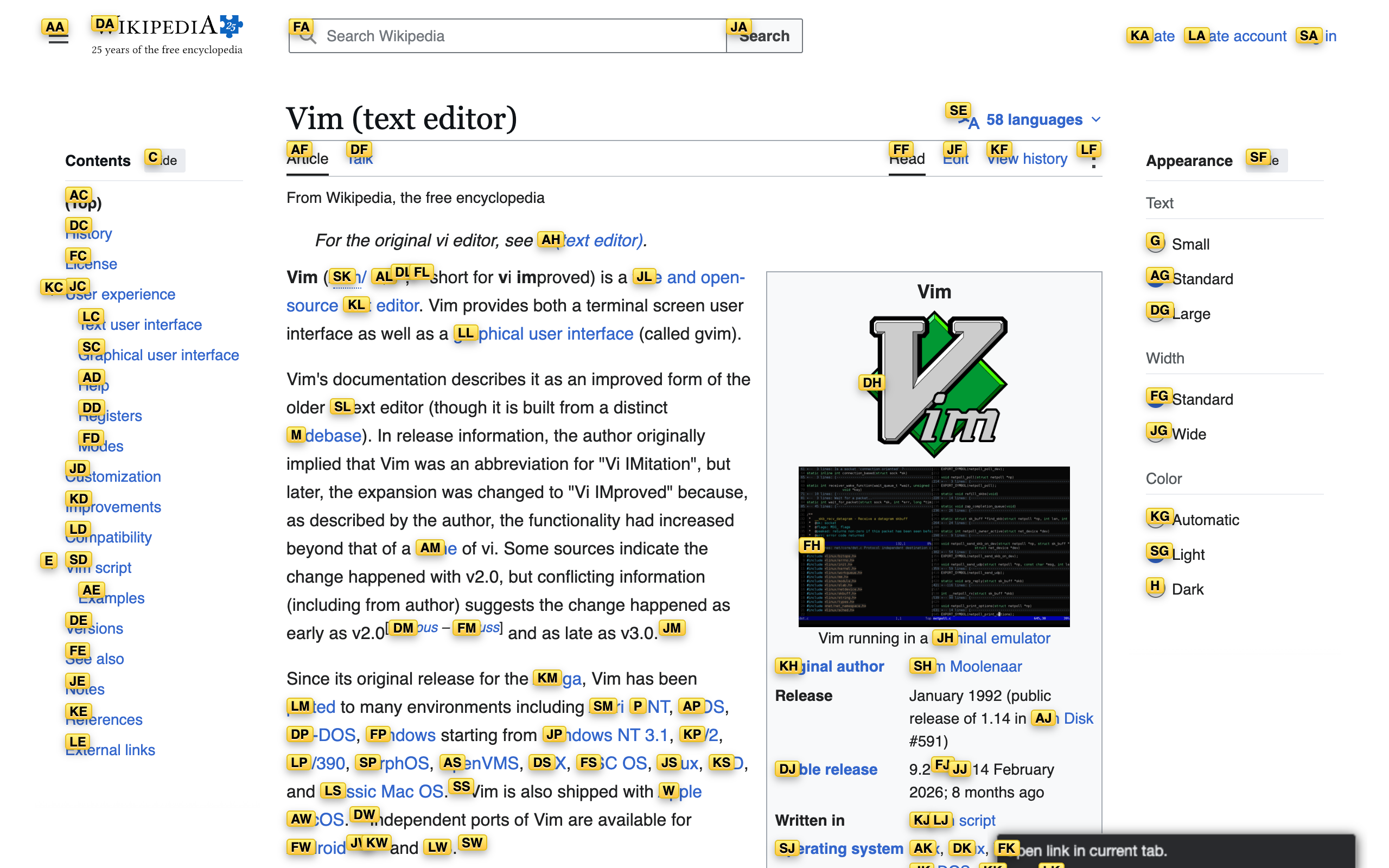
How many keys does that really take? I pressed f on three busy pages and counted the hint labels Vimium generated:
| Page | Clickable targets hinted | 1-letter labels | 2-letter labels | Max keystrokes to click |
|---|---|---|---|---|
| Wikipedia — Vim (text editor) | 103 | 7 | 96 | 3 (f + 2) |
| GitHub — philc/vimium repo | 102 | 7 | 95 | 3 |
| Hacker News front page | 160 | 2 | 158 | 3 |
With 14 hint characters, two letters cover up to 196 targets, so on almost any normal page you are never more than three keystrokes from any link — and your hands never leave home row. On a small test page with four links, every label was a single letter, and typing it navigated immediately (f, f followed the second link in my run).
Variants worth learning on day one:
F— open the link in a new tabyf— copy a link's URL instead of opening itAlt+f— open several links in a row in background tabsgi— jump straight to the first text field on the page
The Default Keymaps, Side by Side
This is where the three extensions quietly diverge. Vimium C keeps almost all of Vimium's bindings; Surfingkeys reuses familiar letters for different actions, which bites anyone who switches.
| Action | Vimium | Vimium C | Surfingkeys |
|---|---|---|---|
| Scroll down / up | j / k | j / k | j / k |
| Half page down / up | d / u | d / u | d / e (also u) |
| Top / bottom of page | gg / G | gg / G | gg / G |
| Link hints (current tab) | f | f | f |
| Link hints (new tab) | F | F | af (active) / gf (background) |
| Copy current URL | yy | yy | yy |
| Copy a link URL via hints | yf | yf | ya |
| Open URL / bookmark / history | o (O new tab) | o (O new tab) | go (t new tab) |
| Search open tabs | T | T | T |
| Back / forward | H / L | H / L | S / D |
| Previous / next tab | J / K (gT / gt) | J / K (gT / gt) | E / R |
| New tab | t | t | on |
| Close / restore tab | x / X | x / X | x / X |
| Find on page | /, then n / N | /, then n / N | /, then n / N |
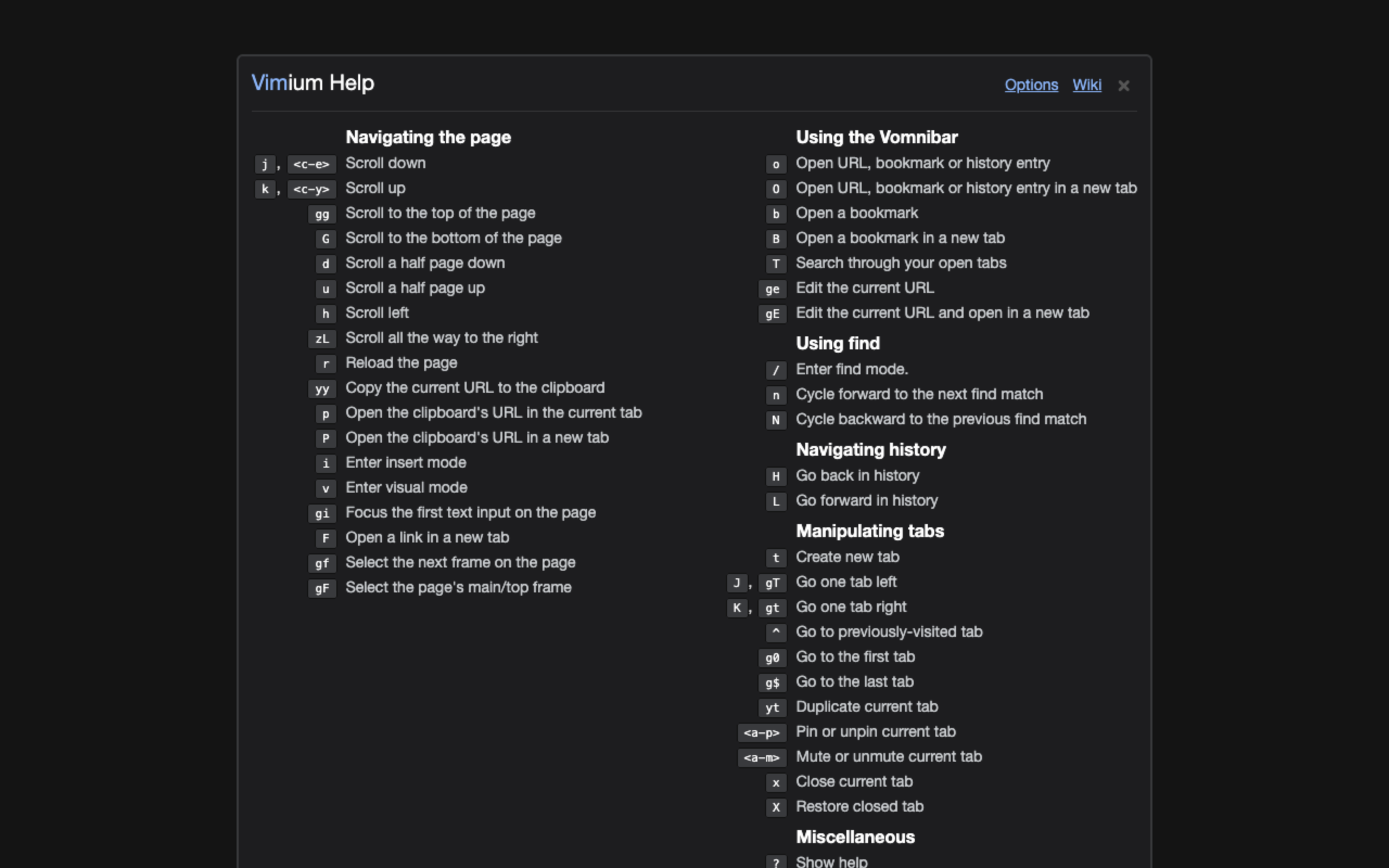
| Show all bindings | ? | ? | ? |
Three traps if you move between them:
Fin Surfingkeys is not "open in new tab". It goes forward in the tab's history. Your Vimium muscle memory opens the wrong thing.yfin Surfingkeys copies form data as JSON, not a link URL. The link-copy command there isya.tin Surfingkeys opens the URL bar, not a blank tab. A new tab ison.
The ? key is the fastest way to learn any of them — it opens an overlay listing every active binding, including your custom ones:
The Vomnibar: A Second Address Bar With Tab Search
Vimium's o opens the Vomnibar, an overlay that searches your history, bookmarks and open tabs at once. T restricts it to open tabs, b to bookmarks. Typing "vim" below pulled matching open tabs and history entries into one list, with each result labelled by source.
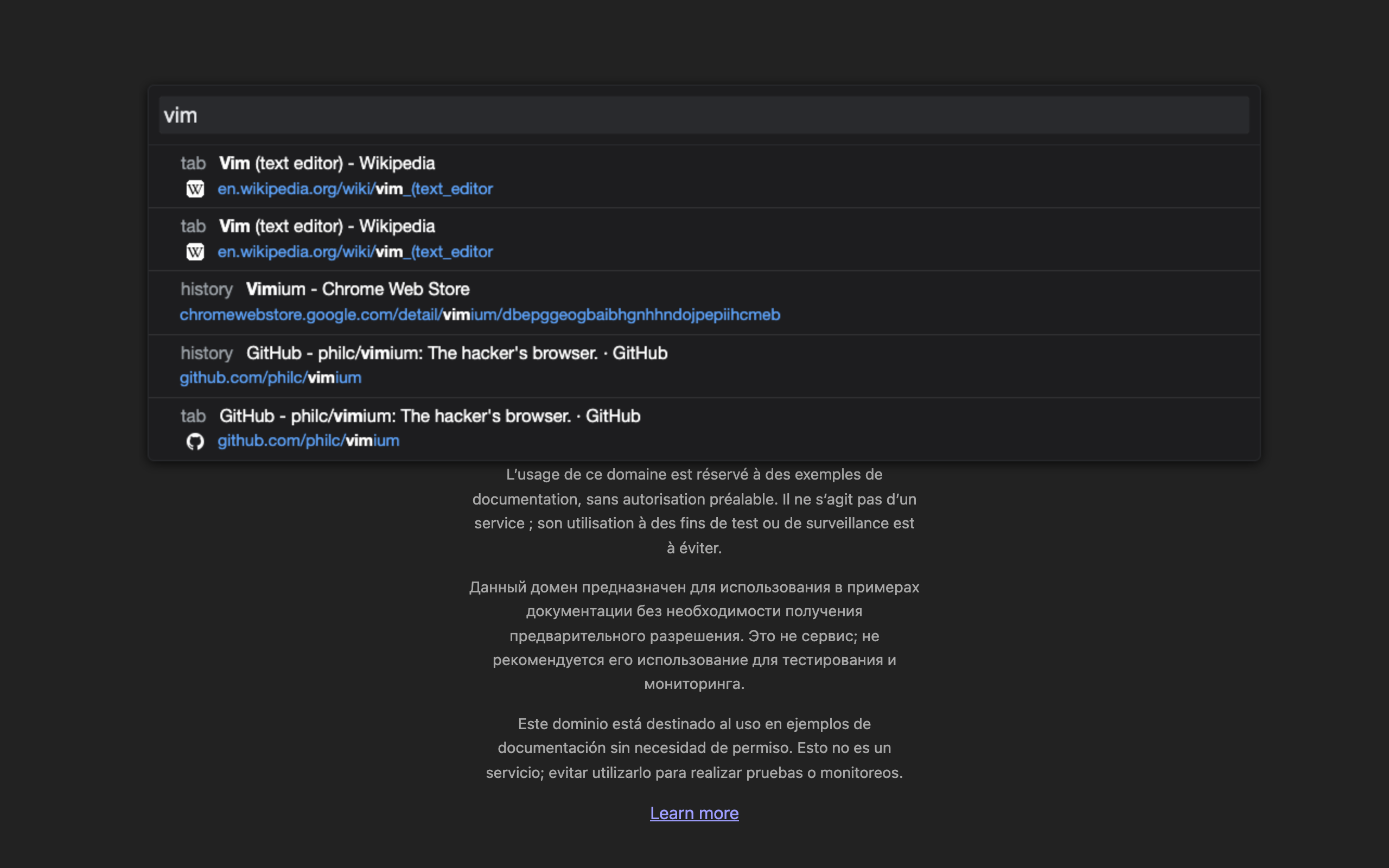
It overlaps with Chrome's own @tabs and @history scopes and with tab search (Ctrl+Shift+A), covered in Chrome keyboard shortcuts for 2026. The difference is that the Vomnibar opens without moving focus to the browser chrome, so your next keystroke still goes to Vimium. Surfingkeys has the equivalent "Omnibar" (t, go, b) plus a : command palette that Vimium lacks.
Where Vim Shortcuts in Chrome Stop Working
Every vim extension runs as a content script, and Chrome refuses to inject content scripts into its own pages. I opened twelve kinds of pages with Vimium enabled, pressed f, and counted the hints:
| Page | Link hints after f | Vim keys work? |
|---|---|---|
| Normal websites (Wikipedia, GitHub, Hacker News) | 102–160 | Yes |
A file:// directory listing | 37 | Yes* |
Chrome Web Store (chromewebstore.google.com) | 0 | No |
chrome://settings, chrome://extensions | 0 | No |
New tab page (chrome://newtab) | 0 | No |
| PDF in Chrome's built-in viewer | 0 | No |
view-source: pages | 0 | No |
about:blank and data: URLs | 0 | No |
*Unpacked test build. A store install needs Allow access to file URLs switched on in the extension's details page.
The new tab page is the gap you notice most, because it is where every session starts. Vimium's workaround is its own blank new tab page (default for the t command, with an option to open the Vomnibar on load); its options page notes that making every new tab work needs a separate Vimium new tab extension. For PDFs, Surfingkeys has the better story: per its README it bundles a pdf.js-based viewer so its keys keep working in PDF files.
This is also why a vim layer never fully replaces native shortcuts. On these pages you fall back to Chrome's own bindings — the Chrome shortcuts cheat sheet (PDF) is the one-page version to keep nearby.
Conflicts With Web Apps — Measured
Vim extensions steal single-letter keys, and many web apps want those same keys. I wrote a test page that logged every keydown the page itself received, then typed with Vimium in normal mode:
jandk(Vimium commands) — never reached the page.z(the first key of Vimium'szi/zozoom commands) — swallowed while Vimium waited for the second key.qandQ(no Vimium binding) — passed through to the page normally.- With a text field focused, typing
jfkput "jfk" in the field — Vimium switches to insert mode automatically.Escdropped focus back to the page so vim keys worked again.
So the rule is simple: any key Vimium binds, the site never sees. That is fine on a blog and painful in Gmail, Google Docs, Notion, Linear or Figma. Vimium's answer is exclusion rules — a URL pattern plus, optionally, only the keys to hand back to the page. It ships with exactly one rule out of the box: disabled on mail.google.com.
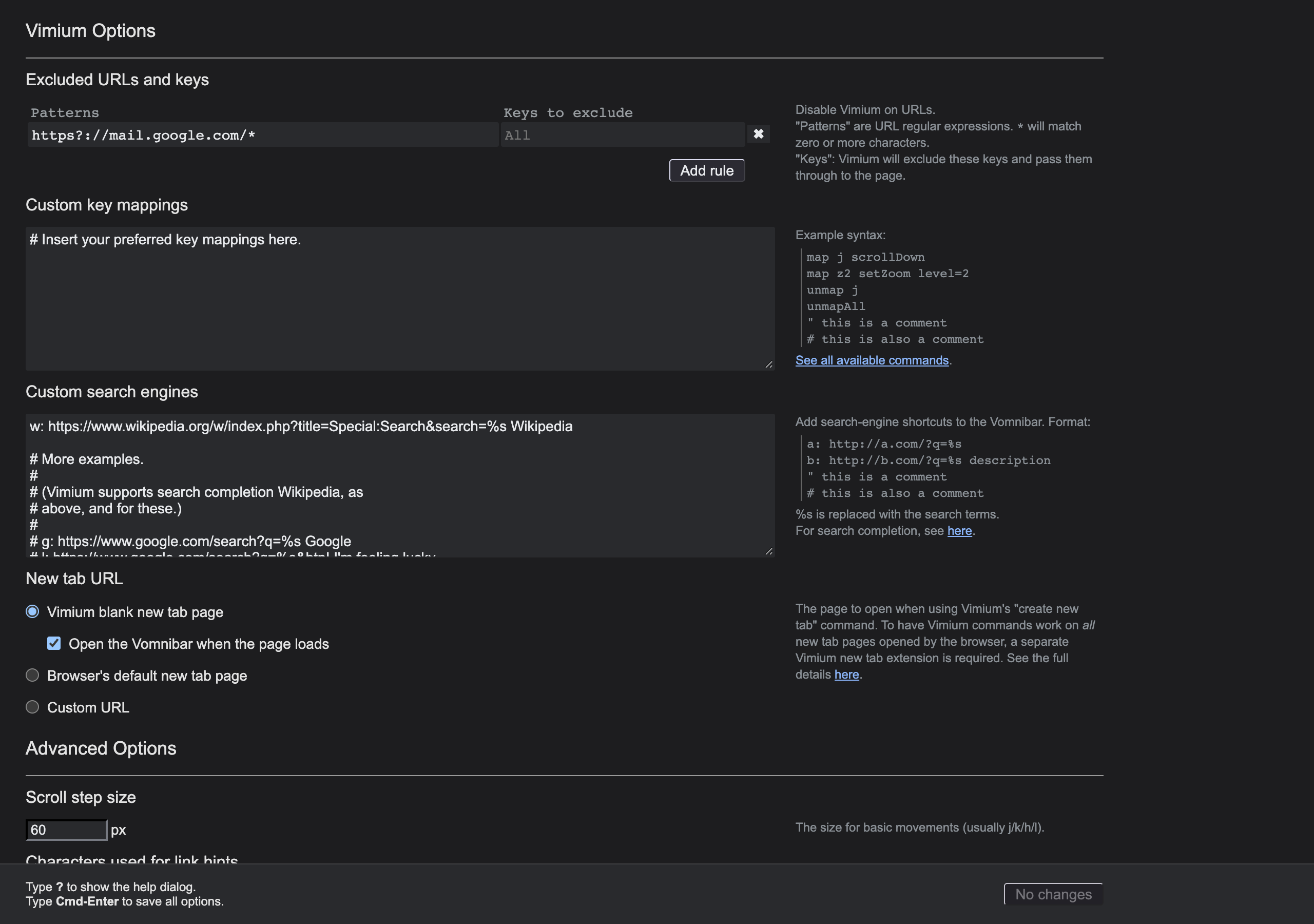
A practical setup: exclude your three most keyboard-heavy web apps entirely, or pass through just the keys they need (for example jk on a site that uses them for its own list navigation). Surfingkeys handles the same problem in its JavaScript config, which is more powerful and more work.
Remapping Keys Without Losing Your Mind
All three let you change bindings, but at different levels:
- Vimium — a plain text box in Options.
map <key> <command>,unmap <key>,unmapAll. The "See all available commands" link lists every command name. - Vimium C — the same syntax, plus a long list of advanced options (hint behaviour, Vomnibar style, per-command options).
- Surfingkeys — a JavaScript file using
api.map,api.mapkeyandapi.unmap, so you can write your own commands, not just move existing ones.
Two habits that save trouble:
- Keep
Escsacred. It is your way out of insert, visual and hint modes in all three. - Don't remap Chrome's own shortcuts into the vim layer.
Cmd+L,Cmd+T,Cmd+Wstill work everywhere, including the pages where vim keys don't. If you're on a Mac, the full native list is in Chrome shortcuts for Mac.
Browser-level hotkeys for other extensions are a separate system entirely, configured at chrome://extensions/shortcuts — see custom keyboard shortcuts in Chrome.
Which One Should You Install?
| If you... | Pick |
|---|---|
| Are new to vim style navigation in Chrome | Vimium — biggest user base, sane defaults, help overlay |
| Already use Vimium and want more options | Vimium C — same keys, more settings (note: last store update April 2025) |
| Want a scriptable config, a command palette, PDF support | Surfingkeys — accept the different keymap |
| Only want to copy URLs and switch tabs by keyboard | No vim extension — native shortcuts plus one single-purpose hotkey |
That last row matters. Vim extensions ask for access to everything you browse. If what you actually miss is one or two actions, a narrow extension is the lower-risk fix. Copying the current URL is the classic example: yy in Vimium does it, but brings the whole all-sites permission set along. Ctrl+Shift+C does only that one job, as a Chrome keyboard command, with clipboard permission only.
Frequently Asked Questions
Can Chrome do vim style navigation without an extension? No. Chrome has no modal mode, no j/k scrolling and no link hints. You need an extension such as Vimium, Vimium C or Surfingkeys, all of which inject a content script into every page.
Which is better, Vimium or Surfingkeys? Vimium if you want the classic keymap and the least setup. Surfingkeys if you want a JavaScript config, a command palette and a vim editor for text fields, and you accept that several keys mean something different from Vimium.
Why does Vimium not work on some pages? Chrome does not let extensions inject scripts into chrome:// pages or the Chrome Web Store. In my Chrome 156 test Vimium showed zero link hints on chrome://settings, chrome://extensions, the new tab page, the Web Store, the built-in PDF viewer, view-source pages and about:blank.
How do I copy the current URL with Vimium? Press yy in normal mode. Vimium, Vimium C and Surfingkeys all use yy for copying the current page URL. In Vimium, yf copies a link URL through link hints.
How do I stop Vimium from breaking keyboard shortcuts on a website? Add an exclusion rule in Vimium Options with a URL pattern and, optionally, only the keys to pass through. Vimium ships with one rule already: it is disabled on Gmail by default.
Is Vimium safe? It is open source and widely used, but it requests access to all websites plus tabs, history, bookmarks and sessions, because it has to draw hints on every page and power its URL bar. Install it from the official store listing only.
Start With f, j, k and yy
You don't need the whole keymap. Install Vimium, learn f, j/k, yy and ? this week, add T and o next week, and exclude the web apps that fight you. That gets you most of what vim style navigation in Chrome offers, and the three-keystroke link click becomes a habit fast. And if all you wanted from yy was the URL, skip the all-sites permissions: install Ctrl+Shift+C, one shortcut, clipboard permission only, zero data collected.
Try Ctrl+Shift+C
Copy any URL with one keyboard shortcut. Free forever, no data collected.